

Continued from: Buffer overflow: Tips Tricks & Traps [part II]

We will follow the same method as in our Part I.
Let's start with the source code of our small demo program as bufferoverflow.c:
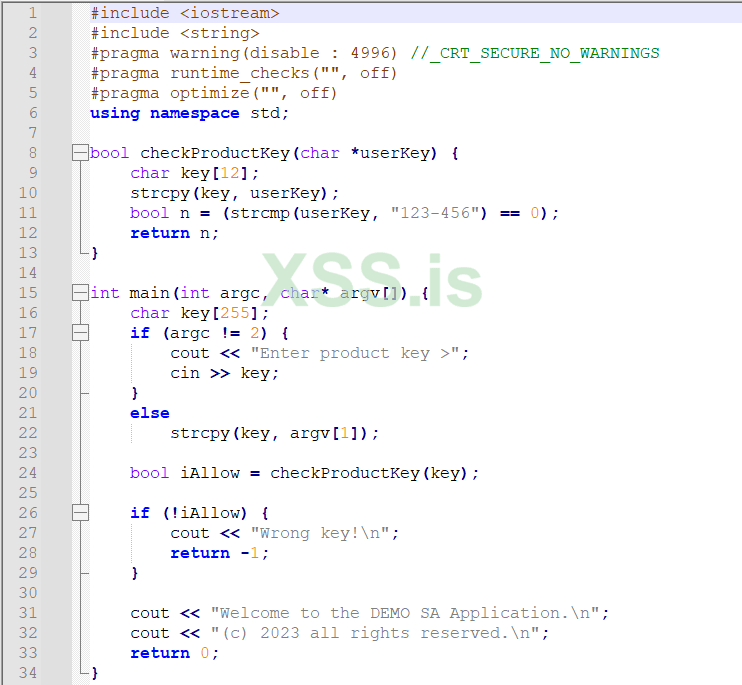
For those who want to copy and test my code, here it is:
This is a very easy self-explanatory program that runs on windows command line (a Powershell or the [old and... unforgettable] DOS command line ).
This is a test run from a Powershell command line:
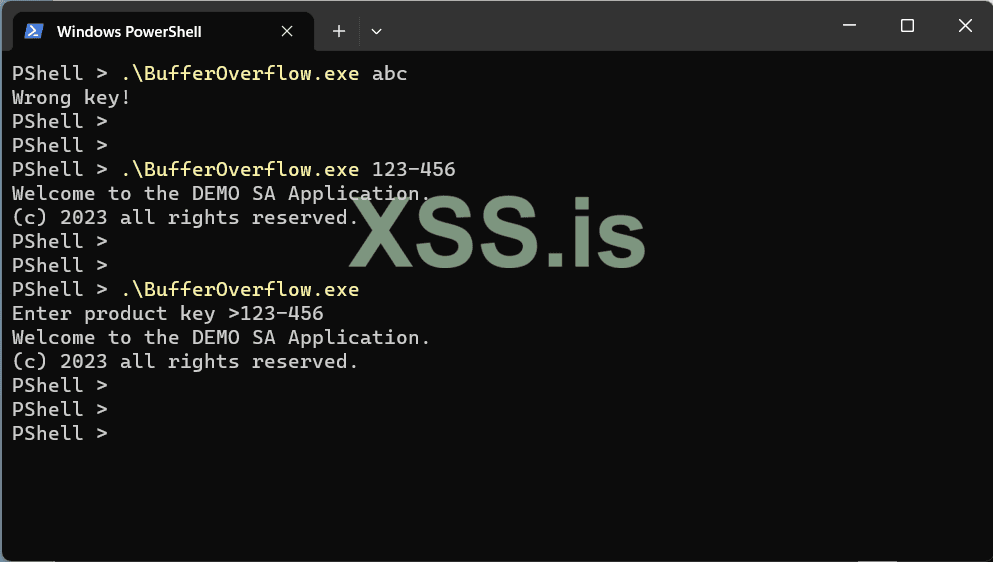
One of the most important points in order to work the bof (buffer overflow) is to choose the correct compiler & linker parameters.
I use a C++ console project in Visual Studio 2022. I change some default parameters as the following images indicate.
Note that some params I have already set them using pragma instructions (in the source code), but for the sake of clarity I will repeat the whole procedure here.
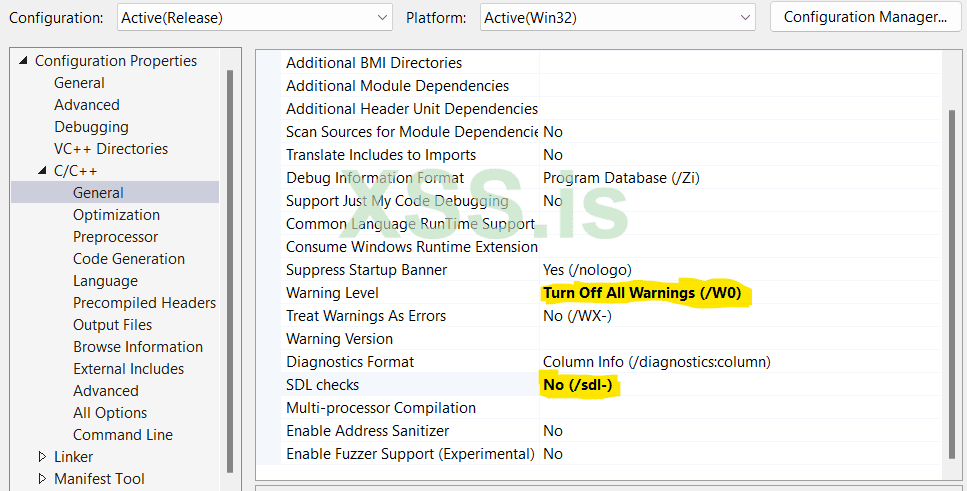
1. Turn off the warning level (not absolutely necessary but useful for this small program to avoid some annoying messages)
2. Disable Security Development Lifecycle checks
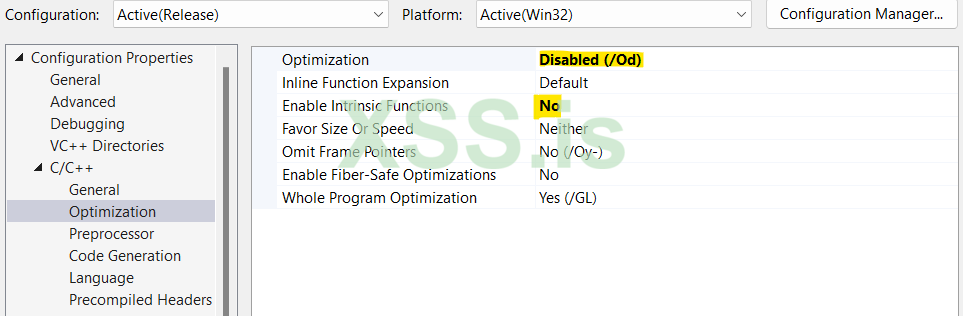
I don't want the optimizer to change anything on my code... (in both cases above)
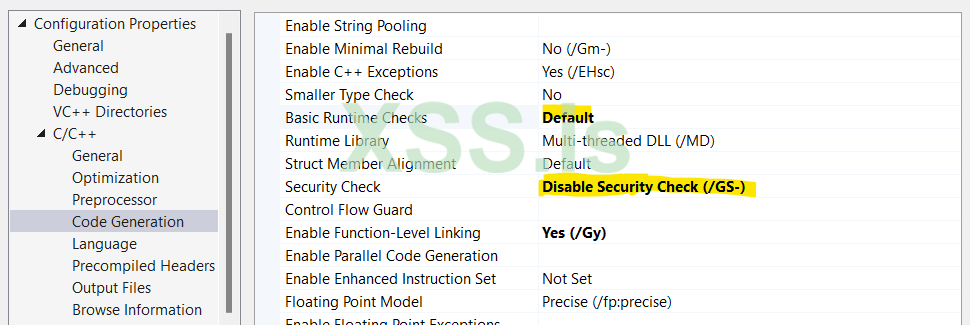
1. Select the runtime checks to default
2. Disable any security checks
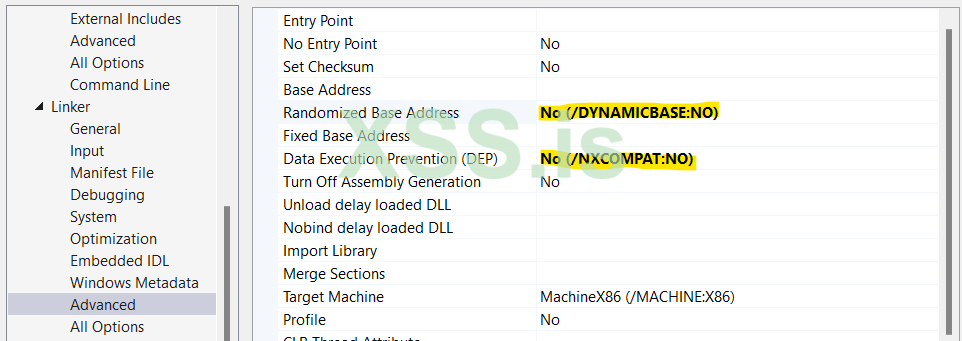
1. Disable ASLR (Address Space Layout Randomization)
2. Disable DEP, to allow me to execute code at Stack memory segment. This is necessary only if I would like to execute a shellcode on the Stack, but not necessary if I perform a bof with and I just overwrite the RET address in order to redirect my program on a different location on the same code (segment) - the same as i did in part I on a Linux box.
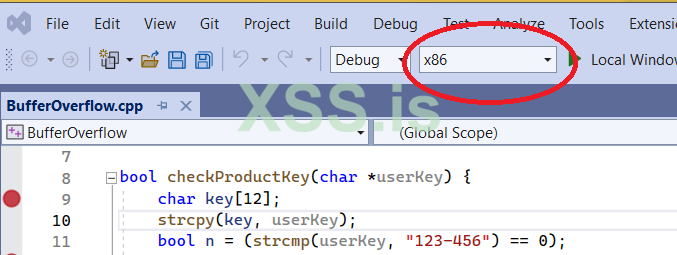
and I will create a program for 32bit architecture (equally important setting in order for the program to work as expected).
To summarize all the options I set to compile my program:
Now it is time to start my tests and check the behavior of the program. I will perform two types of tests:
For my 1st test (the overflow one) I put this command line argument in the debugger:
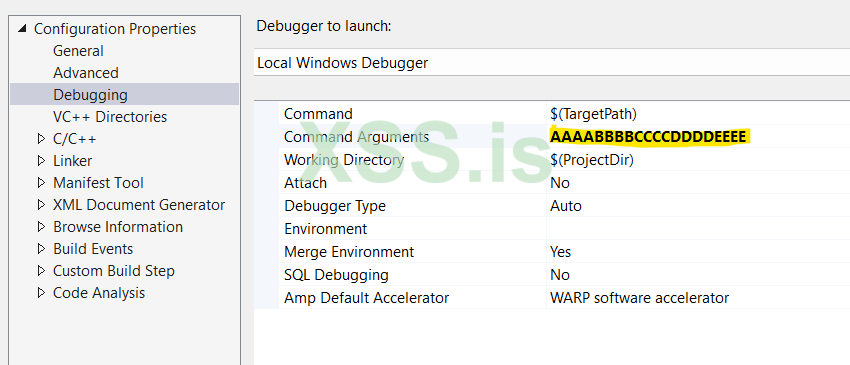
The well-known string (used on bof tests) of a pattern of 4 bytes (the size of a single memory address on 32bit systems): AAAABBBBCCCCDDDDEEEE.
For my second test (the normal one) I just enter this:
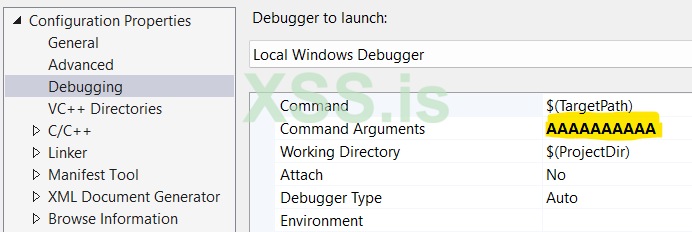
Just 10 "A"s.
Let's see now what happened by study the images below:
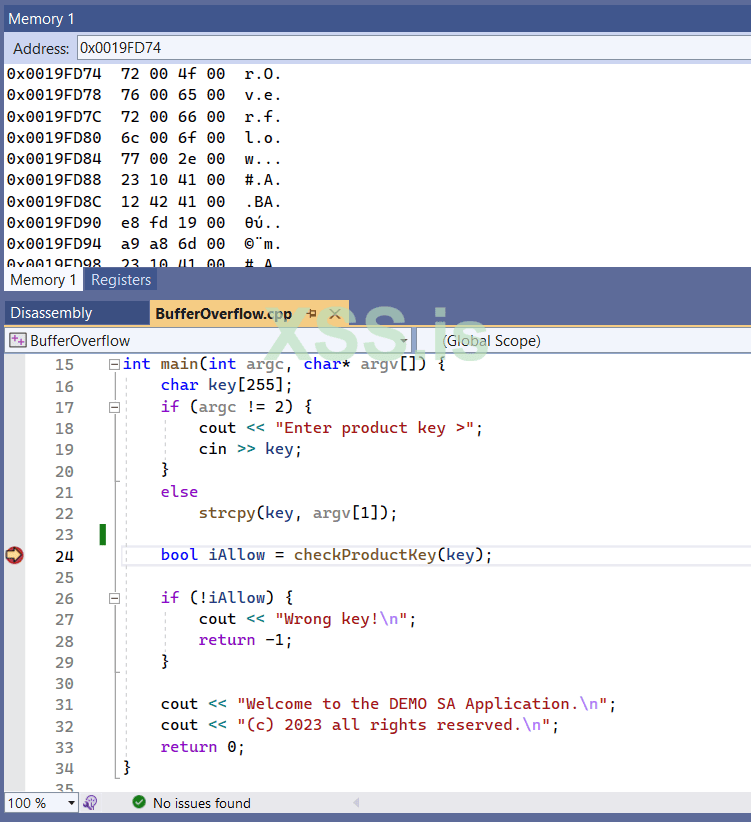
I put a break point on line 24, that is where the function checkProductKey is called.
In addition I have activate three important Windows in order to get as more info as possible.
Important Note: To see and select the selections below the program must be running and stopped on a breakpoint - otherwise these selection are not visible).
While the execution has stopped on the specific breakpoint (at line 24) I select the Disassembly window:
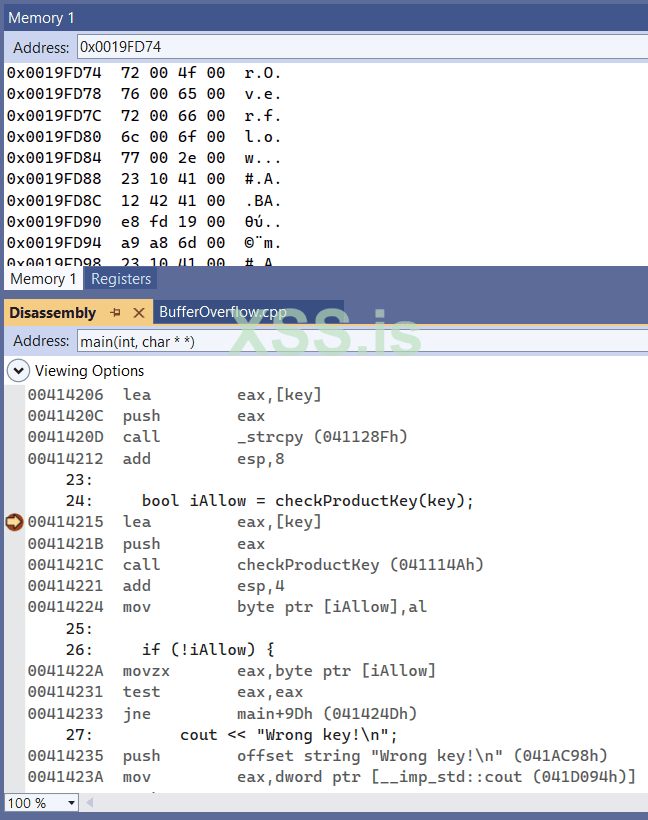
[Main Image]: As we can see the checkProductKey call located at memory address: 0x00414215 (remember: the address are given in hexadecimal format).
Tip: Note the text box on top of disassembly window: Here we can enter to see the disassembly code of the main function, or we can give any other function, such as the checkProductKey.
The same applies to memory window, here I use it to enter memory addresses.
I continue the execution till the last breakpoint, inside the checkProductKey function, at exactly before the function returns back to its caller (at line 12) below:
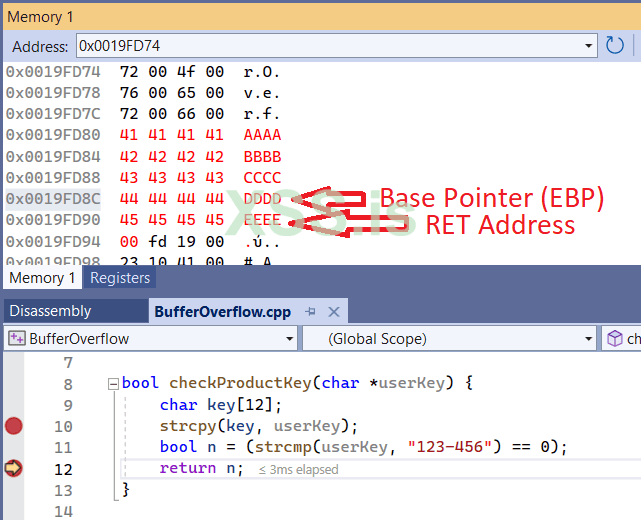
Above, is the classical Stack structure.
If you check the Registers window you will also see that the Base Pointer is in address 0x0019FD8C as I indicate in the image.
Immediately after the Base Pointer is the RET Address. This is our goal.
By continue exectuion I am getting an Access Violation error:
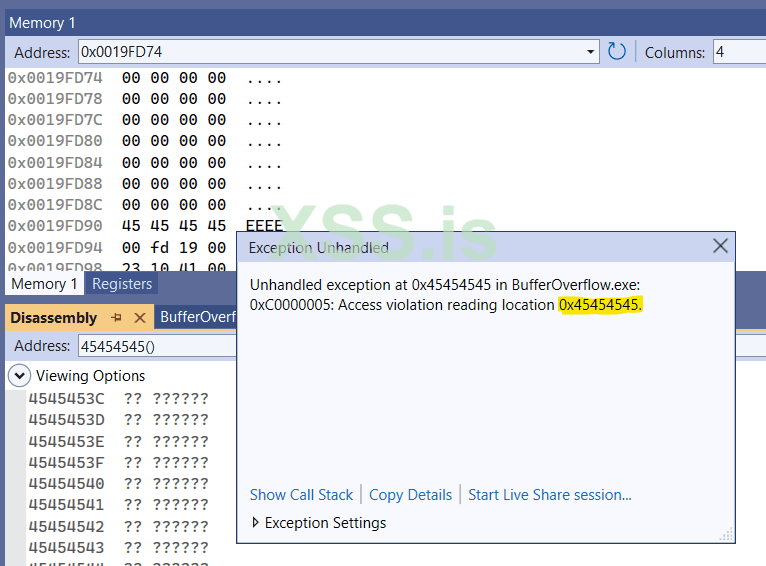
Supposing that you read the Parts I and II, it is now easy to understand why:
When the function checkProductKey finishes, the EIP gets the RET address (that it was full of "E"s - 45 is the hex ascii code of E) and tries to return to this address 0x45.45.45.45. But such address does not exist in our process memory context, hence the error message "Access violation reading location 0x45454545".
For the sake of clarity, let me remind you again some things that we discussed on Part I:
The below is a schematic representation of what we see on the our Stack while the function checkProductKey is executed:
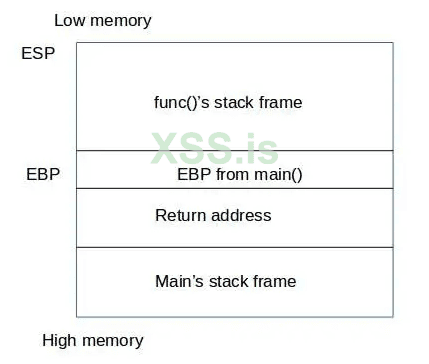
By entering a very large string passed as a parameter our function, we overwrite both EBP and RET address!!
Look now, how the same structure looks when performing our 2nd test: The normal one: "AAAAAAAAAA"
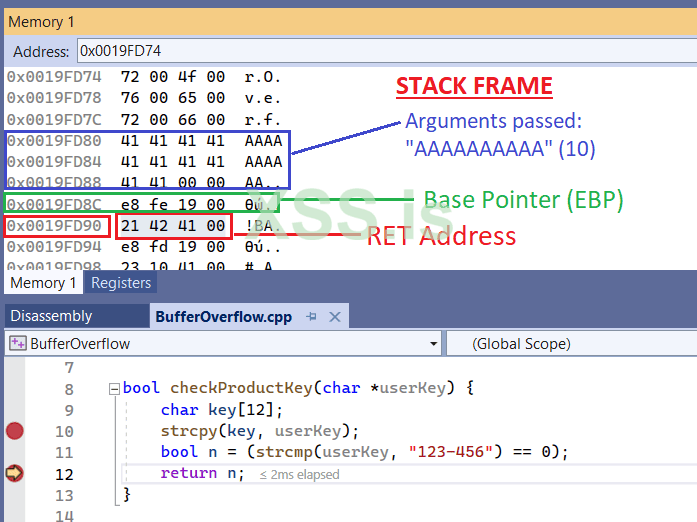
Here, things are more clear: After the function finishes, it will return to its caller address, as RET addres indicates is: 0x00414221 (rembeber we are in little endian here - we are reading from the memory in reverse order).
You can cross-check the [Main Image] to check the exact address (the 0x00414221) that the functionality of our program will go.
This, also means (as we said in our previous two parts already), that the EIP will be 0x00414221.
Or, with other words
EIP = RET Address (at lines 12 & 13 above) and it is one of main things occured on what we call as Function Epilogue.
So far so good: We know the exact string that will be able to overwrite the RET address. That is "AAAABBBBCCCCDDDDEEEE"
Now what we need to do is to replace the EEEE with an existing address to redirect the program to bypass the ProductKey check.
We can find this address by reading the disassembly code. It was located actually a few addresses below (not actually seen) of the [Main Image]. It is where we print the Welcome Messages.
It is actually here:
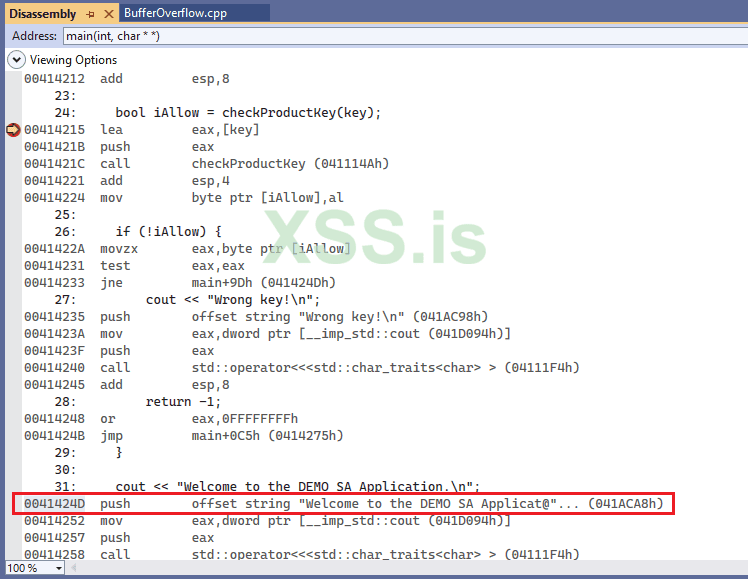
This is the address we are looking for: 0x41424D...
Well, almost!!
As we know, we are in Debug Mode. The actual address of the program when it is executed in Release Mode it is usualy a slight different address...
What we actually need is the address not in Debug Mode but on Release Mode, that it is a more... realistic address.
For this reason we create the final executable in Release Mode:
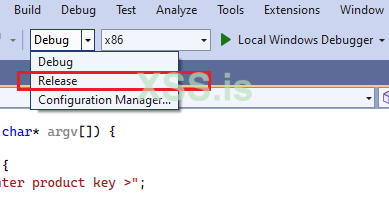
Trap: When you change the program from Debug to Release mode, all compiler & linker parameters are reset to their default values, so you have to reset them by following the settings I did in the first part of this (current) article.
Finally, I produced an executable that is far shorter than the one I had with debug information in it.
But how can we find this address now, supposing that we cannot longer debug the program with VS studio?
Well, for this reason I will use an old tool that is called: Olly Debugger v.1.1. Of course you can use as many other choices as you like, there many of them used for debugging / disassembling an executable, such as x32dbg, IDA etc...
By running the final executable in Olly I can easily located the address of checkProductKey function:
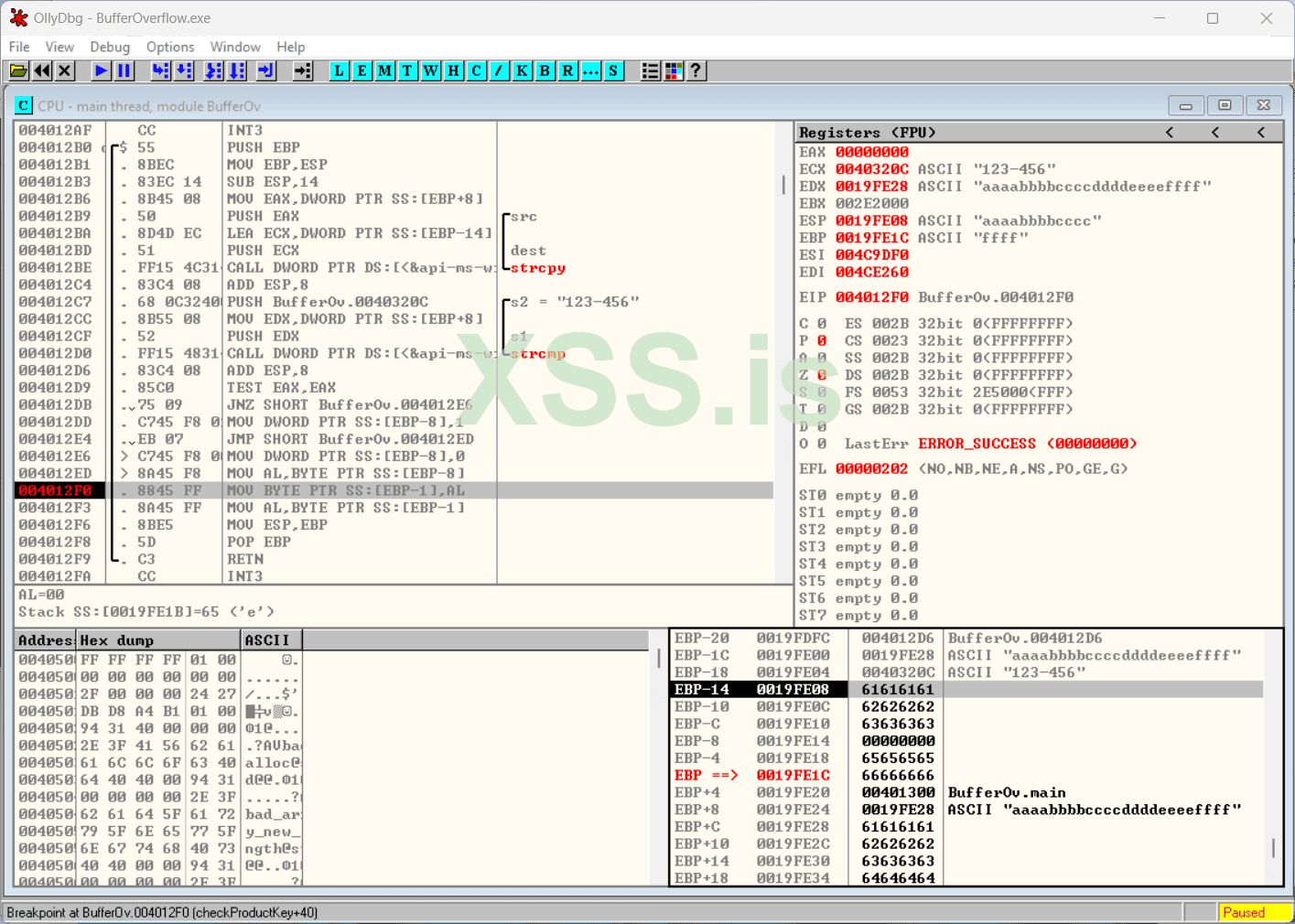
As you can see here, I have recreate the same environment as I had in the Visual Studio debug mode.
As you can also see (in the lower right part - the memory part), the overflow address is a bit... later than in Debug mode. The EBP is filled with 66.66.66.66 (aka "f"s) while entering the string "aaaabbbbccccddddeeeeffff". This means that the RET address is imidiately after the EBP, i.e. here: aaaabbbbccccddddeeeeffffXXXX
The question now is: Where is the address where we print the Welcome Messages?
This is the address we need to put in the place of XXXX above in order to force the program to bypass all ProductKey checks.
Well, it is not so difficult to find it using Olly:
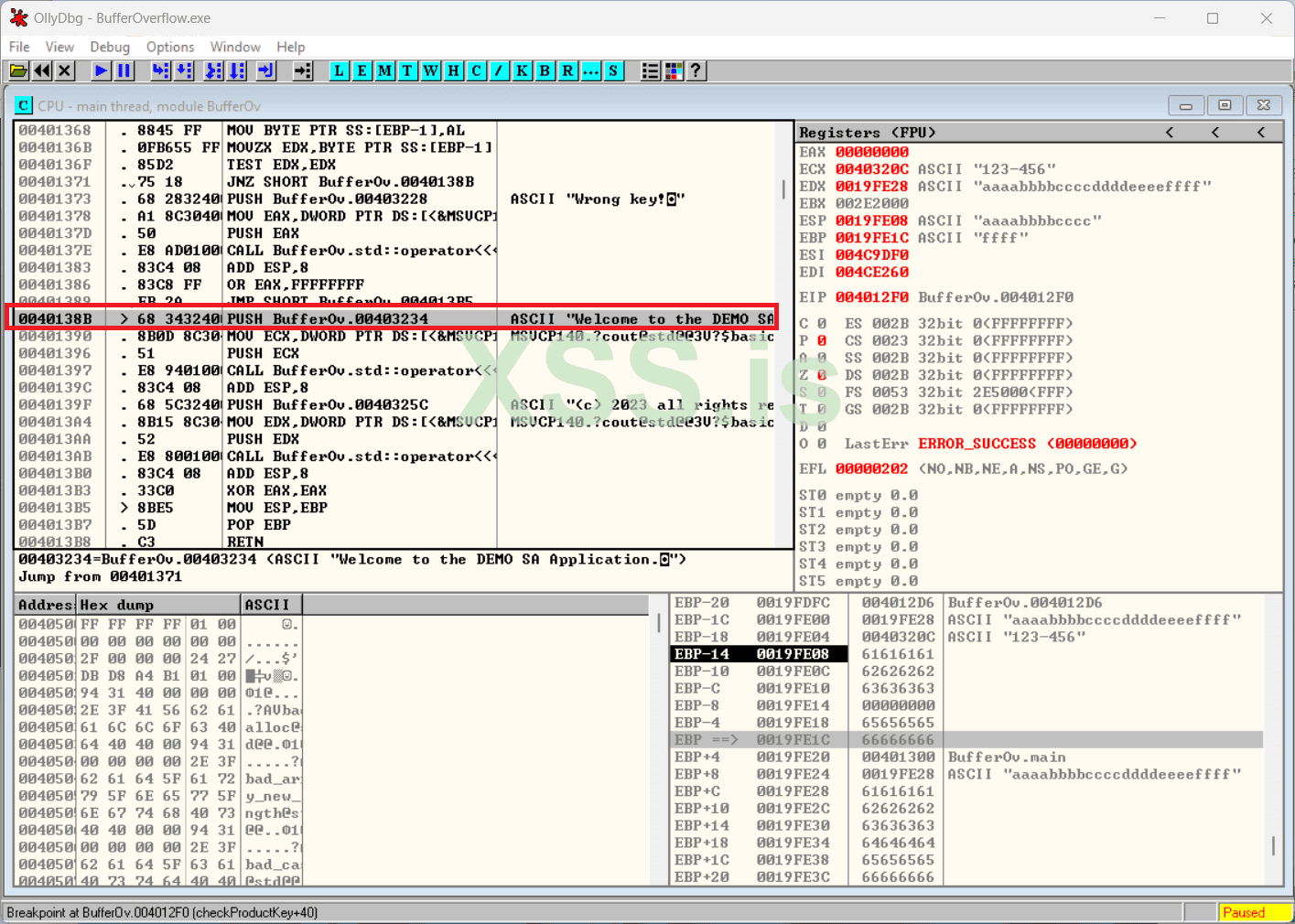
The Magic Number is: 0x0040138B
Now, lets create our exploit in a file using a HEX Editor. This is the easy part:
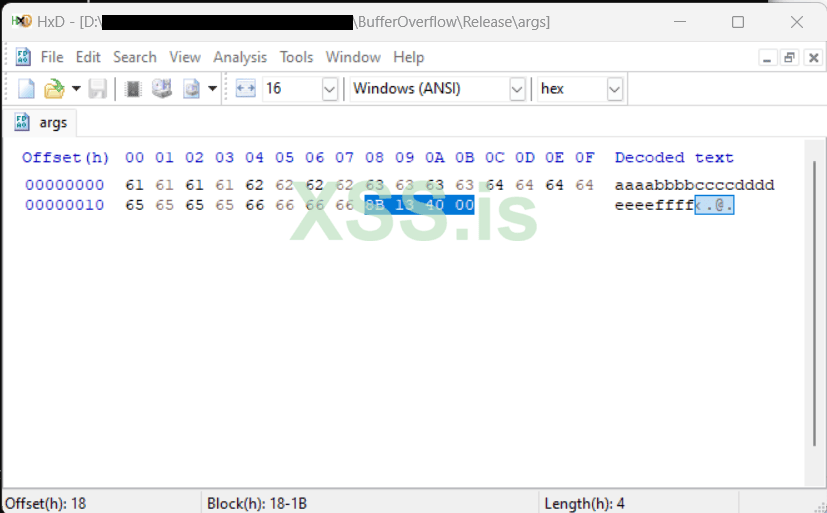
Remeber, we enter the aaaabbbbccccddddeeeeffff8B134000. Remember the address in reverse order by byte: 8B.13.40.00 is the address our goal address: 00.40.13.8B
and I save the file with the name args to the disk.
Well... Lets try it now, to see what we have managed so far:
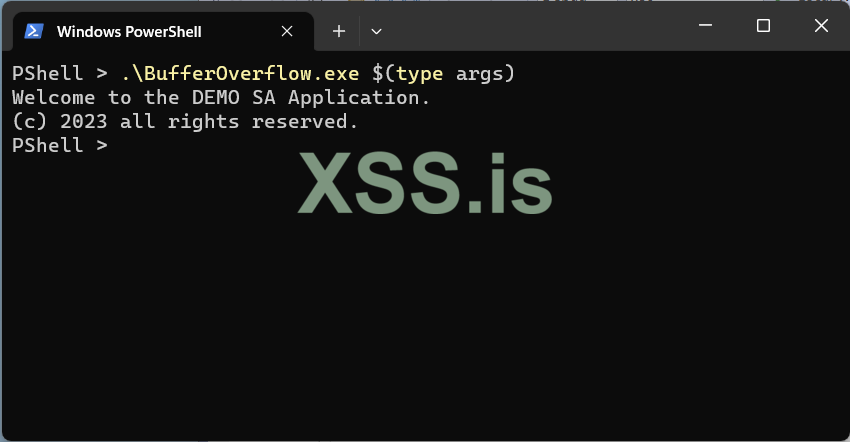
Bingo!! We just perform a successful bypass of the security measures of the program by buffer overflow redirection!
As you can see below, our exploit also works without passing command line arguments by entering the file in the program's prompt by redirection, using my beloved old but undeath, DOS command prompt:
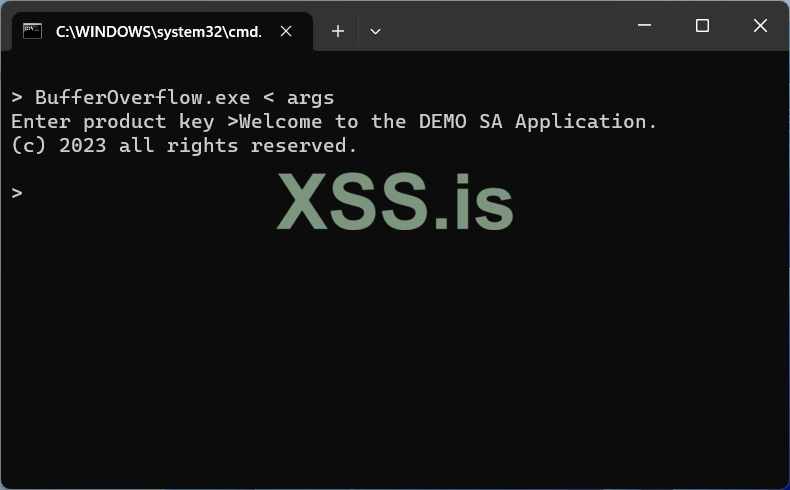
What I would like to show actually, is NOT only how to do the actual bof. I believe that what it counts is not only the destination but the trip itself.
The experience, the tools, the tips, the tricks and the traps you face during the trip, is the actual goal.
And this is not only applies to a buffer overflow elementary article...
Happy Reversing guys, and may the force be with you...
Thanks for reading!
0x1.0x5 The Windows turn...
Now, it's time to try to perform a buffer overflow (with a redirection) in a Windows 11 box. Let's see how easy is to do this thing... We will follow the same method as in our Part I.
Let's start with the source code of our small demo program as bufferoverflow.c:
For those who want to copy and test my code, here it is:
C:
#include <iostream>
#include <string>
#pragma warning(disable : 4996) //_CRT_SECURE_NO_WARNINGS
#pragma runtime_checks("", off)
#pragma optimize("", off)
using namespace std;

bool checkProductKey(char *userKey) {
    char key[12];
    strcpy(key, userKey);
    bool n = (strcmp(userKey, "123-456") == 0);
    return n;
}

int main(int argc, char* argv[]) {
    char key[255];
    if (argc != 2) {
        cout << "Enter product key >";
        cin >> key;
    }
    else
        strcpy(key, argv[1]);

    bool iAllow = checkProductKey(key);

    if (!iAllow) {
        cout << "Wrong key!\n";
        return -1;
    }

    cout << "Welcome to the DEMO SA Application.\n";
    cout << "(c) 2023 all rights reserved.\n";
    return 0;
}
This is a very easy self-explanatory program that runs on windows command line (a Powershell or the [old and... unforgettable] DOS command line ).
This is a test run from a Powershell command line:
One of the most important points in order to work the bof (buffer overflow) is to choose the correct compiler & linker parameters.
I use a C++ console project in Visual Studio 2022. I change some default parameters as the following images indicate.
Note that some params I have already set them using pragma instructions (in the source code), but for the sake of clarity I will repeat the whole procedure here.
1. Turn off the warning level (not absolutely necessary but useful for this small program to avoid some annoying messages)
2. Disable Security Development Lifecycle checks
I don't want the optimizer to change anything on my code... (in both cases above)
1. Select the runtime checks to default
2. Disable any security checks
1. Disable ASLR (Address Space Layout Randomization)
2. Disable DEP, to allow me to execute code at Stack memory segment. This is necessary only if I would like to execute a shellcode on the Stack, but not necessary if I perform a bof with and I just overwrite the RET address in order to redirect my program on a different location on the same code (segment) - the same as i did in part I on a Linux box.
and I will create a program for 32bit architecture (equally important setting in order for the program to work as expected).
To summarize all the options I set to compile my program:
/JMC /permissive- /ifcOutput "Debug\" /GS- /analyze- /W0 /Zc:wchar_t /ZI /Gm- /Od /sdl /Fd"Debug\vc143.pdb" /Zc:inline /fp:precise /D "WIN32" /D "_DEBUG" /D "_CONSOLE" /D "_UNICODE" /D "UNICODE" /errorReport:prompt /WX- /Zc:forScope /Gd /Oy- /MDd /FC /Fa"Debug\" /EHsc /nologo /Fo"Debug\" /Fp"Debug\BufferOverflow.pch" /diagnostics:column Now it is time to start my tests and check the behavior of the program. I will perform two types of tests:
- In my first test I will pass a long string as parameter, longer that what is defined in line 9 (see image above) in key variable.
- In the second test I will pass a short string as parameter, in order to check the normal operation of the program.
For my 1st test (the overflow one) I put this command line argument in the debugger:
The well-known string (used on bof tests) of a pattern of 4 bytes (the size of a single memory address on 32bit systems): AAAABBBBCCCCDDDDEEEE.
For my second test (the normal one) I just enter this:
Just 10 "A"s.
Let's see now what happened by study the images below:
I put a break point on line 24, that is where the function checkProductKey is called.
In addition I have activate three important Windows in order to get as more info as possible.
Important Note: To see and select the selections below the program must be running and stopped on a breakpoint - otherwise these selection are not visible).
- The Disassembly window (by selecting Debug | Windows | Disassebly).
- The Memory window (by selecting Debug | Windows | Memory | Memory 1)
- The Registers windows (by selecting Debug | Windows | Registers)
While the execution has stopped on the specific breakpoint (at line 24) I select the Disassembly window:
[Main Image]: As we can see the checkProductKey call located at memory address: 0x00414215 (remember: the address are given in hexadecimal format).
Tip: Note the text box on top of disassembly window: Here we can enter to see the disassembly code of the main function, or we can give any other function, such as the checkProductKey.
The same applies to memory window, here I use it to enter memory addresses.
I continue the execution till the last breakpoint, inside the checkProductKey function, at exactly before the function returns back to its caller (at line 12) below:
Above, is the classical Stack structure.
If you check the Registers window you will also see that the Base Pointer is in address 0x0019FD8C as I indicate in the image.
Immediately after the Base Pointer is the RET Address. This is our goal.
By continue exectuion I am getting an Access Violation error:
Supposing that you read the Parts I and II, it is now easy to understand why:
When the function checkProductKey finishes, the EIP gets the RET address (that it was full of "E"s - 45 is the hex ascii code of E) and tries to return to this address 0x45.45.45.45. But such address does not exist in our process memory context, hence the error message "Access violation reading location 0x45454545".
For the sake of clarity, let me remind you again some things that we discussed on Part I:
The below is a schematic representation of what we see on the our Stack while the function checkProductKey is executed:
By entering a very large string passed as a parameter our function, we overwrite both EBP and RET address!!
Look now, how the same structure looks when performing our 2nd test: The normal one: "AAAAAAAAAA"
Here, things are more clear: After the function finishes, it will return to its caller address, as RET addres indicates is: 0x00414221 (rembeber we are in little endian here - we are reading from the memory in reverse order).
You can cross-check the [Main Image] to check the exact address (the 0x00414221) that the functionality of our program will go.
This, also means (as we said in our previous two parts already), that the EIP will be 0x00414221.
Or, with other words
EIP = RET Address (at lines 12 & 13 above) and it is one of main things occured on what we call as Function Epilogue.
So far so good: We know the exact string that will be able to overwrite the RET address. That is "AAAABBBBCCCCDDDDEEEE"
Now what we need to do is to replace the EEEE with an existing address to redirect the program to bypass the ProductKey check.
We can find this address by reading the disassembly code. It was located actually a few addresses below (not actually seen) of the [Main Image]. It is where we print the Welcome Messages.
It is actually here:
This is the address we are looking for: 0x41424D...
Well, almost!!
As we know, we are in Debug Mode. The actual address of the program when it is executed in Release Mode it is usualy a slight different address...
What we actually need is the address not in Debug Mode but on Release Mode, that it is a more... realistic address.
For this reason we create the final executable in Release Mode:
Trap: When you change the program from Debug to Release mode, all compiler & linker parameters are reset to their default values, so you have to reset them by following the settings I did in the first part of this (current) article.
Finally, I produced an executable that is far shorter than the one I had with debug information in it.
But how can we find this address now, supposing that we cannot longer debug the program with VS studio?
Well, for this reason I will use an old tool that is called: Olly Debugger v.1.1. Of course you can use as many other choices as you like, there many of them used for debugging / disassembling an executable, such as x32dbg, IDA etc...
By running the final executable in Olly I can easily located the address of checkProductKey function:
As you can see here, I have recreate the same environment as I had in the Visual Studio debug mode.
As you can also see (in the lower right part - the memory part), the overflow address is a bit... later than in Debug mode. The EBP is filled with 66.66.66.66 (aka "f"s) while entering the string "aaaabbbbccccddddeeeeffff". This means that the RET address is imidiately after the EBP, i.e. here: aaaabbbbccccddddeeeeffffXXXX
The question now is: Where is the address where we print the Welcome Messages?
This is the address we need to put in the place of XXXX above in order to force the program to bypass all ProductKey checks.
Well, it is not so difficult to find it using Olly:
The Magic Number is: 0x0040138B
Now, lets create our exploit in a file using a HEX Editor. This is the easy part:
Remeber, we enter the aaaabbbbccccddddeeeeffff8B134000. Remember the address in reverse order by byte: 8B.13.40.00 is the address our goal address: 00.40.13.8B
and I save the file with the name args to the disk.
Well... Lets try it now, to see what we have managed so far:
Bingo!! We just perform a successful bypass of the security measures of the program by buffer overflow redirection!
As you can see below, our exploit also works without passing command line arguments by entering the file in the program's prompt by redirection, using my beloved old but undeath, DOS command prompt:
0x1.0x6 Epilogue
This is the end of my elementary series of articles about how to perform a buffer overflow and test the results and avoid some traps.What I would like to show actually, is NOT only how to do the actual bof. I believe that what it counts is not only the destination but the trip itself.
The experience, the tools, the tips, the tricks and the traps you face during the trip, is the actual goal.
And this is not only applies to a buffer overflow elementary article...
Happy Reversing guys, and may the force be with you...
Thanks for reading!