• XSS.stack #1 – первый литературный журнал от юзеров форума

CRONOS Conversion requests from Cronos to Excel

herrmannelig

(L3) cache
Пользователь
Регистрация
22.09.2019
Сообщения
168
Реакции
79
Dear fellows,
After thinking about a practical solution for emEditor users and Excel users in this forum regarding Cronos conversions, I would like to suggest this thread in order to help Cronos non-users, "like me", to convert DBs and Dumps to Excel , SQL, Json, txt or any other extension. I think that many (non-Russian speaking) members like me don't get the software and find it hard to use it.

I will start with the first conversion request: from Cronos to anyone of these extensions: Excel, SQL, Json, txt. I hope that you like the idea. Here is the link: https://anonfiles.com/hcb47eNco0/FR_B2C_93K_cpy
 
how to we do it on Emeditor or Excel. so confusing with this :

Unloaded to text. Encoding "Cyrillic Windows 1251". TAB field separator.

maybe some noob tutorials here! Thanks in advance! And that's a great idea.
 
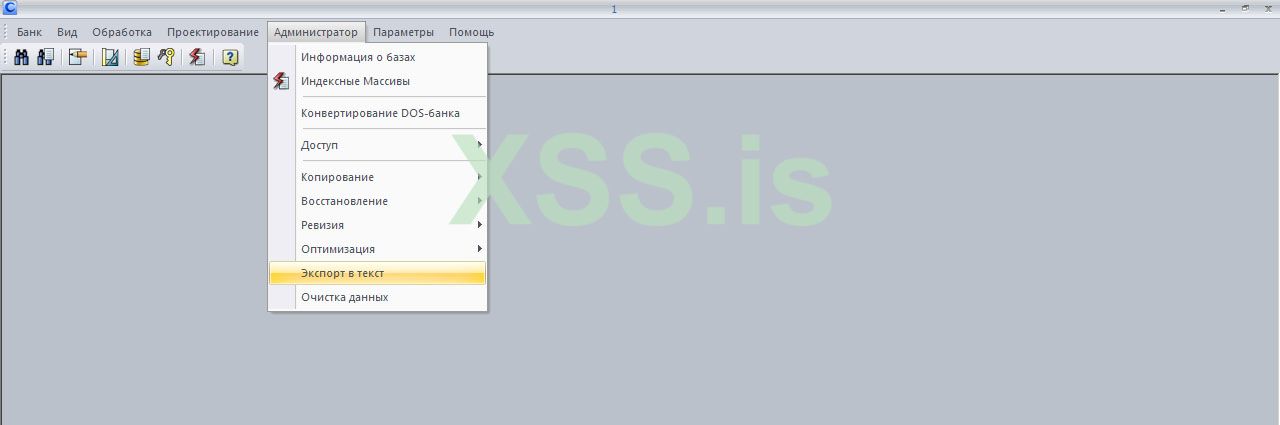
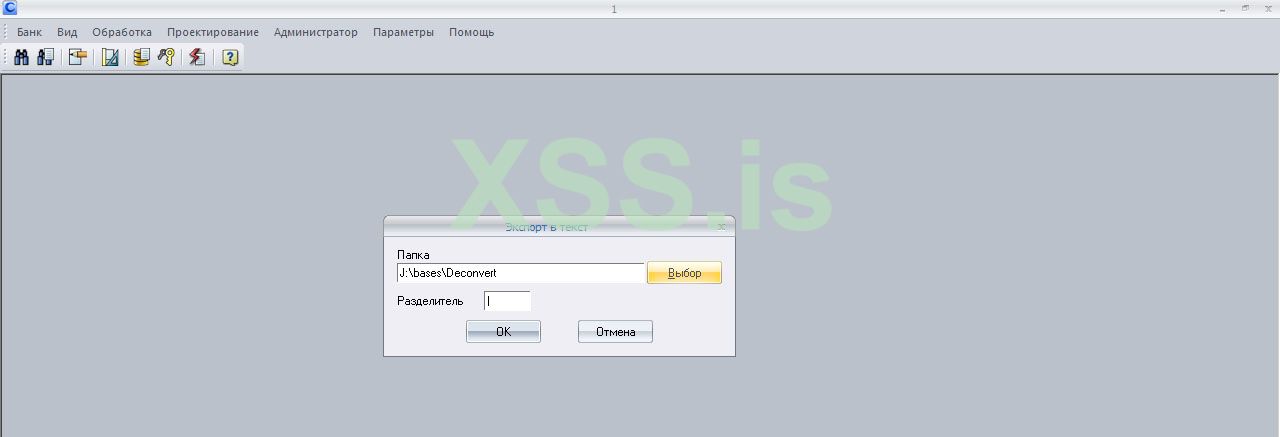
The procedure is as follows: Add the bank to Cronos and connect it or restore the bank if it is in the format of one file with the .cpy extension (how to do this, there are many instructions on the net and video tutorials on YouTube). To export the bank to text format, do what is shown on the screenshots, select "Administrator" " Администратор ", "Export to text" " Экспорт в текст " . In the window that opens, in the upper line, specify the path to the folder into which the text file will be exported, in the lower line, select which separator the fields in the text file will be separated by, you can select the symbols |,:,; , or whatever is convenient for you and click "Ok". Further in emEditor you can change the field separator and encoding in the text file.
Порядок действий такой: Добавляем банк в Cronos и подключаем его или востановляем банк если он в формате одного файла с расширением .cpy ( как это делать, есть много инструкций в сети и видеоуроков в ютюбе ). Для экспорта банка в текстовый формат делаем то что на скринах, выбираем " Администратор " , " Экспорт в текст ". В открывшемся окне в верхней строке указываем путь к папке в которую будет експортирован текстовый файл, в нижнем строке выбираем каким разделителем будут разделены поля в текстовом файле, можно выбрать символы |, : , ; , или другие какие Вам удобно и нажмите " Ok ". Далее в emEditor можно изменить разделитель полей и кодировку в текстовом файле.
1.jpg
2.jpg
 
Последнее редактирование:


Напишите ответ...
  • Вставить:
Прикрепить файлы
Верх