
- Цена
- -
- Контакты
- -
Windows Forensics
The windows registry:
Hives: Hives are the registry directories and contain the keys
Keys : Keys can contain another keys and values
Subkeys : Subkeys are Children of keys
Values : Values are the data stored in the keys
- Copy and paste, clong , imaging and disk cloning by image
Copy and Paste
Disk images and disk clones are different than just copying and pasting the entire contents of one hard drive to another. When you copy and paste files from one drive to another you're copying only the actual files and not the additional data the hard drive uses to locate and access those files. Things like the master boot record and the file allocation table are not copied to the new hard drive when you copy and paste. A copy and paste backup drive won't boot.
Disk Cloning
Disk cloning is the process of copying the entire contents of one hard drive to another including all the information that enables you to boot to the operating system from the drive. A cloning program enables you to make a one-to-one copy of one of your computer's hard drives on another hard drive. This second copy of the hard drive is fully operational and can be swapped with the computer's existing hard drive. If you boot to the cloned drive, its data will be identical to the source drive at the time it was created. A cloned drive can be used to replace its source drive in a computer in the event that something bad happens to the original drive.
Disk Imaging
Disk imaging is the process of making an archival or backup copy of the entire contents of a hard drive. A disk image is a storage file that contains all the data stored on the source hard drive and the necessary information to boot to the operating system. However, the disk image needs to be applied to the hard drive to work. You can't restore a hard drive by placing the disk image files on it; it needs to be opened and installed on the drive with an imaging program. Unlike cloned drives, a single hard drive can store several disk images on it. Disk images can also be stored on optical media and flash drives.
Disk Cloning by Image
When you apply a disk image to a hard drive, you're creating a copy of the original contents of the drive. Disk images are usually used for restoring a hard drive's previous contents or transferring contents to a new hard drive. However, you can use a disk image to create a copy of the source hard drive on a second hard drive, making it a clone of the original drive. - Active, Archival, and Latent Data
- Active Data is the information that we can actually see. This includes data files, programs, and files used by the operating system. This is the easiest type of data to obtain.
- Archival Data is data that has been backed up and stored. This could mean backup tapes, CDs, floppies, or entire hard drives.
- Latent Data is the information that one typically needs specialized tools to access. An example of latent data would be information that has been deleted or partially overwritten.
C:\\Windows\\System32\\Config
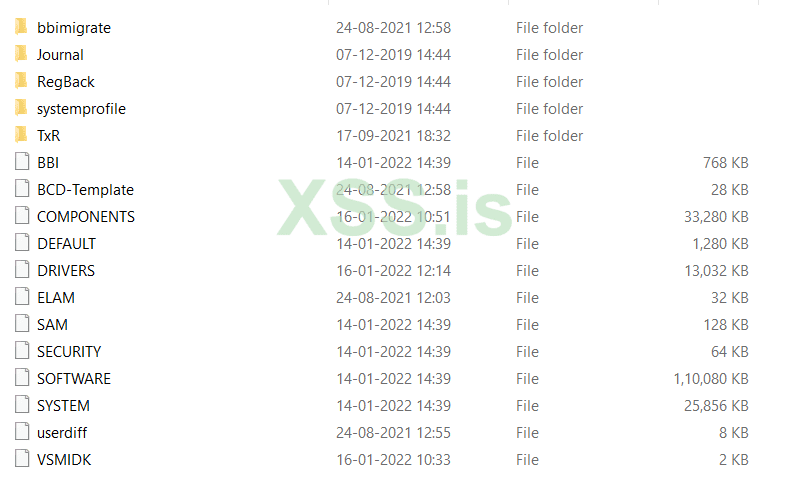
- The RegBack folder keeps the backup of the registry files.
- Windows backs up the registry to the RegBack folder when the computer restarts, and creates a RegIdleBackup task to manage subsequent backups. Windows stores the task information in the Scheduled Task Library, in the Microsoft\Windows\Registry folder
- If the registry backup files are not found in regback, then we need to renable it by :
In Regedit browse to : HKLM\\System\\CurrentControlSet\\Control\\Session Manager\\Configuration Manager\\
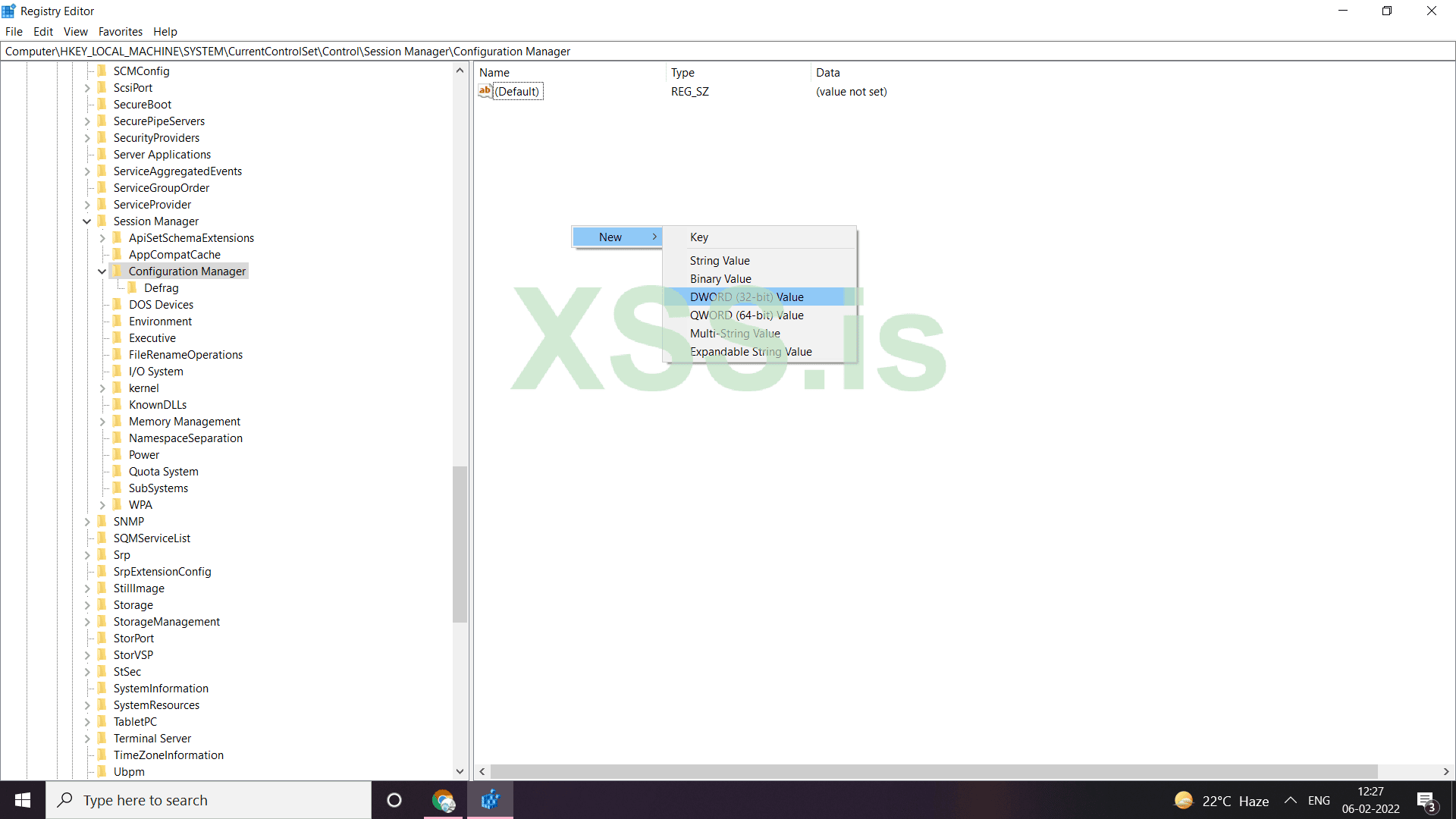
Now rename the new value as EnablePeriodicBackup and then modify its value as 1
f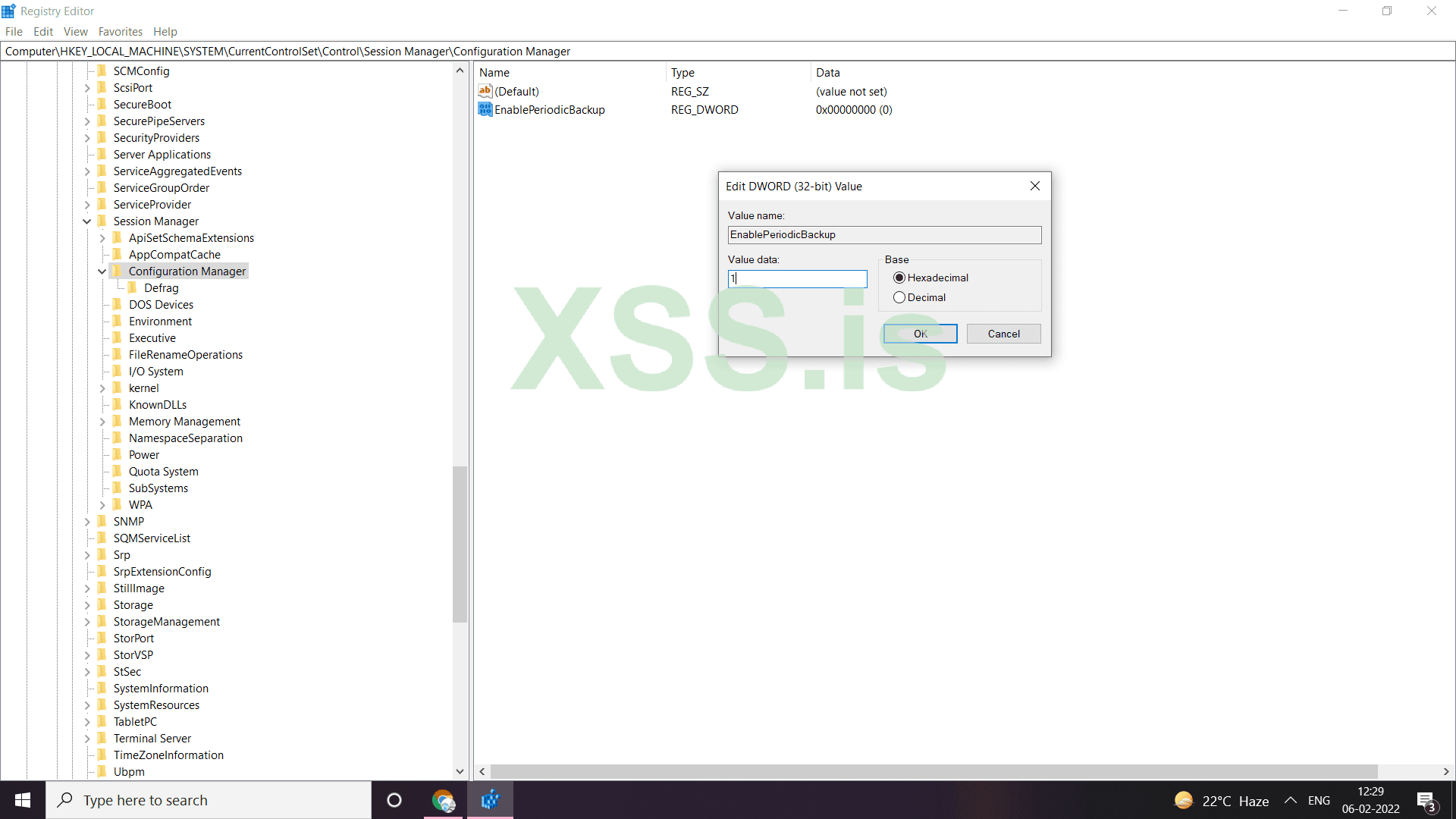
- Every user has empty NTUSER.NAT file which is hidden in GUI interface. But we can view using cmd using the command dir/ah
- NTUSER.DAT plugs into the registry as HKCU (HKEY_CURRENT_USER)
- The hardware folder is not stored locally on the system. It is generated dynamically on the booting up of the system and the drivers loaded
- Comdlg32 or Common Dialogue 32
It contains:- CID Size MRU : It tracks applications globally, has an MRU order and has key last access date
- FirstFolder
- LastVisitedPidMRU and —> Stores binaries that has been used to open and save files in an open state
The last visited application can be read from here.
- OpenSavePidMRU —> Contains the files themshelves, that are actually the path of the file themshelves that were opened or saved there. We can see the deleted files info here also.
The order is specified in the MRUList key ebcda, means calc.exe (e) was run recently
- The StartMenuInit registry
The StartMenuInit registry value stores the major version of the shell that the user has seen most recently. The possible values are:
0: The user has never run the shell (Explorer.exe).
1: Internet Explorer 4 shell
2: Windows XP shell
3: Windows Vista shell
4: Windows 7 shell
It's only used internally to decide whether Explorer.exe must do some start menu "advertising" of the new features in case the user hasn't seen the most recent shell version yet (ie, initialize pinned lists, OEM destination lists, etc.) - Recent documents that have been accessed
HKEY_CURRENT_USER\\SOFTWARE\\Microsoft\\Windows\\CurrentVersion\\Explorer\\RecentDocs
- RunMRU
Computer\\HKEY_CURRENT_USER\\SOFTWARE\\Microsoft\\Windows\\CurrentVersion\\Explorer\\RunMRU
All programs lunched from run are stored in the RunMRU key. This artifact can be useful to understand what was executed recently on the device and detect any suspicious apps execution
- The MRU List
It shows the order in which the applications were most recently run
- Typed paths
Contains all the paths typed by the user from windows explorer
- User assist
Shows the evidence of application execution like when a program was excuted and how many times it was executed
- Count
The count in user assist has a bunch of things by it looks gibrish as it is encoded in rot-13 alogorithm. Its useful as it says show many times and when a GUI program was launched in the system
- RUN
The programs in RUN are the ones that run when the computer restarts or starts in background. This is present both in HKCU (specifically for user) and HKLM (For local machine).
HKEY_LOCAL_MACHINE\\SOFTWARE\\Microsoft\\Windows\\CurrentVersion\\Run
HKEY_CURRENT_USER\\SOFTWARE\\Microsoft\\Windows\\CurrentVersion\\Run
- RUNOnce
Runs only once on startup and then the key gets deleted - Shellbag
Shellbags stores the entries of the directories accessed by the user, user preferences such as window size, icon size. Shellbags explorer parses the shellbags entries shows the absolute path of the directory accessed, creation time, file system, child bags. The tool classifies the folders accessed according to the location of the folder. Shellbags are created for compressed files (ZIP files), command prompt, search window, renaming, moving, and deleting a folder.
The ShellBag information comprises two main registry keys, BagMRU and Bags. The BagMRU key stores folder names and records folder paths by creating the similar tree structure. The Bags key stores the view preferences such as the window size, location and view mode. The BagMRU key itself represents the Desktop.